
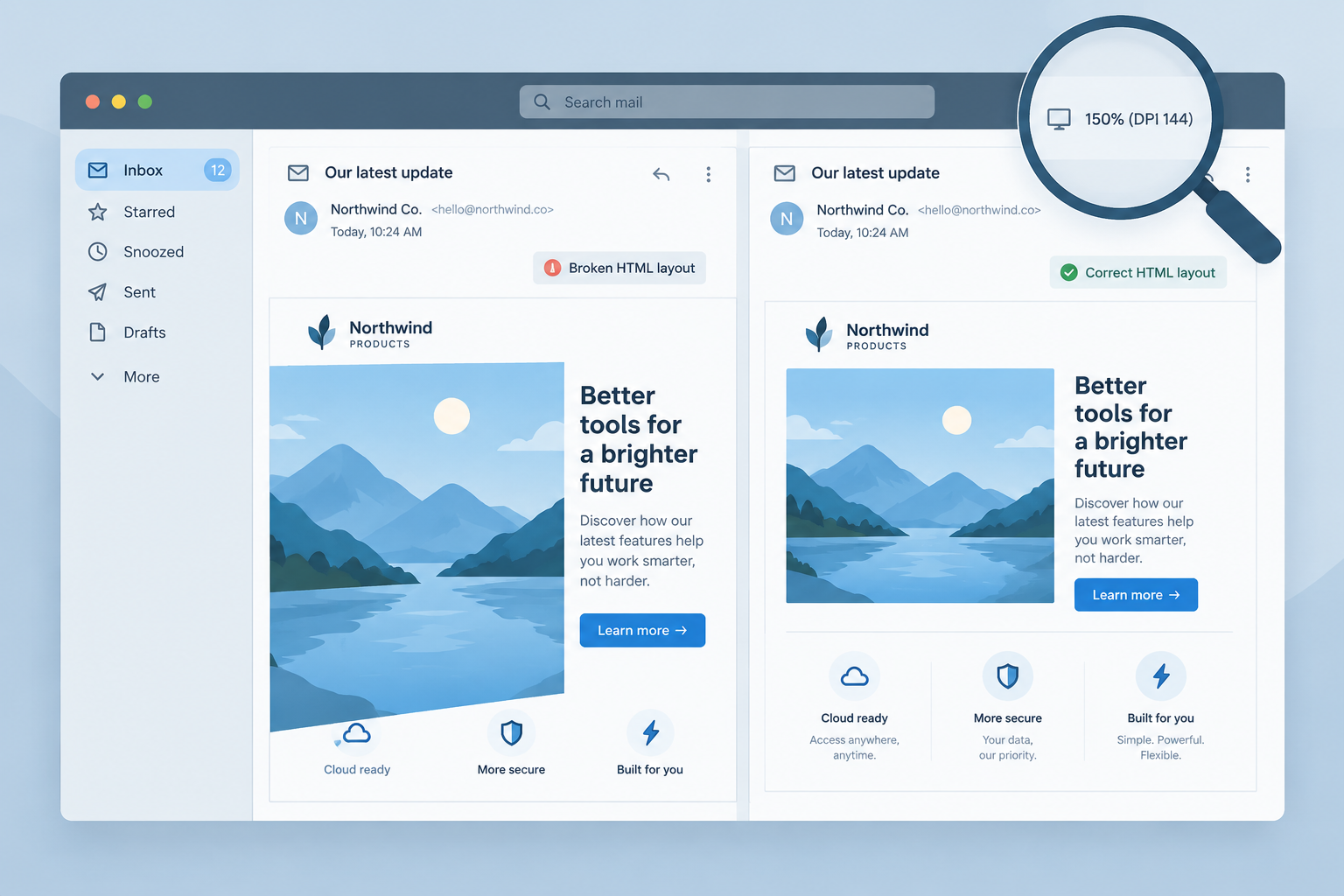
Emails break at non-standard DPI settings in classic Outlook for Windows, meaning every desktop version that renders with Microsoft Word, from Outlook 2007 through the classic Outlook app in Microsoft 365. As of November 2026 the fix is code you can add yourself: an Outlook-only <o:PixelsPerInch>96</o:PixelsPerInch> block in the email’s head, plus pixel widths written both as HTML attributes and as inline styles. The new Outlook for Windows uses a browser-based engine, so it largely avoids the problem. What changed since this post first appeared is that Outlook 2007 left support in 2017, and high-resolution laptops now often default to 125% or 150% scaling, so far more readers see the bug than in the Outlook 2007 days.
The Outlook 2007 DPI bug as first reported
The team at Bronto found yet another flaw in the always-problematic Outlook 2007. They tested emails on several office computers running Outlook 2007, and two machines kept showing glaring inconsistencies. Each of those two broke emails in its own way.
That email service provider was later bought by NetSuite and became part of Oracle. Oracle shut the platform down on May 31, 2022, so the original write-up is now history too.
What caused it
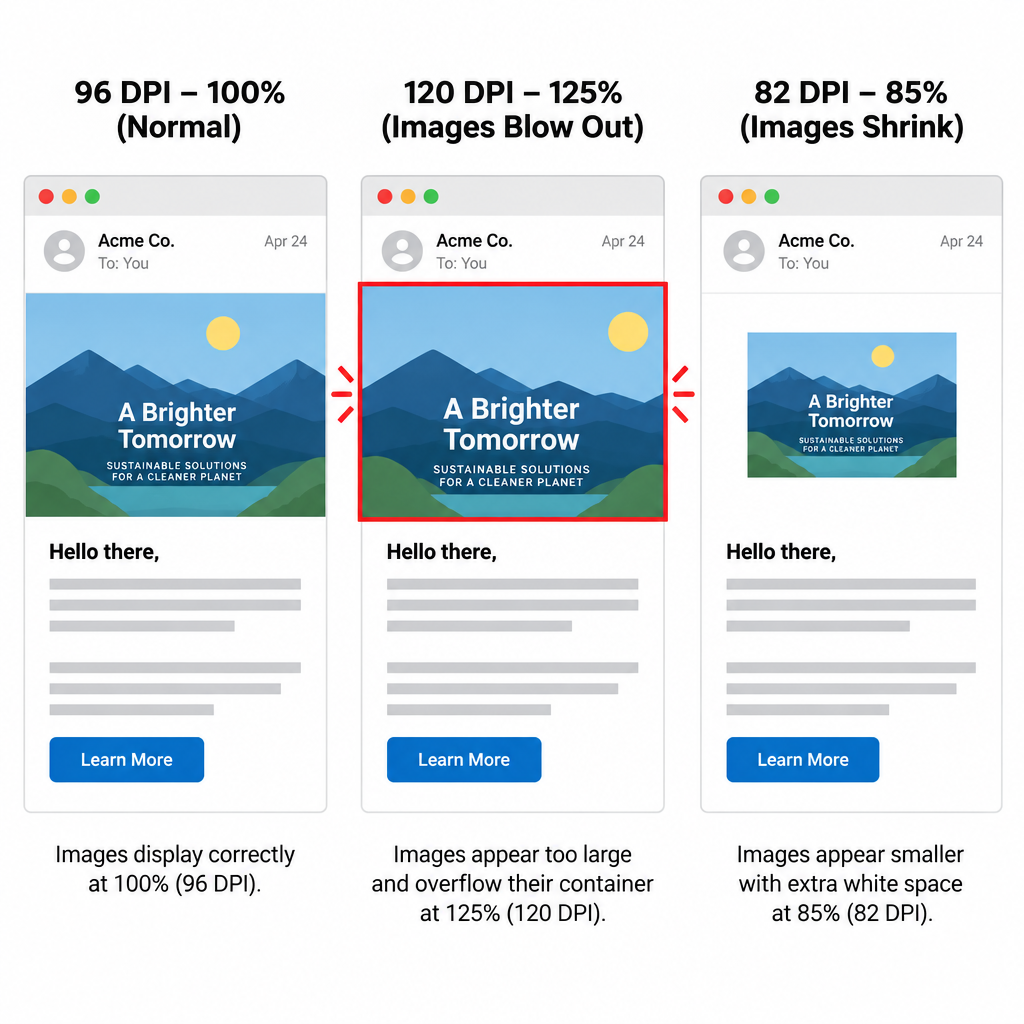
The cause was DPI (dots per inch). The two problem computers had different DPI settings from the rest. At the time, the Windows default was 96 DPI. One machine was set to 120 DPI, the “large” setting, which equals 125% scaling. The other used a custom setting of 82 DPI.
The two settings failed in opposite directions:
| Windows setting | Scaling | What happened in Outlook 2007 |
|---|---|---|
| 96 DPI (default then) | 100% | Email rendered as designed |
| 120 DPI (“large”) | 125% | Images blew out and broke the layout |
| 82 DPI (custom) | About 85% | Images shrank, causing other rendering flaws |
Which email clients were affected
Of the desktop clients tested at the time, only Outlook 2007 broke emails at anything other than 96 DPI. Thunderbird did not. It later turned out that Word was the real cause, not anything specific to 2007. Outlook 2007 was the first version to render HTML email with Microsoft Word’s engine. Outlook 2010, 2013, 2016, 2019, 2021 and classic Outlook in Microsoft 365 all use the same engine, and all of them can scale emails with the Windows display setting.
Word treats the pixel values in HTML width and height attributes differently from the rest of the code. At 120 DPI, content Outlook does scale shows at 125% of its 96 DPI size, while some fixed dimensions stay put. That mismatch is why images overflow their table cells.
Why it was so frustrating
The discovery was hard to accept: however carefully a team tested its emails, some messages could still arrive broken in some subscribers’ inboxes. Back then, the only remedy anyone could see was to raise awareness through the Email Standards Project and hope that enough noise from the community would make Microsoft listen.
That was the plan in the late 2000s. Campaign Monitor launched the project in November 2007. It ran acid tests modeled on the Web Standards Project’s browser tests and published reports on how clients such as Gmail, Lotus Notes 8 and Outlook 2007 handled web standards. A later Fix Outlook campaign pushed Microsoft to drop Word as its rendering engine. Microsoft did not change the Windows desktop client. By 2014, Campaign Monitor admitted that for most email client developers, rendering was still a very low priority. The project has been inactive for years. In the end, email developers fixed the problem in code rather than waiting for Microsoft.
How to fix DPI scaling in Outlook today
Add an Outlook-only settings block to the head of your email, then give every table, cell and image a pixel size in two places. This combination is the standard fix in email developer guides from Email on Acid and others, and most professional email templates already include it.
- Declare the Microsoft Office and VML namespaces on the
<html>tag. - Add the conditional
OfficeDocumentSettingsblock inside<head>. It tells Word-based Outlook to work at 96 pixels per inch instead of following the Windows scaling. - Set widths and heights on images and fixed-width tables both as HTML attributes and as inline CSS in
px. - Use percentage widths on fluid outer tables where you can. They scale without extra treatment.
- Test at 120 DPI (125%) and 144 DPI (150%) before you send.
The head code looks like this:
<html xmlns="http://www.w3.org/1999/xhtml"
 xmlns:v="urn:schemas-microsoft-com:vml"
 xmlns:o="urn:schemas-microsoft-com:office:office">
<head>
<!, [if gte mso 9]>
<xml>
 <o:OfficeDocumentSettings>
 <o:AllowPNG/>
 <o:PixelsPerInch>96</o:PixelsPerInch>
 </o:OfficeDocumentSettings>
</xml>
<![endif], >
</head>
And an image coded so its size holds at any DPI:
<img src="https://example.com/hero.png" width="600" height="300"
 style="display:block; width:600px; height:300px; border:0;"
 alt="Spring sale: 20% off all plans">
The <o:AllowPNG/> line is optional. It makes sure Outlook handles PNG images, including transparency, properly.
Edge cases the fix does not cover
The head block solves most image blowouts, but not all of them. Some developers on Adobe’s Marketo community report that images still look wrong at 125% if they rely on background images or VML shapes without set dimensions. Other common culprits are tables with no inline width, and padding that Outlook adds to tables. Some teams add mso-padding-alt:0px and mso-cellspacing:0px to stubborn tables. Signature images, which users paste in by hand, are another frequent problem. Email signature vendors such as MySignature advise saving the image file itself at 96 DPI.
How to test at different DPI settings
The cheapest test is on a Windows PC with classic Outlook. Go to Settings > System > Display > Scale, choose 125% or 150%, sign out and back in if Windows asks, then open your test send. Rendering preview services such as Email on Acid also offer Outlook previews at 120 DPI, which lets you check without changing your own screen.
Where Outlook rendering stands in 2026
Classic Outlook still renders with Word, and Microsoft has committed to support it until at least 2029. The new Outlook for Windows renders with a browser-based engine (WebView2, built on Chromium), so the DPI quirk mostly disappears there. Older standalone versions have lost support. Outlook 2007 left support on October 10, 2017. Office 2016 and Office 2019 followed on October 14, 2025, and Office LTSC 2021 on October 13, 2026. Many business users still run these versions anyway, so plan to code for both engines for several more years.
Rendering is only half the job. Since February 2024, Gmail and Yahoo have required bulk senders to use SPF, DKIM and DMARC, offer one-click unsubscribe and keep spam complaint rates under 0.3%. Since May 5, 2025, Microsoft has required SPF, DKIM and DMARC from domains that send more than 5,000 messages a day to Outlook.com, Hotmail.com and Live.com addresses. A perfectly coded email still fails if it lands in junk.
FAQ
What DPI does Outlook use for emails?
Classic Outlook for Windows follows the Windows display scaling unless your email tells it otherwise. At 100% scaling that is 96 DPI. At 125% it is 120 DPI, and at 150% it is 144 DPI. Adding <o:PixelsPerInch>96</o:PixelsPerInch> in an Outlook conditional block makes Word-based Outlook treat your email as 96 DPI.
Why are my email images huge in Outlook but fine in Gmail?
The reader is almost certainly using classic Outlook on a PC with scaling above 100%. Word’s engine enlarges some elements and not others, so images overflow their cells. Gmail, Apple Mail and the new Outlook render with browser engines and do not show the problem.
Does the new Outlook for Windows have the DPI scaling problem?
Mostly not. The new Outlook uses a browser-based engine instead of Word, so it handles scaling the way a web browser does. Keep the fix in your templates anyway, because many recipients still use classic Outlook.
Is the PixelsPerInch fix still needed in 2026?
Yes. Classic Outlook in Microsoft 365 still uses the Word engine, Microsoft supports it until at least 2029, and modern laptops often default to 125% or 150% scaling. The block costs a few lines of code, and other email clients ignore it.
Do I need to change my image files to 96 DPI?
For campaign emails, the HTML and inline CSS sizes matter more than the DPI saved in the file. For signature images pasted straight into Outlook, saving the file at 96 DPI helps, and signature vendors recommend it. Either way, always set an explicit width and height in your code.
Sources
- Microsoft Support: End of support for Office 2016 and Office 2019
- Microsoft Tech Community, Outlook Blog: New Outlook for Windows, a guide to product availability
- Microsoft Tech Community, Outlook Blog: Strengthening email ecosystem, Outlook’s new requirements for high-volume senders
- Google Workspace Admin Help: Email sender guidelines
- Yahoo Sender Hub: Sender best practices and requirements
- Email on Acid: DPI scaling in Outlook 2007-2013
- Federal Trade Commission: CAN-SPAM Act, a compliance guide for business