
In November 2026, solid HTML email is still built the same basic way: nested tables with fixed widths, inline styles, images that carry width, height and alt text, and a background color behind every background image. What has changed is the set of email clients you’re coding for. Gmail now reads style blocks in the head but clips messages whose HTML runs past about 102KB. Classic Outlook for Windows still renders with Microsoft Word, while the new Outlook uses a browser engine. And most messages are now read on phones, often in dark mode. Since February 2024, Gmail has also required bulk senders to set up SPF, DKIM and DMARC and to offer one-click unsubscribe on marketing and subscribed messages, while Yahoo asks bulk senders for SPF, DKIM, a DMARC policy of at least p=none and one-click unsubscribe on promotional mail, so your template has to work with those rules too.
Below are the rules worth following every time you code an email. Some take longer than others, but each one pays for itself once testing starts.
Email clients are a lot like web browsers: each one is fussy about how it reads and displays code, and email clients are fussier than browsers. Your code has to follow their rules, because the client decides what the reader sees.
Tools
Build layouts with HTML tables and inline styles, and write the code by hand in a plain code editor. Avoid tools that generate code for you.
The original version of this advice warned against Adobe Dreamweaver because its visual editor adds extra code, and that extra code breaks in many email clients once testing begins. The warning still applies to any drag-and-drop tool that exports bloated markup. If you don’t already know HTML, learn the basics and practice coding by hand. A plain code editor works well. Visual Studio Code and Sublime Text are common choices today, and TextMate, the editor this advice first suggested, is still an option on macOS.
Two things have changed since this was written. First, CSS is no longer off-limits. Gmail’s developer documentation now says Gmail supports style blocks in the head, most CSS selectors and media queries based on screen width. Tables still do the structural work, though, because classic Outlook for Windows ignores much of modern CSS layout. Second, preview services such as Litmus and Email on Acid now show how one message looks across dozens of clients, so you no longer need a drawer full of test accounts.
Structure
Give every table and table cell a fixed width, make the cells in each row add up to the table’s total width, and nest tables inside tables instead of using colspan and rowspan.
Declare widths on every table and cell
Make it a rule to declare a width for every table and table cell. Leave widths out and your message will display strangely in some clients. Outlook 2007 was the classic offender when this advice was written, because that version moved Outlook’s HTML rendering over to the Microsoft Word engine. That engine still runs classic Outlook for Windows today, and Microsoft has said it will support classic Outlook until at least 2029, so the rule still stands.
You don’t need a height attribute on every row. These days it’s better to leave heights off and let the content set them, because fixed heights can crop text when a phone or a reader’s settings make the type bigger. Do check that the cells in each row add up to the full width of the table.
<table role="presentation" width="600" cellpadding="0" cellspacing="0" border="0" style="width:600px;">
 <tr>
 <td width="200" valign="top" style="width:200px;">Left column</td>
 <td width="400" valign="top" style="width:400px;">Right column</td>
 </tr>
</table>
The role="presentation" attribute is a newer habit worth picking up. It tells screen readers that the table is there for layout, not data, so they don’t read out rows and columns.
Nest tables instead of using colspan and rowspan
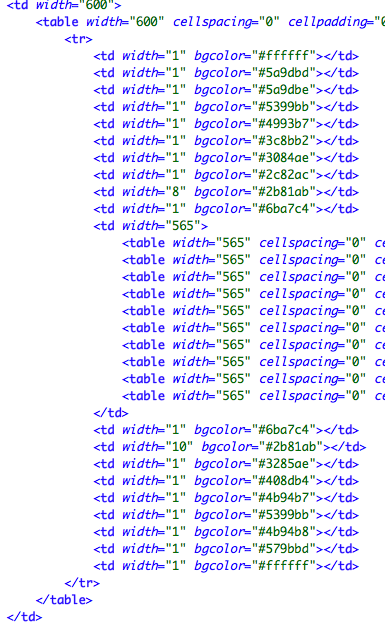
Put tables inside tables instead of using colspan and rowspan. Nesting gives you a more flexible structure, and it’s easier to maintain when the design changes. If you’re worried about losing your place in the code, add comments to mark each section of the email.
The screenshot below shows the collapsed code of an email built this way:

Fixed widths on mobile
Most emails are now opened on phones, so a fixed 600-pixel table on its own isn’t enough. The usual fix is a “hybrid” layout. The outer table uses width="100%" with a max-width:600px style, so it shrinks on small screens. Then a fixed-width “ghost” table, wrapped in Outlook-only conditional comments, keeps classic Outlook in line:
<!, [if mso]>
<table role="presentation" width="600" cellpadding="0" cellspacing="0" border="0"><tr><td>
<![endif], >
<table role="presentation" width="100%" cellpadding="0" cellspacing="0" border="0" style="max-width:600px;">
 <tr><td>Content</td></tr>
</table>
<!, [if mso]>
</td></tr></table>
<![endif], >
The trade-off is more code. Fixed widths are simpler to write and test, but they make readers pinch and zoom on mobile. A hybrid layout takes longer to build, but every client gets a usable version.
Images
Every image needs three things: its own table cell (in most cases), width and height attributes, and alt text that describes the image or repeats any text built into it.
The original advice still holds. Two newer details matter:
- Add
display:blockandborder:0. Without them, some clients leave a thin gap under the image or draw a border around linked images. - Serve sharp images at a smaller display size. For high-resolution phone screens, save the image at twice its display width and set the
widthattribute to the display size.
<td width="600" style="width:600px;">
 <img src="https://example.com/hero.jpg" width="600" height="300"
 alt="Autumn sale: 20% off all boots"
 style="display:block; border:0; width:100%; max-width:600px; height:auto;">
</td>
Alt text matters more than it used to. Gmail started showing images by default in December 2013, loading them through its own image proxy, but many corporate Outlook setups still block images until the reader clicks. Readers who use screen readers rely on alt text either way. If the main offer exists only inside an image, those readers never see it.
Keep an eye on file size too. Gmail clips any message whose HTML is larger than about 102KB and shows a “[Message clipped] View entire message” link. Anything past that point, including your unsubscribe link, ends up hidden behind it. Images themselves don’t count toward the limit, but long inline styles and repeated nested tables do.
Backgrounds
If you use a background image on a table or cell, also set a background color that matches the image as closely as possible. That way the design still looks right in clients that drop the image.
The original reason for this was Outlook 2007, which didn’t display background images at all. That problem lives on in classic Outlook for Windows, which ignores CSS background images. With a matching background color in place, the email looks much less broken there. For sections where the image really matters, developers add a VML (Vector Markup Language) fallback inside Outlook conditional comments. That’s more work, so save it for hero banners where text sits on top of a photo.
<td bgcolor="#1a3d5c" background="https://example.com/bg.jpg"
 style="background-color:#1a3d5c; background-image:url('https://example.com/bg.jpg');">
 White text that stays readable even if the image never loads
</td>
The fallback color has one more job now: dark mode. If the image fails to load and the client also inverts colors, a close-match background keeps light text readable.
Text Styling
Declare the styles for every block of text and every link inline, directly on the element that holds them.
On a web page, you can set text and link styles once in the head and they apply to every class and ID below. Email wasn’t built that way. When this advice was written, Gmail removed style blocks completely, so every style had to live inside the body of the email. The approach back then was to wrap a span tag around each block of text, like this:

The same went for links, with the styles placed on the anchor tag instead of a span.
Today, Gmail’s documentation confirms it supports style blocks in the head. Inline styles are still the safe default, though. Some Gmail apps still drop style blocks when they display mail from non-Gmail accounts, and forwarded messages often lose them. A sensible split is to inline the base styles (font, size, line height, color) on the td, p or a that holds the text, keep spans for small inline changes, and use a head style block only for extras like media queries. Many ESPs and build tools inline CSS for you when you send, so you can write it once and let them copy it onto each element.
<td style="font-family:Arial, Helvetica, sans-serif; font-size:16px; line-height:24px; color:#333333;">
 Your order has shipped.
 Track your parcel
</td>
Always style the link itself. Many clients, iOS Mail included, override inherited link colors or turn dates and addresses into blue links unless the anchor has its own color.
Dark Mode and Mobile Reading
Plan for dark mode from the start. Clients like Apple Mail, Outlook and the Gmail apps may keep your colors, partly invert them or fully invert them.
A few habits cover most of the risk:
- Use transparent PNG logos with a light outline or glow, so a dark logo doesn’t vanish on a dark background.
- Avoid pure black text on pure white. Slightly off-black (#222222) and off-white backgrounds invert more gracefully.
- Add a
prefers-color-scheme: darkmedia query in the head for clients that support it, and accept that the rest will invert colors their own way. - Use body text of at least 16px and buttons large enough to tap with a thumb.
Sending Rules Your Template Has to Support
Code alone won’t get an email into the inbox. Since February 2024, Gmail has required senders of about 5,000 or more messages a day to personal Gmail accounts to authenticate with SPF, DKIM and DMARC, support one-click unsubscribe for marketing and subscribed messages, and keep reported spam rates below 0.3%. Yahoo’s bulk-sender requirements are similar, with one-click unsubscribe for promotional messages and a spam rate below 0.3%, but they don’t set the same 5,000-message daily threshold. Microsoft began enforcing similar rules for Outlook.com, Hotmail.com and Live.com on May 5, 2025.
One-click unsubscribe works through message headers, not the visible link. Your ESP normally adds them, and they look like this:
List-Unsubscribe: <https://example.com/unsub?id=123>, <mailto:[email protected]>
List-Unsubscribe-Post: List-Unsubscribe=One-Click
Yahoo’s sender FAQ says a link in the body alone doesn’t meet the requirement. Both Google and Yahoo expect unsubscribes to be processed within two days. The footer still needs a visible unsubscribe link and, under the FTC’s CAN-SPAM rules for US commercial email, a valid physical postal address. Opt-outs have to be honored within 10 business days. Keep that footer near the top of your file size budget so Gmail’s clipping never hides it.
Test Before Every Send
If you follow all of these rules from the start, testing goes much more smoothly. Fixed widths, nested tables, images with full attributes, background colors and inline styles get rid of most rendering bugs before you open a single preview.
Don’t use open rates to judge whether a template is working. Apple Mail Privacy Protection loads images on Apple’s servers for readers who turn it on, so it logs opens whether or not anyone read the message. Check rendering in a preview tool and in real inboxes (Gmail, classic and new Outlook, Apple Mail on an iPhone, in both light and dark mode), then judge the design by clicks. The best next step is to turn these rules into a single starter template, test it across every client, and build every new campaign from that tested base.
FAQ
Do you still need tables to code HTML email in 2026?
Yes, for any email that has to look right in classic Outlook for Windows. That client renders with Microsoft Word, which ignores most CSS layout such as flexbox and grid. The new Outlook and webmail clients handle modern CSS better, but tables are still the one layout method that works everywhere.
Should CSS be inline or in a style block?
Inline your core styles and use a head style block only for extras such as media queries and dark mode rules. Gmail supports style blocks, but some Gmail apps drop them for non-Gmail accounts, and forwarding often removes them. Most ESPs can inline CSS automatically when you send.
Why is Gmail clipping my email?
Gmail clips messages whose HTML code is larger than about 102KB and adds a “View entire message” link. Image files don’t count toward the limit, but long inline styles, repeated nested tables and leftover code from builder tools do. Strip unused code and comments, and keep your HTML comfortably under the limit.
Why do background images disappear in Outlook?
Classic Outlook for Windows ignores CSS background images, the same behavior that started with Outlook 2007. Set a matching background color as a fallback. For key sections, add a VML background inside Outlook conditional comments.
Can open rates tell you if a new template works?
Not reliably. Apple Mail Privacy Protection loads tracking pixels on Apple’s servers, so a large share of recorded opens are machine opens, not real readers. Judge templates by rendering previews, click-through rate and conversions.
Does the way you code an email affect deliverability?
Indirectly, yes. Image-only emails, broken HTML and clipped messages that hide the unsubscribe link make readers more likely to hit “Report spam.” Spam complaints are what Gmail and Yahoo measure against their 0.3% limit. Clean, light code with real text and a visible unsubscribe link helps you stay under it.
Sources
- Google: Email sender guidelines
- Google for Developers: Gmail CSS support
- Yahoo Sender Hub: FAQs
- Microsoft Tech Community: Outlook’s new requirements for high-volume senders
- Microsoft Tech Community: New Outlook for Windows product availability guide
- FTC: CAN-SPAM Act compliance guide for business