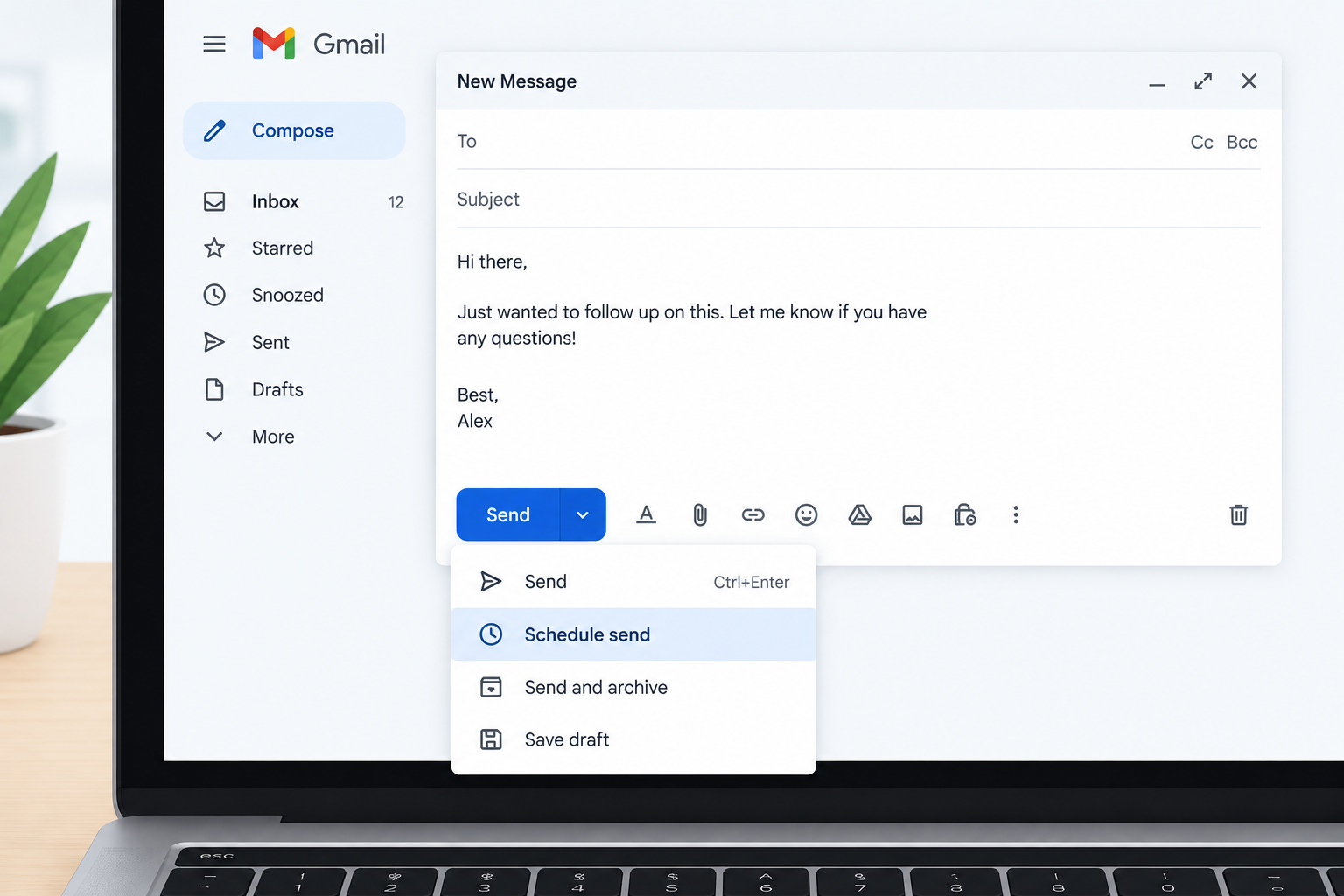
Yes, you can schedule emails in Gmail, and it takes about five seconds. Write your message, click the small arrow next to Send, choose Schedule send and pick a time. The feature is built in, free, and works on the web, the Android app and the iPhone app without any extension.
How to schedule an email in Gmail on desktop
Google added Schedule send to Gmail in April 2019. It lives under the arrow beside the Send button, and most people never notice it.
Schedule send on the web
- Click Compose and write your email as normal.
- Add recipients, subject and any attachments.
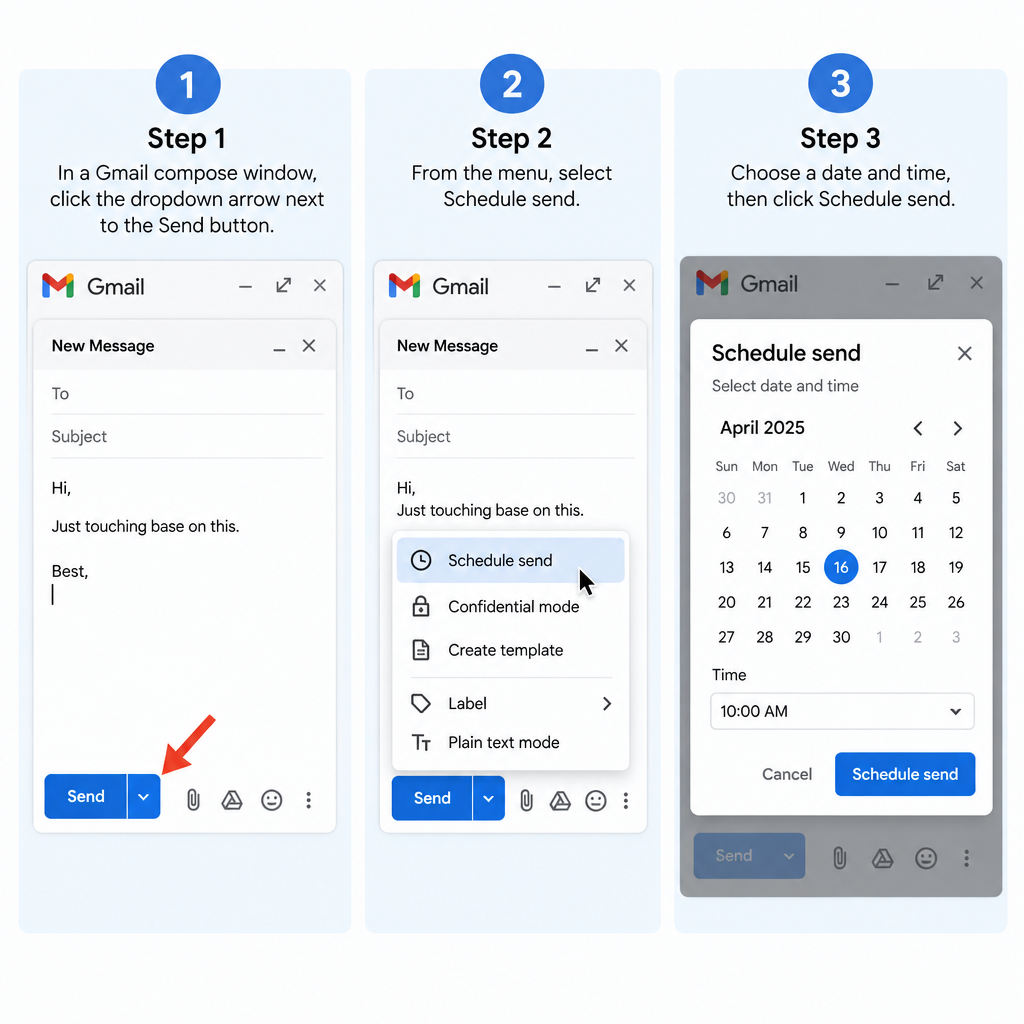
- Click the down arrow next to the blue Send button.
- Click Schedule send.
- Pick a suggested time or click Pick date and time.
- Set the date and time, then click Schedule send.
The suggested times are usually tomorrow morning (8:00 AM), tomorrow afternoon (1:00 PM) and next Monday morning. Gmail may also offer the last custom time you used, which saves a few clicks if you send at the same hour often.
After you schedule it, a small banner appears at the bottom left saying the send is scheduled. You get Undo and View message options for a few seconds. If you miss that window, you can still change everything from the Scheduled folder.
Your computer can be off
Scheduled emails go out from Google’s servers, not your laptop. You can close the browser, shut down your machine or lose Wi-Fi, and the message still sends at the time you set.
How to schedule an email in Gmail on iPhone and Android
The mobile steps are the same on both platforms in the official Gmail app.
Schedule send in the Gmail app
- Tap Compose and write your message.
- Tap the three-dot menu at the top right.
- Tap Schedule send.
- Choose a preset or tap Pick date and time.
- Confirm the time to schedule it.
One catch on iPhone: this only works in the Gmail app. If you read your Gmail account inside Apple Mail or Outlook for iOS, you are using that app’s own send-later tool, and the scheduled message will not appear in Gmail’s Scheduled folder.
Where scheduled emails go
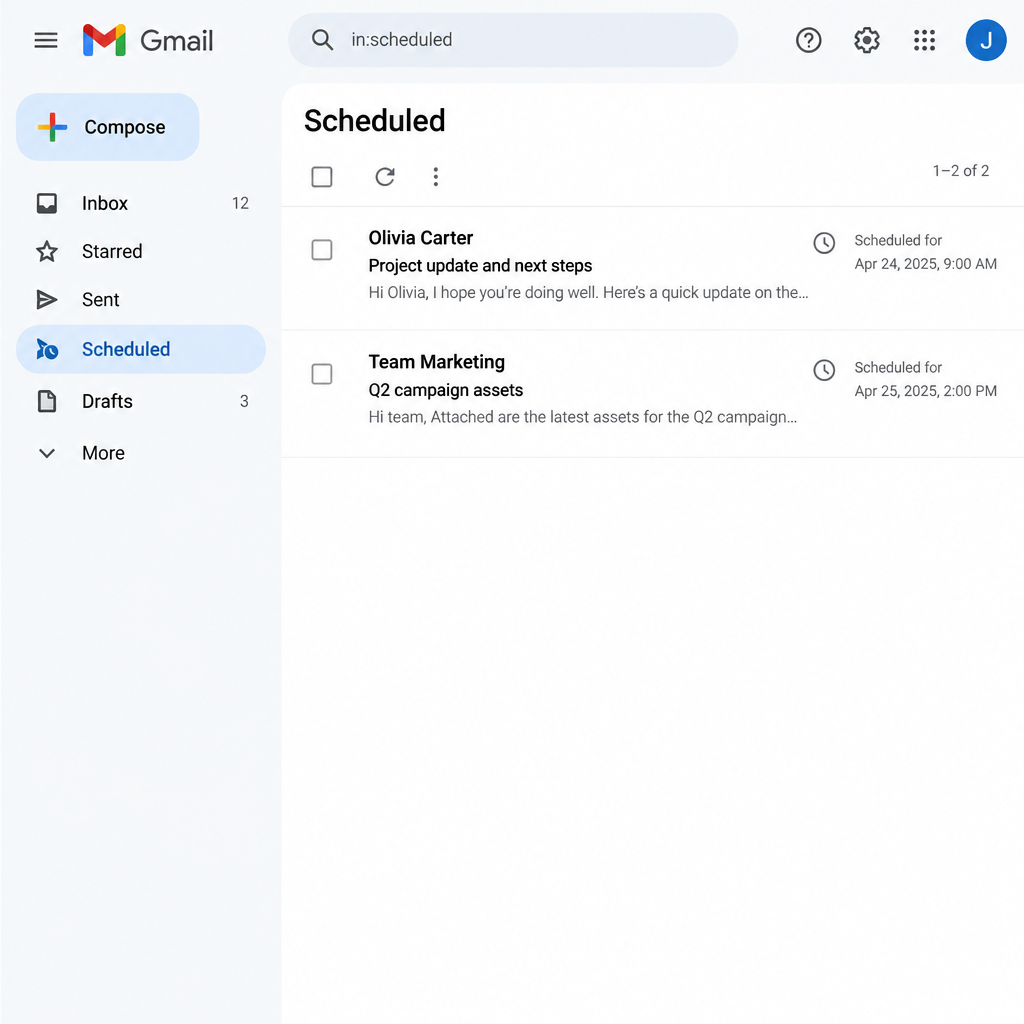
Every scheduled message sits in a Scheduled folder in the left sidebar on desktop. On mobile, tap the three-line menu at the top left and scroll to Scheduled.
If you don’t see it on desktop, click More at the bottom of your folder list. The folder only appears once you have at least one scheduled message.
You can hold up to 100 scheduled emails at a time, and you can set them as far as 49 years ahead. For a person managing their own inbox, you will not hit either limit.
How to edit a scheduled email in Gmail
Gmail has no direct edit button for a scheduled message. You cancel the send, fix the draft and schedule it again. It sounds clunky, but it takes under a minute.
Edit a scheduled email
- Open the Scheduled folder.
- Click the message you want to change.
- Click Cancel send at the top right of the message.
- Gmail turns it back into a draft and opens it.
- Make your changes.
- Use the arrow next to Send to schedule it again.
This is the same process if you only want to change the time. There is no way to adjust the time alone without cancelling first.
Inbox tip
Read the scheduled email once more right before it goes out. Catching a wrong name in the Scheduled folder beats writing an apology afterwards.
How to cancel a scheduled email in Gmail
To stop a scheduled message completely, open the Scheduled folder, click the email and click Cancel send. On mobile, open the message from the Scheduled folder and tap Cancel send at the top.
The message moves to Drafts. Nothing reaches the recipient. If you want it gone for good, open Drafts and click Discard drafts.
If something slips through anyway, Gmail’s Undo Send setting gives you a short grace period after any message sends, scheduled or not. Turn it up under Settings (gear icon) > See all settings > General > Undo Send and set the cancellation period to 30 seconds, the longest option. For anything that gets past that, our guide on what to do after you send an email with a typo covers the cleanup.
Picking the right time to send
Scheduling is only useful if the time you choose actually helps the message get read.
Use the recipient’s time zone, not yours. Gmail schedules in your device’s time zone. If you are in London and want an email to land at 9:00 AM in New York, schedule it for 2:00 PM your time (adjusting for the weeks when daylight saving changes don’t line up). Convert first, then schedule.
Aim for the start of their working day. A message that arrives just before someone sits down to clear their inbox gets more attention than one that lands at 11:40 PM and gets buried by morning. For work email, a weekday morning in their time zone is the safe default.
Avoid perfectly round times. Plenty of automated mail goes out at exactly 9:00 or 10:00. Picking 8:52 or 9:07 makes your message feel like it came from a person, not a queue.
Schedule follow-ups the moment you finish the first email. A good habit for sales and job hunting: write the follow-up straight after the call, schedule it for two or three days out, and cancel it if they reply first. Our follow-up sales email templates to send after the call make this quick.
If you send from your own custom domain email through Gmail’s “Send mail as” feature, check the From address before you schedule. The scheduled message goes out from whichever address is selected when you hit Schedule send.
What Gmail’s scheduler can’t do
The built-in tool covers one-off messages well. It falls short in a few places:
| Need | Built into Gmail? | What to use instead |
|---|---|---|
| Schedule a single email | Yes | Schedule send |
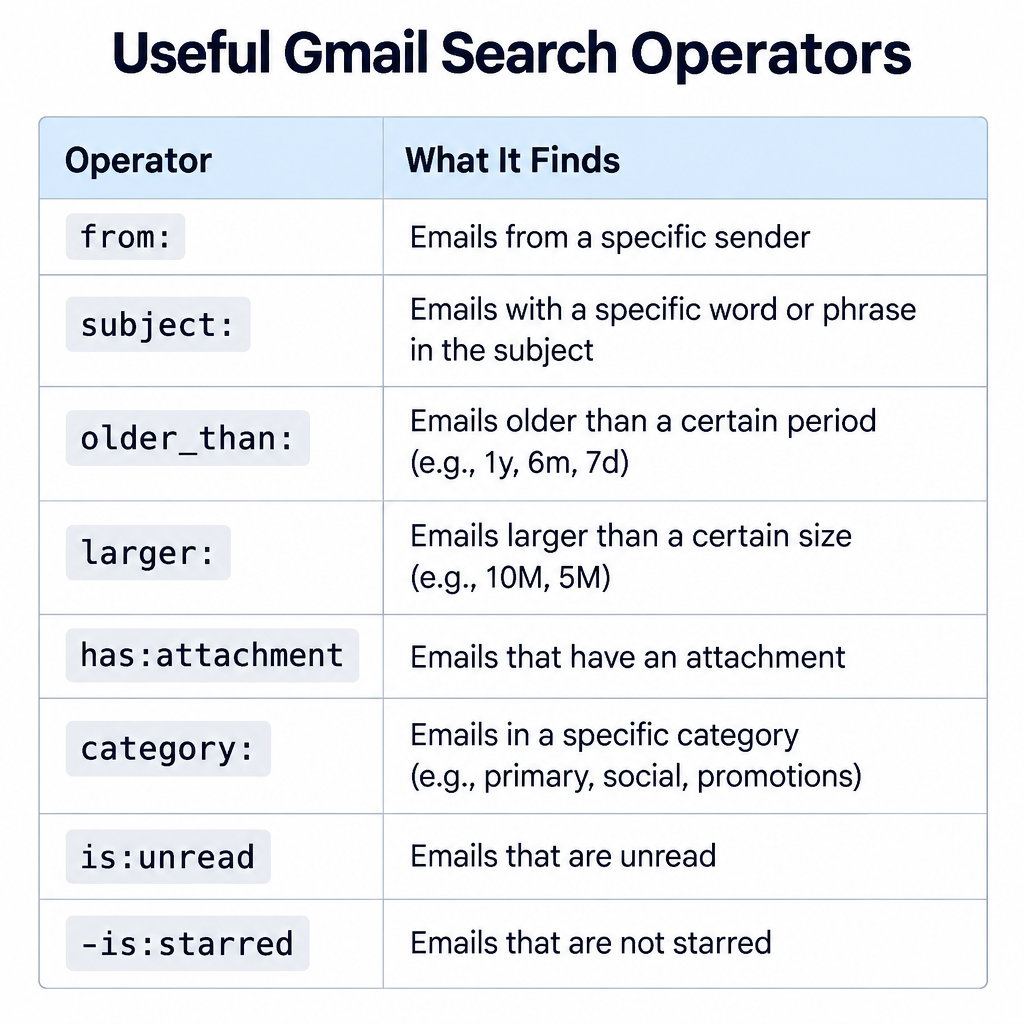
| Recurring emails (weekly reports) | No | Extension or Google Apps Script |
| Send at the recipient’s local time automatically | No | Convert the time yourself, or an extension |
| Open tracking | No (read receipts on some Workspace accounts) | Tracking extension |
| Automatic follow-up if no reply | No | Extension or email platform |
| Newsletters to a list | No | Email service provider |
Read receipts are only available on Google Workspace work or school accounts, and only if your admin has switched them on. The recipient can also decline to send one, so they are unreliable as a tracking tool.
Gmail scheduling extensions and email tracking
If you need recurring sends, reminders or open tracking, a Chrome extension fills the gap. Boomerang for Gmail is the best-known send-later add-on and also offers reply reminders. Mailtrack focuses on telling you when someone opens your email. Right Inbox and Mailbutler bundle scheduling, tracking and templates together.
Before you install any of them, check the permissions screen. These tools ask to read and send email on your behalf, so stick to established names with a long track record in the Chrome Web Store and Google Workspace Marketplace.
Be aware that open tracking has limits. Tracking works by loading a tiny invisible image, and Apple Mail Privacy Protection preloads those images, so opens from Apple Mail users can show as “read” when nobody looked. Treat open data as a rough signal, not proof.
Deliverability risk
Gmail is built for one-to-one mail. Scheduling the same message to hundreds of people from a personal account can trip sending limits and spam filters.
Free Gmail accounts can send to about 500 recipients a day, and Google Workspace accounts to about 2,000. Blast past those, or send near-identical messages to many people at once, and Gmail can temporarily block your sending. Spam filters also watch for that pattern, as we explain in our piece on how email spam filters work and why messages get caught. If you want to schedule campaigns to a subscriber list, that is email marketing, and it belongs on a dedicated platform that handles unsubscribes and authentication for you.
FAQ
Can you schedule emails in Gmail for free?
Yes. Schedule send is included with every free Gmail account and every Google Workspace plan. You don’t need an extension or a paid upgrade.
Does my computer need to be on for a scheduled email to send?
No. Google sends the message from its own servers at the scheduled time. Your device can be off or offline.
How do I schedule an email in Gmail on my iPhone?
Open the Gmail app, write your message, tap the three-dot menu at the top right and tap Schedule send. This won’t work if you use Apple Mail to read your Gmail.
Can I schedule recurring emails in Gmail?
Not with the built-in feature. Each scheduled message sends once. For a weekly or monthly email, you need an extension or a Google Apps Script.
Will the recipient know I scheduled the email?
No. The email arrives with the time it was actually sent. Nothing in the message shows that it was scheduled in advance.
How do I change the time on a scheduled email?
Open the Scheduled folder, open the email, click Cancel send, then schedule the draft again with the new time. Gmail has no option to change the time without cancelling first.