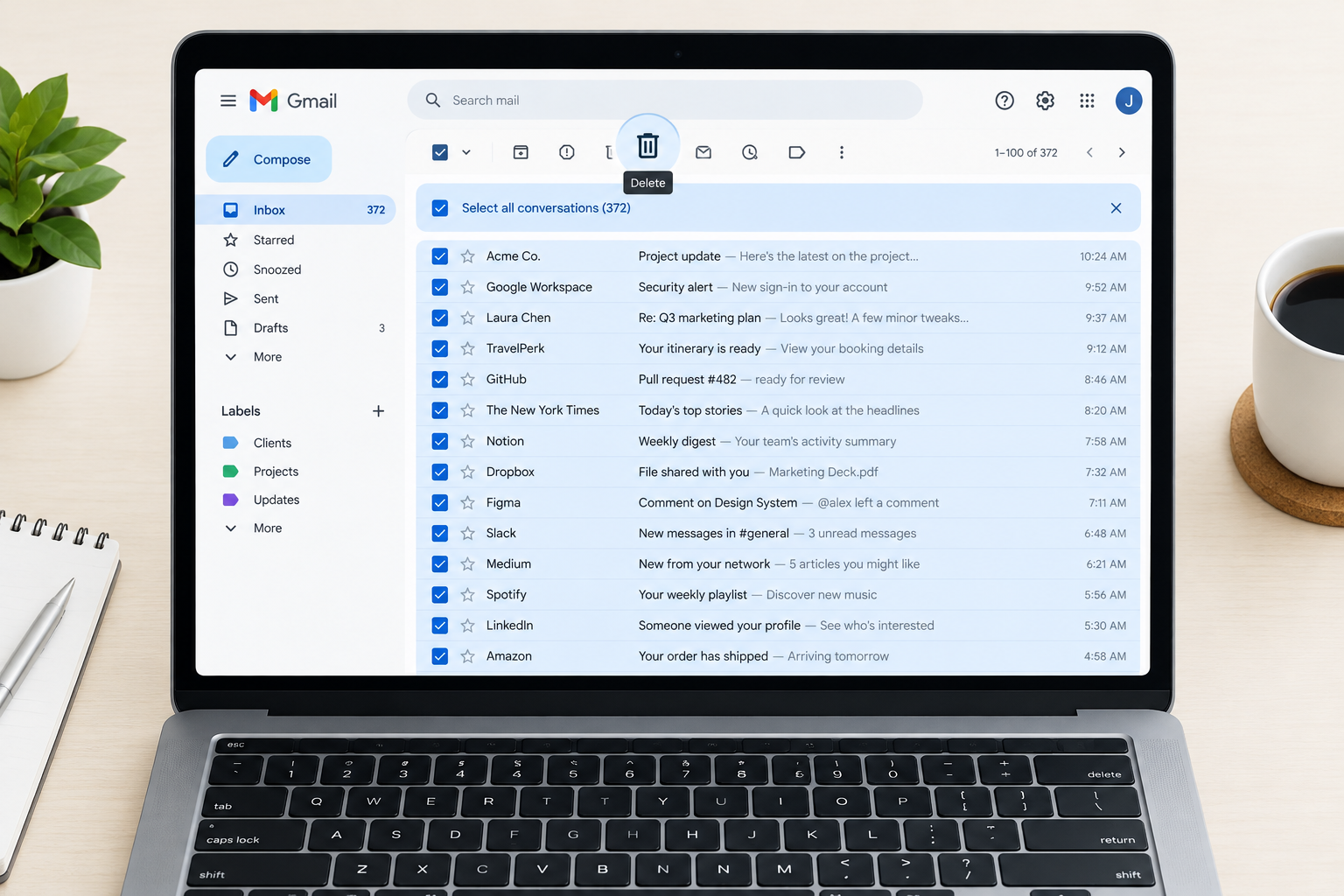
Gmail can delete thousands of emails in a few clicks, but only if you know where the hidden “select all” link sits and how to aim it. This guide shows you how to bulk delete emails in Gmail on the web and in the app, how to target exactly the messages you want gone, and how to avoid losing anything you still need.
What You Need Before You Start
Mass deleting is fast. Undoing it is not. Spend two minutes on these first.
- A computer with a web browser. The Gmail website is the only place with a true “select all conversations” option. The phone apps cannot do this.
- Your Gmail password and 2-Step Verification device, in case Google asks you to sign in again.
- A backup, if the mail matters. Google Takeout can export your Gmail as an MBOX file before a big purge. This step is optional for clearing newsletters. It is essential before wiping years of work mail.
- A list of what to keep. Think about receipts, tax documents, contracts, travel bookings and password reset emails.
- Ten quiet minutes for very large inboxes. Deleting tens of thousands of conversations can take a while to process.
One more thing to check. If you rely on Chrome autofill reading Gmail for flight and order details, deleting those confirmation emails removes the data it pulls from. Keep anything from the last few months that you might still need.
The Fastest Way to Mass Delete Emails on Gmail
This is the core method. Every other technique in this article is a variation of it.
Gmail’s checkbox only selects the conversations visible on your current page. Most people stop there and wonder why only 50 emails disappeared. The trick is a small link that appears after you click the checkbox.
Delete every email that matches a search
- Open Gmail in a browser and go to the folder, label or search you want to clear.
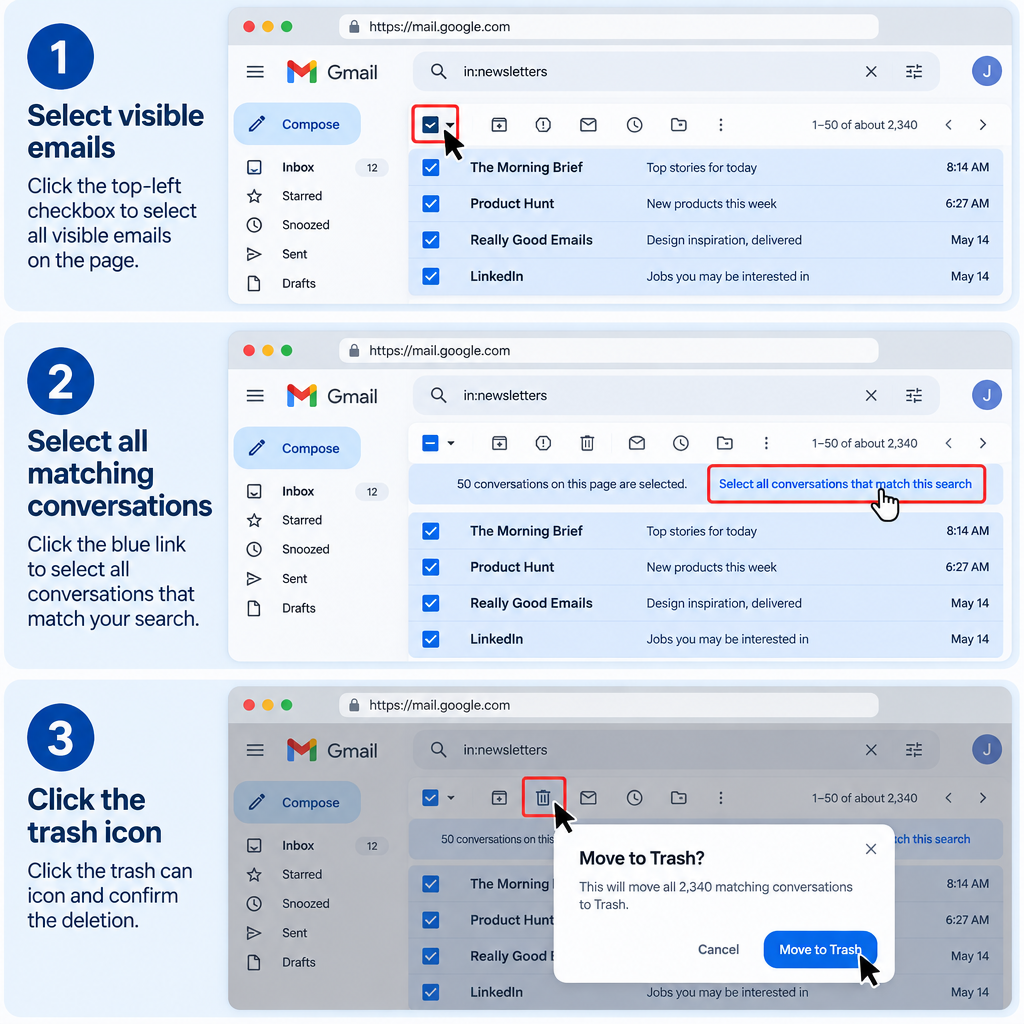
- Click the empty square checkbox above your email list, at the far left.
- Look for the blue link at the top that reads “Select all conversations that match this search” (or “Select all X conversations in Inbox”).
- Click that link. Gmail now selects every matching conversation, not just the visible page.
- Click the trash can icon to delete.
- Confirm in the pop-up that warns you this affects all selected conversations.
That’s it. Gmail moves everything to Trash, where it stays for 30 days before permanent deletion.
Show 100 Emails Per Page Instead of 50
A bigger page size helps when you’re picking messages by hand. Gmail allows up to 100 conversations per page.
Go to Settings (gear icon) > See all settings > General > Maximum page size and choose 100. Scroll down and click Save Changes.
This doesn’t change how many emails “select all” can grab. It just lets you review and tick more messages at once.
Bulk Deleting Emails From Your Inbox, a Label, or a Category
The same select-all method works anywhere in Gmail. What changes is where you start.
From your inbox. Click Inbox in the left sidebar, tick the checkbox, then click the “Select all conversations in Inbox” link. Note that if you use category tabs, this only selects mail in the tab you’re viewing.
From a label. Click the label name in the sidebar. Tick the checkbox, choose the select-all link, then delete. Deleting from a label deletes the email everywhere, not just from that label. If you only want to remove the label, use the “Remove label” icon instead.
From a category tab. Click the Promotions, Social, Updates or Forums tab. Select all, then delete. These tabs are where most bulk junk piles up: retailer offers, social network alerts, YouTube notifications and shipping updates.
Don’t see category tabs? Go to Settings > See all settings > Inbox, set Inbox type to Default, and tick the categories you want to show.
Inbox tip
Promotions emails from senders you actually love still count. Before you wipe the tab, search category:promotions is:starred to rescue anything you starred.
Delete Specific Types of Emails Using Gmail’s Search Bar
The search bar is the real power tool here. A precise search means you delete exactly the right emails and nothing else.
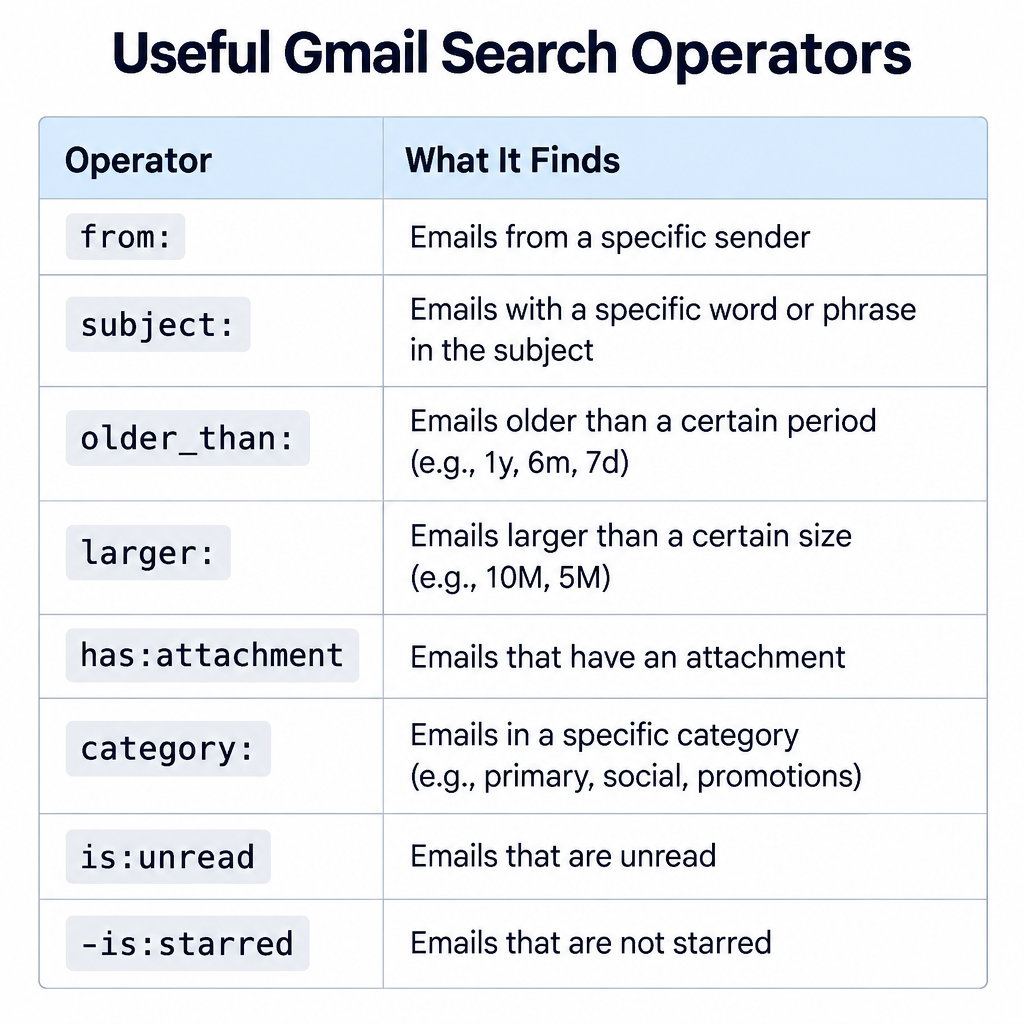
Type an operator into the search bar at the top of Gmail, press Enter, then use the select-all method on the results. These are the operators worth knowing:
| Operator | What it finds | Example |
|---|---|---|
from: |
Emails from a sender or domain | from:[email protected] |
to: |
Emails sent to an address | to:[email protected] |
subject: |
Words in the subject line | subject:"weekly digest" |
older_than: |
Older than a set age (d, m, y) | older_than:2y |
before: / after: |
Before or after a date | before:2021/01/01 |
larger: |
Bigger than a file size | larger:10M |
has:attachment |
Emails with attachments | has:attachment older_than:1y |
category: |
A specific inbox tab | category:social |
label: |
Emails with a label | label:receipts |
is:unread / is:read |
Read status | is:unread older_than:6m |
- (minus) |
Excludes a term | -is:starred |
in:anywhere |
Includes Spam and Trash | in:anywhere from:[email protected] |
Ready-Made Searches You Can Paste
These are the searches I reach for most when cleaning a client’s inbox. Paste one, check the results, then select all and delete.
Old promotional mail, keeping anything starred or marked important:
category:promotions older_than:1y -is:starred -is:important
Unread mail older than six months (if you didn’t open it then, you won’t now):
is:unread older_than:6m -is:starred
Big attachments eating your storage:
larger:10M older_than:1y
Every email from one noisy domain:
from:@example-retailer.com
Social and YouTube notifications:
category:social OR from:youtube.com
Most newsletters include the word “unsubscribe” in the footer. This catches a lot of bulk mail:
unsubscribe older_than:1y -is:starred -is:important
Always scroll through the first page of results before you delete. A search like unsubscribe can catch messages from services you still use, like your bank or utility company.
How to Delete Very Large Volumes (Tens of Thousands of Emails)
The select-all method can technically handle huge numbers. In practice, Gmail sometimes stalls when you throw 50,000 conversations at it in one go. The screen hangs, the counter freezes, or some emails come back after a refresh.
Two techniques get around that.
Method 1: Delete in Date Batches
Split the job by year. Search one year at a time, delete, then move to the next.
before:2019/01/01
after:2018/12/31 before:2020/01/01
after:2019/12/31 before:2021/01/01
Batches of 10,000 to 20,000 conversations tend to go through cleanly. If a batch hangs, wait a few minutes and refresh. Gmail often keeps processing in the background.
Method 2: Use a Filter to Delete Existing Mail
This is the trick most guides skip. A Gmail filter can apply a “Delete it” action to every existing email that matches, not just new arrivals. Google processes it on its side, so you don’t have to babysit a browser tab.
Delete thousands of emails with a filter
- Type your search into the Gmail search bar, for example from:@oldjob.com.
- Click the filter icon at the right end of the search bar (the sliders).
- Check the criteria, then click Create filter.
- Tick Delete it.
- Tick Also apply filter to matching conversations.
- Click Create filter. Gmail moves every match to Trash.
Keep the filter if you never want mail from that sender again. Remove it afterwards in Settings > See all settings > Filters and Blocked Addresses if this was a one-time cleanup.
Deliverability risk
A “Delete it” filter is silent. If you build it on a broad word like “invoice”, real invoices will vanish into Trash without warning. Keep filter criteria narrow.
How to Delete All Your Emails
Want a completely empty account? Here’s how to delete everything at once.
- Click More in the left sidebar, then All Mail. (Alternatively, search
in:all.) - Tick the checkbox above the list.
- Click Select all conversations in All Mail.
- Click the trash icon and confirm.
All Mail includes your inbox, archived mail, sent mail and everything under labels. It does not include Spam or Trash, which you’ll clear separately.
For an account holding 30,000 or more emails, the date-batch approach above is more reliable than one giant delete.
Think carefully before you do this. Sent mail often holds the only record of quotes, agreements and attachments you sent. Export it with Google Takeout first.
How to Delete Archived Emails in Gmail
Gmail has no “Archive” folder, which confuses many people looking for one. Archiving simply removes the Inbox label. The email still lives in All Mail.
To find archived mail, use this search:
-in:inbox -in:sent -in:drafts -in:spam -in:trash
To find archived mail with no labels at all (the true orphans):
has:nouserlabels -in:inbox -in:sent -in:drafts
Then select all and delete as usual. Add older_than:1y if you only want to clear the old stuff.
How to Mass Delete Emails on the Gmail App
Here’s the honest answer: you can’t truly mass delete on the phone. Neither the Android nor the iPhone app offers “select all conversations that match this search.”
You can still delete in small batches.
On Android: Tap the sender’s profile picture (or long-press an email) to enter selection mode. Newer versions of the app show a Select all option at the top once you’re in selection mode, which grabs up to 50 conversations at a time. Tap the trash icon.
On iPhone and iPad: Tap the profile picture next to an email to select it. Keep tapping others to add them. Tap the trash icon at the top. There’s no select-all, so this is slow for big jobs.
The workaround: Open a browser on your phone, go to Gmail, and request the desktop site from the browser menu. You get the full web interface, select-all link included. It’s fiddly on a small screen, but it works.
| Method | Select-all for a whole search | Max per action | Best for |
|---|---|---|---|
| Gmail web (desktop browser) | Yes | Every matching conversation | Any bulk job |
| Gmail filter with “Delete it” | Yes, server-side | Every matching conversation | 10,000+ emails |
| Gmail app, Android | No | Up to 50 via Select all | Quick small cleanups |
| Gmail app, iPhone/iPad | No | Whatever you tap by hand | A handful of emails |
| Desktop site in a phone browser | Yes | Every matching conversation | No computer nearby |
Empty Your Trash to Actually Free Up Storage
Deleting an email doesn’t free storage right away. It sits in Trash, still counting against your quota, for 30 days.
If you’re cleaning up because Gmail says your storage is full, you need to empty Trash too.
- Click More > Trash in the sidebar.
- Click Empty Trash now at the top.
- Confirm.
Do the same for spam: open Spam and click Delete all spam messages now. If legitimate mail keeps landing there, it helps to understand e-mail spam filtering and why messages get caught, so you can fix it at the source.
| Item | Limit or timing |
|---|---|
| Time emails stay in Trash | 30 days, then permanently deleted |
| Time emails stay in Spam | 30 days, then permanently deleted |
| Free Google storage (shared with Drive and Photos) | 15 GB |
| Maximum conversations per page | 100 |
| Google Workspace admin restore window | 25 days after permanent deletion |
Personal Gmail accounts have no admin to fall back on. Once Trash is emptied, treat those emails as gone for good.
Expert Insight: How to Bulk Delete Emails After a Mail Merge Campaign
If you send mail merges straight from Gmail with an add-on, your account fills up fast. One campaign to 500 people leaves 500 sent copies, a wave of auto-replies, and a pile of bounce notices.
Here’s the cleanup routine I use after every send.
Clear the bounces. Bounce notices come from Google’s mail delivery system. Search:
from:mailer-daemon OR from:postmaster after:2025/01/01
Before deleting, copy the bounced addresses into your suppression list. Mailing a bad address again hurts your sender reputation.
Clear the auto-replies. Out-of-office messages usually share subject words:
subject:("out of office" OR "automatic reply" OR "auto-reply")
Thin out sent copies. Search by the exact campaign subject and date:
in:sent subject:"Your March update" after:2025/03/01 before:2025/03/05
Keep a few as a record, then delete the rest. Many mail merge tools also apply their own label to campaign mail, which makes this even easier.
If you’re doing this cleanup every week, Gmail is probably the wrong tool. Regular campaigns belong on one of the small business email platforms built for bulk sending, with proper bounce handling and unsubscribe links. Gmail’s own sender rules, in force since February 2024, also require one-click unsubscribe and low spam rates once you send around 5,000 messages a day to Gmail addresses.
Common Mistakes and How to Fix Them
Only 50 emails got deleted. You clicked the checkbox but missed the blue “Select all conversations” link. Go back and click it before hitting delete.
Deleted emails reappeared. Large deletes sometimes finish in the background. Wait a few minutes and refresh. If they’re still there, delete in smaller date batches.
A whole thread vanished when you wanted one message gone. Conversation view groups replies together, so deleting the thread deletes every message in it. To work with single messages, go to Settings > See all settings > General > Conversation View and select Conversation view off.
Storage didn’t go down. Trash and Spam still count against your quota. Empty both. Storage figures can take up to a day to update.
You deleted something important. Open Trash, find the email, tick it and click Move to > Inbox. You have 30 days. Right after a delete, an Undo link also appears at the bottom left for a few seconds.
Deleting in Outlook or Apple Mail didn’t delete in Gmail. Mail apps connected by IMAP follow Gmail’s IMAP settings. Check Settings > See all settings > Forwarding and POP/IMAP. Under the expunge setting, choose Move the message to the Trash if you want deletions in your mail app to count.
The select-all link never appears. It only shows when there are more matching conversations than fit on one page. If you see fewer than 50 results, the checkbox already selected them all.
What You Should See When You’re Done
After a successful cleanup:
- Your search for the deleted criteria returns “No messages matched your search.”
- Trash shows the deleted conversations (until you empty it).
- Your storage meter at the bottom of the Gmail sidebar, or at one.google.com/storage, shows lower usage within about 24 hours of emptying Trash.
- Your inbox count drops, and the tabs you cleared are empty or close to it.
Keep It From Piling Up Again
A clean inbox stays clean with a little automation.
- Unsubscribe as you go. Gmail shows an Unsubscribe link next to the sender name on most bulk mail. One tap beats a monthly purge.
- Set filters for repeat offenders. Auto-archive or auto-delete alerts you never read, such as social notifications.
- Run a quarterly sweep. Paste
older_than:1y category:promotions -is:starredand delete. It takes under a minute.
If you send company updates and your colleagues are drowning in your mail, it might be worth rethinking frequency. A tighter internal newsletter, sent once a week, creates far less clutter than daily one-offs.
FAQ
Can you mass delete old emails on Gmail?
Yes. On the Gmail website, search older_than:1y (or 2y, 5y), tick the checkbox, click “Select all conversations that match this search,” then click the trash icon. Add -is:starred -is:important to protect emails you’ve flagged.
How do I delete 30,000 emails at once?
Use Gmail on a computer. Search for the emails, select all with the checkbox and the blue select-all link, then delete. For 30,000 or more, deleting in yearly batches with before: and after: is more reliable. Another option is a filter with “Delete it” and “Also apply filter to matching conversations” ticked, which Google processes server-side.
How to delete promotional emails in Gmail?
Click the Promotions tab, or search category:promotions. Tick the checkbox, click “Select all conversations,” then delete. To keep favourites, search category:promotions -is:starred instead. Then empty Trash if you want the storage back immediately.
How do I select all 3000 emails in Gmail?
Tick the checkbox above your email list. Gmail selects the current page, then shows a blue link reading “Select all 3,000 conversations” (or “Select all conversations that match this search”). Click it, and all 3,000 are selected. This only works in a web browser, not in the Gmail app.