
Whitelisting means a subscriber adds your sending address to their contacts or safe senders list, and it still helps your mail reach the inbox in 2026. It no longer guarantees delivery, though. Since February 2024, Gmail and Yahoo have required bulk senders to use SPF, DKIM and DMARC, offer one-click unsubscribe and keep spam complaints under 0.3%, and Microsoft’s Outlook.com added similar rules in May 2025. Ask subscribers to add you to their contacts, but treat it as an extra on top of authentication and a clean, engaged list.
What a whitelist is
MarketingSherpa defines a whitelist as a list of email addresses approved in advance and held by an ISP, a subscriber or another email service provider, which lets messages from those addresses get delivered regardless of spam filters.
In 2026 the term covers a few related things:
- Contacts or address book. When a subscriber saves your address, most mailbox providers treat it as a positive signal.
- Safe senders lists. Outlook.com and Microsoft’s Outlook apps keep a separate list of trusted addresses and domains.
- Filters and tab moves. In Gmail, a filter set to “Never send it to Spam”, or moving a message to the Primary tab, tells Gmail where your mail belongs.
The old wording “regardless of spam filters” goes too far now. Google’s own help pages say a message from a saved contact can still land in Spam if it looks unusually suspicious, and messages that fail authentication can be rejected before any personal list is checked.
Why so few senders ask to be whitelisted
Whitelisting used to be called the best single way to avoid deliverability problems, yet few companies promoted it. In the Silverpop 2005 Retail Email Study, Phase 1 (August 2005), only 22% of retailers asked subscribers to whitelist them, and only 7% explained how to do it. Silverpop was later bought by IBM, and its email business is now part of Acoustic. That study is history, but the gap it found is still common: plenty of welcome emails never mention the address book at all.
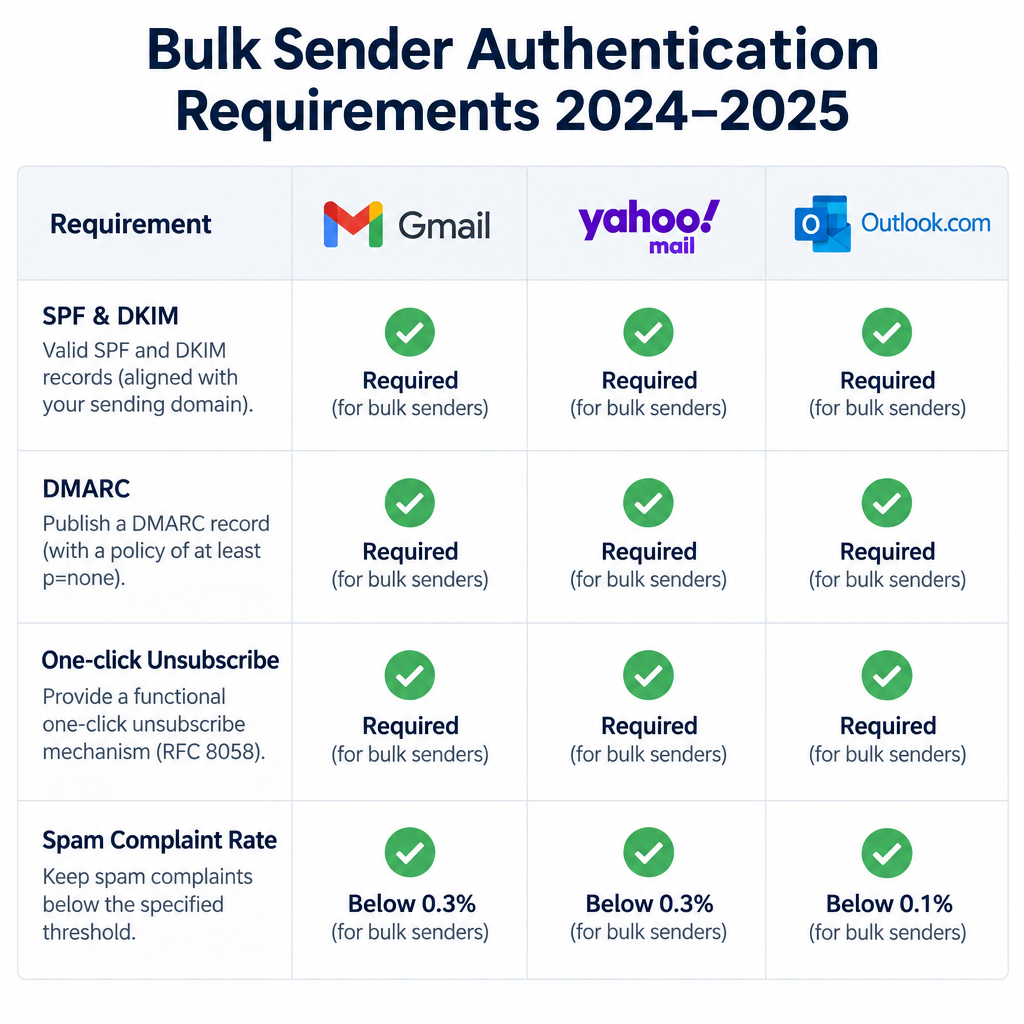
Today the stronger levers sit on the sender’s side. For bulk mail to personal accounts, these are what decide inbox placement:
| Requirement | Gmail (since Feb 2024) | Yahoo (since Feb 2024) | Outlook.com (since May 5, 2025) |
|---|---|---|---|
| Who it applies to | 5,000+ messages a day to Gmail accounts | Bulk senders | 5,000+ messages a day to Outlook.com addresses |
| SPF and DKIM | Required | Required | Required |
| DMARC | Required, at least p=none, aligned | Required, at least p=none | Required, at least p=none, aligned with SPF or DKIM |
| One-click unsubscribe | Required for marketing mail | Required | Expected as best practice |
| Spam complaint rate | Stay under 0.3% | Stay under 0.3% | Not a published hard limit |
Google started enforcing more strictly in November 2025, moving from warnings to temporary and permanent rejections for mail that does not meet its requirements. Microsoft sends non-compliant high-volume mail to Junk at first and may reject it later with the error “550 5.7.515 Access denied, sending domain does not meet the required authentication level.”
A minimal DMARC record that meets the baseline looks like this:
_dmarc.example.com. TXT "v=DMARC1; p=none; rua=mailto:[email protected]"
Remind subscribers to add you to their contacts
Remind your subscribers that if they enjoy your newsletter, adding your address to their contacts helps make sure it keeps reaching them. It is one more clear signal to the spam filter that the reader wants this mail.
The best places for that reminder:
- The signup confirmation page, while interest is at its highest.
- The welcome email, with one line and the instructions for the reader’s provider.
- The preheader or footer of the first few campaigns.
- A help page on your site that lists the steps below.
Send from one consistent address, such as [email protected]. If you change the From address, every saved contact stops matching. Never send from a free mailbox domain like gmail.com, because DMARC policies at Gmail and Yahoo will cause that mail to fail.
How to whitelist a sender in popular email clients
The original list below covered the clients people used in the mid-2000s. Each entry now shows the current steps, and clients that no longer exist are marked as history so the old instructions still make sense.
Outlook (classic desktop and new Outlook)
The old steps for Outlook 2003 and later were: open the email, right-click the sender’s address, click “Add to Outlook Contacts” and click “Save and close.” That still works in classic Outlook, but the more direct route is the safe senders list:
- In classic Outlook, right-click the message in your inbox.
- Choose Junk, then Never Block Sender (or Never Block Sender’s Domain to trust the whole domain).
- In the new Outlook for Windows, go to Settings > Mail > Junk email and add the address under Safe senders and domains.
Contacts are trusted by default as long as “Trust email from my contacts” stays switched on.
Outlook Express (history)
Outlook Express 6 was the email program that came with Windows XP and earlier versions. Users opened the email, right-clicked the sender’s name, chose “Add Sender to Address Book” and saved. Microsoft replaced it with Windows Mail and Windows Live Mail, and later ended support for those too. Anyone still on Outlook Express should move to a supported client.
Apple Mail (formerly Mac Mail)
The old steps had readers Ctrl-click the sender’s address and open it in Address Book. On current macOS, Address Book is called Contacts, and Apple’s Mail guide gives two routes:
- Select the message, then choose Message > Add Sender to Contacts from the menu bar.
- Or hold the pointer over the sender’s name, click the arrow that appears, and choose Add to Contacts.
On iPhone and iPad, tap the sender’s name at the top of the message, then tap Create New Contact. Readers who want your mail to stand out can also add you as a VIP, which gives you your own mailbox in Mail.
Yahoo Mail
The old steps pointed to an “Add to address book” link next to the sender’s name. Yahoo’s current help page describes this route:
- Open the email in Yahoo Mail.
- Hold the pointer over the sender’s name or address to bring up the contact card.
- Click Add to contacts.
- Check the contact details.
- Click Save.
If your mail has already gone to Spam, the reader should open it and click Not Spam. That teaches the filter faster than a contact entry alone.
Gmail
The old steps used a “More options” menu with “Add sender to contacts list.” Today’s Gmail on the web works like this:
- Open the email.
- Hold the pointer over the sender’s name in the header to open the contact card.
- Click the Add to contacts icon.
For a stronger signal, set up a filter:
- Click the search options icon in the Gmail search bar.
- Enter your sending address in the From field.
- Click Create filter.
- Tick Never send it to Spam and click Create filter again.
Filters can only be made on the web, not in the Gmail mobile app. If your mail lands in the Promotions tab, readers can drag a message into Primary and click Yes when Gmail asks whether to do this for future messages from you. Promotions is not spam, though. Many senders do fine there and should not push hard on this step.
Hotmail, now Outlook.com
The old instructions were written for Windows Live Hotmail, where users clicked “Save address” in the toolbar. Hotmail became Outlook.com in 2013, and its old Options menu is gone. Microsoft’s current steps:
- Go to Settings > Mail > Junk email.
- Under Safe senders and domains, select Add.
- Enter the address, or just the domain (everything after the @ sign) to trust all mail from it.
- Click OK, then Save.
Newsletters sent to a group address can go under Safe mailing lists on the same screen.
AOL desktop software, AOL 8.0 (history)
AOL 8.0 was the dial-up era desktop program. Users opened the email, clicked the “Add Address” icon, checked the details and saved. That software and its successors have been retired. Today’s AOL users read mail in a browser or the AOL app.
AOL Mail
The old steps (click the sender’s name, then “Add to address book”) are close to how AOL Mail works today. AOL’s help page lists these steps:
- Open the email.
- Hold the pointer over the sender’s name or address to show the contact card.
- Click Add a new contact.
- Enter any extra details.
- Click Save.
AOL Mail runs on the same infrastructure as Yahoo Mail, so the Yahoo sender requirements apply to AOL addresses too.
Entourage, now Outlook for Mac (history)
Entourage was Microsoft’s Mac email program until Outlook for Mac replaced it in Office 2011. The old steps were: right-click the sender’s address, select “Add to Address Book,” check the details and save. In Outlook for Mac today, open the message, click the sender’s name, and choose Add to Contacts. Outlook for Mac then stops treating that sender’s messages as junk.
What whitelisting cannot fix
A contact entry tells one mailbox that one reader trusts you. It does nothing about these problems:
- Failed authentication. Mail that fails SPF, DKIM or DMARC can be rejected before it reaches anyone’s personal list.
- High complaint rates. If more than 0.3% of Gmail or Yahoo recipients mark you as spam, inbox placement drops for everyone on your list, saved contact or not.
- Corporate filters. Business mail run through Microsoft 365 or Google Workspace often has admin-level rules that override a user’s safe senders list.
- Open-rate blind spots. Apple Mail Privacy Protection, launched with iOS 15 in 2021, preloads images and inflates opens. A whitelisting push can look like it worked when it didn’t. Clicks, replies and complaint rates in Google Postmaster Tools are better ways to check.
The biggest gains come from fixing your authentication, getting your subscribers’ consent, and removing people who never engage. After that, the address book reminder is a cheap way to strengthen your standing with readers who already want your mail.
FAQ
Does adding a sender to contacts guarantee delivery to the inbox?
No. Gmail, Yahoo and Outlook.com all treat contacts as a positive signal, but a message that fails authentication or looks clearly suspicious can still go to Spam or be rejected. Treat a contact entry as one signal among several.
What is the difference between a contact and a safe sender?
A contact is an address book entry. A safe sender is an entry on a junk-filter list that tells the filter never to send that address or domain to Junk. Outlook.com and Microsoft’s Outlook apps keep both and trust contacts by default. Gmail has no separate safe senders list, so the nearest thing is a filter set to “Never send it to Spam.”
Should a welcome email ask subscribers to whitelist the sender?
Yes, as a short line near the top with steps for Gmail, Outlook, Yahoo and Apple Mail, or a pointer to a help page that has them. Keep it brief. The main job of the welcome email is to deliver what the subscriber signed up for, and that engagement does more for deliverability than the request itself.
Can subscribers whitelist a whole domain?
Yes, in Outlook.com and the Outlook apps, where the safe senders list takes a domain such as example.com. Gmail filters can also match a domain in the From field. This helps brands that send from several addresses on the same domain.
Does whitelisting help with the Gmail Promotions tab?
Only partly. Saving a sender as a contact does not reliably move mail into Primary. Dragging a message into Primary and confirming the change for future messages does. Promotions placement is not a deliverability failure, so many senders are better off leaving readers to sort their own mail.
Do CAN-SPAM rules change if subscribers whitelist you?
No. The FTC’s CAN-SPAM rules still apply in full: accurate header and From information, a subject line that isn’t misleading, a valid postal address, and a working opt-out that you honor within 10 business days. Gmail and Yahoo go further for bulk senders and expect unsubscribes to be processed within two days.
Sources
- Google: Email sender guidelines and the Email sender guidelines FAQ (Gmail Help)
- Google: Fix issues with valid emails in Spam (Gmail Help)
- Yahoo Sender Hub: Sender best practices and requirements
- Yahoo Help: Add, edit, or delete contacts in Yahoo Mail
- Microsoft Support: Safe Senders in Outlook.com
- Microsoft Support: Add recipients to the Safe Senders List in Outlook
- Microsoft Support: Fix NDR error “550 5.7.515” in Outlook.com
- Microsoft Support: Add the sender of a message to your contacts in Outlook for Mac
- Apple Support: Mail User Guide for Mac, use information found in Mail in other apps
- AOL Help: Add, edit or delete contacts in AOL Mail
- Federal Trade Commission: CAN-SPAM Act, A Compliance Guide for Business