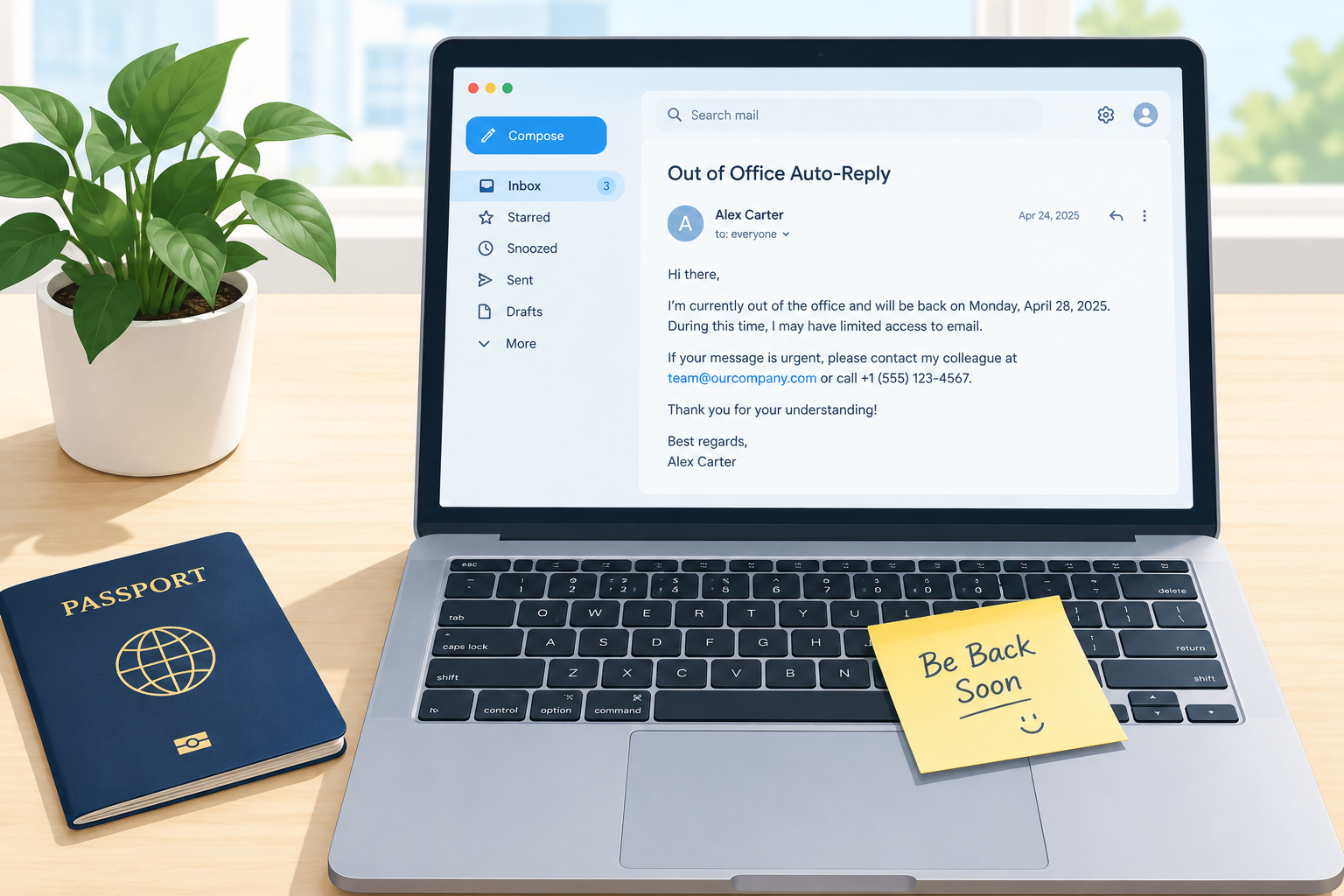
A good out of office reply tells people three things fast: you’re away, when you’ll be back, and who can help in the meantime. Below are 21 out of office email examples for vacations, sick days, parental leave, resignations and more. Each one is ready to paste into Gmail or Outlook, and the setup steps for both follow the templates.
What every out of office message needs
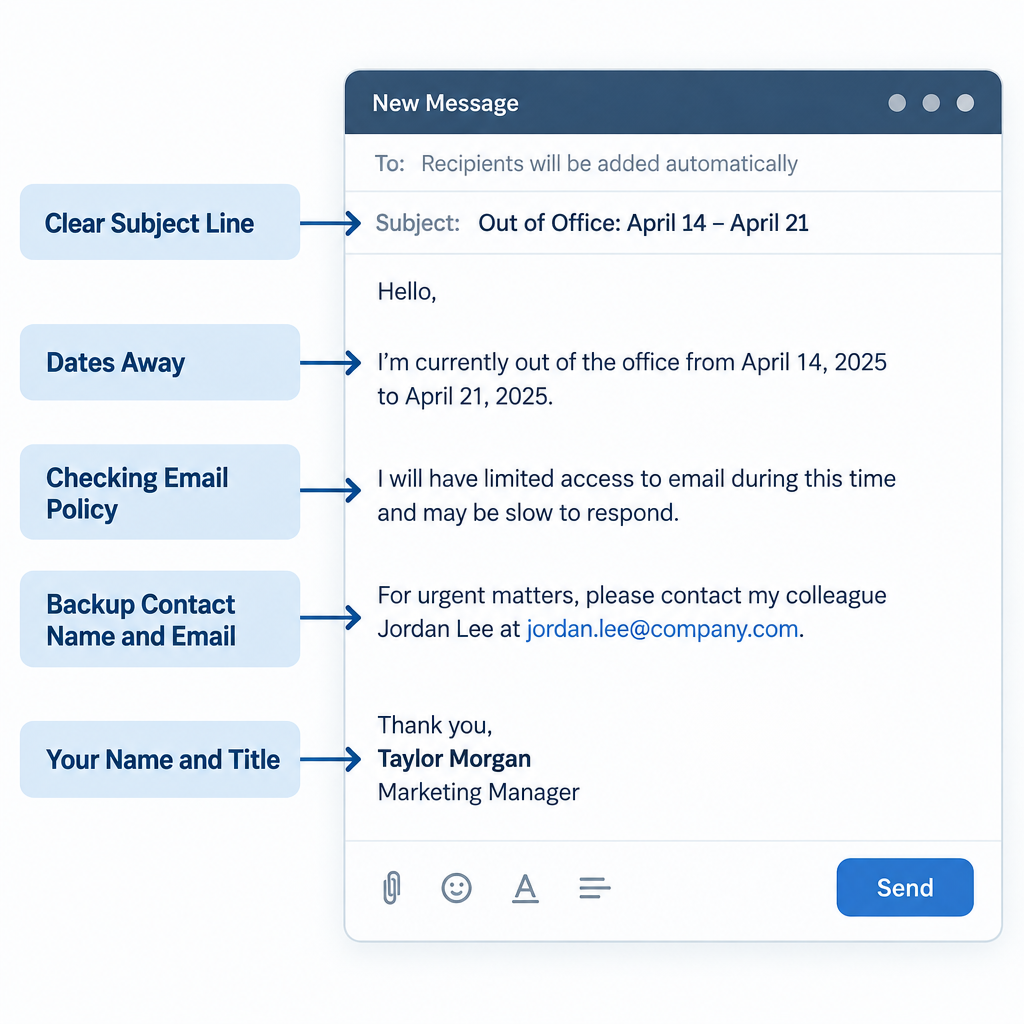
The best auto-replies are boring in the right way. They answer the sender’s next question before it’s asked, then get out of the way. Before you pick a template, check that yours covers these parts:
- A clear subject line. “Out of office until Monday, June 9” beats “Away.” Outlook adds “Automatic reply:” to the front of the subject on its own, so you don’t need to repeat it.
- The dates you’re away. Your return date matters most. Use the actual date, not “next week,” because the sender may read it days later.
- Whether you’re checking email. Say it plainly: “I won’t be checking email” or “I’ll check messages once a day.”
- A backup contact. Give a name, role and email address for anything urgent. Ask that person first.
- What happens to their email. Will you reply when you’re back, or should they resend? Tell them.
- Your name and title. Some clients skip your normal signature on auto-replies, so add a short sign-off by hand. Our email signature examples work well in a trimmed-down form here.
Keep it short. Most senders read the first two lines and act on them. If your message runs past about 120 words, cut something.
What you need before you switch it on
Five minutes of prep saves you from the most common auto-reply problems:
- Your exact return date, plus the time if you’re back mid-day.
- A backup contact who has agreed to cover, with their email address (and phone number for internal versions only).
- Access to your email settings on desktop or web. Mobile apps work, but the full options live on desktop.
- Two versions if you use Outlook at work: a detailed one for colleagues and a shorter one for outside senders.
- A list of open threads your backup should watch. Add them in copy so they already have context. Our guide to CC in email covers when that’s the right move.
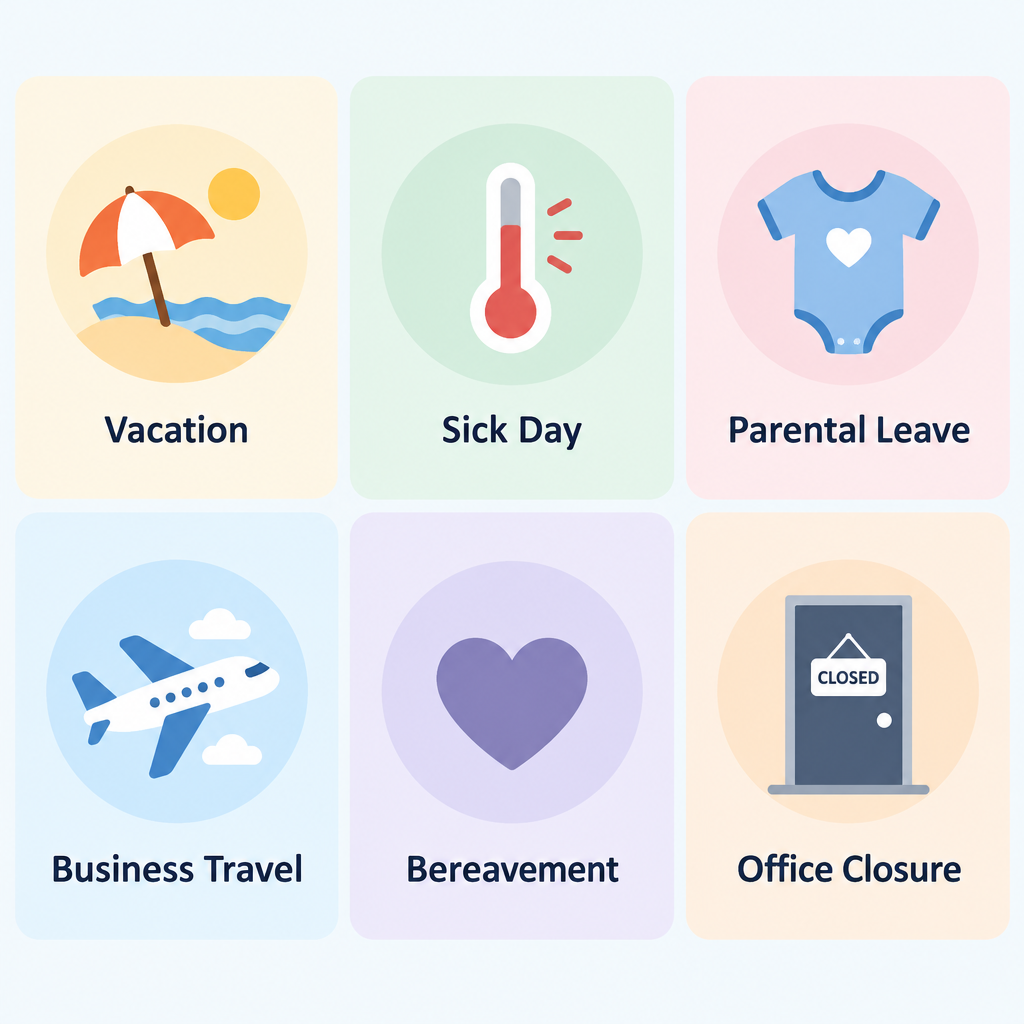
21 out of office email examples by situation
Swap out everything in square brackets. Every template below works as an out of office reply sample you can paste straight into Gmail’s vacation responder or Outlook’s automatic replies box.
Vacation and time off
1. Short and simple
Subject: Out of office until [date]
Hi,
Thanks for your email. I’m out of the office until [date] with limited access to email. For anything urgent, please contact [Name] at [email]. Otherwise, I’ll reply when I’m back.
[Your name]
This is the safest sample out of office email if you only need one. It works for any absence of a few days.
2. Formal vacation reply
Subject: Out of office: returning [date]
Hello,
Thank you for your message. I am on annual leave from [start date] and will return on [return date]. I will not be checking email during this time.
For urgent matters, please contact [Name], [title], at [email]. They can help with [account work / approvals / client questions].
I will respond to your message after I return.
Kind regards,
[Your name]
[Title], [Company]
3. Friendly vacation reply
Subject: On vacation, back [date]
Hi there,
I’m taking a proper break and will be offline until [date]. If your email can’t wait, [Name] has you covered at [email].
Everything else will get my full attention once I’m back.
Thanks for your patience,
[Your name]
4. Company holiday or office closure
Subject: Our office is closed until [date]
Hello,
Thanks for getting in touch. [Company] is closed from [start date] to [end date] for [holiday name]. We’ll be back on [date] and will reply to messages in the order we received them.
If you need help sooner, our help center at [web address written out] answers most common questions.
Happy holidays,
The [Company] team
Keep the closure dates identical on every team member’s reply. Mismatched dates confuse customers fast.
Sick, medical and personal leave
5. Short sick day reply
Subject: Out sick today
Hi,
I’m out sick today, [date], and won’t be checking email. For anything urgent, please contact [Name] at [email]. I’ll reply when I’m back.
Thanks,
[Your name]
You owe nobody details about your health. “Out sick” or “unavailable” is enough.
6. Extended medical leave
Subject: Out of office: on leave until [date]
Hello,
Thank you for your email. I’m currently on leave and expect to return on [date]. I won’t have access to email during this time.
[Name] is handling my work while I’m away and can be reached at [email]. Please send any time-sensitive requests to them directly.
Best regards,
[Your name]
If your return date isn’t fixed, write “I expect to return in [month]” or leave the date out and name your backup more prominently.
7. Parental leave
Subject: On parental leave until [date]
Hi,
I’m on parental leave until [date] and won’t be checking email.
For questions about [project/accounts], please contact [Name] at [email]. For anything else, [Name 2] at [email] can help.
I look forward to catching up when I’m back.
[Your name]
8. Bereavement or personal leave
Subject: Out of office until [date]
Hello,
I’m away from work until [date] for personal reasons and won’t be responding to email. Please contact [Name] at [email] for anything that needs attention before then.
Thank you for understanding,
[Your name]
“Personal reasons” is professional and complete. Skip any further explanation.
Work travel and partial availability
9. Business trip or conference
Subject: Traveling for work until [date]
Hi,
I’m attending [conference name] until [date], with limited access to email. I’ll check messages each evening, so expect a slower reply than usual.
For urgent questions, please reach [Name] at [email].
Thanks,
[Your name]
If you’re meeting people at the event, add one line inviting senders to say hello at your booth or session.
10. Out for part of the day
Subject: Away until [time] today
Hi,
I’m in [training / an offsite meeting] until [time, time zone] today and won’t see email until then. I’ll reply this afternoon. If it’s urgent, please call [Name] on [internal extension].
[Your name]
Outlook lets you schedule automatic replies by the hour, which makes this one easy to set and forget.
11. Working remotely with limited access
Subject: Limited availability until [date]
Hello,
I’m working remotely until [date] with limited connectivity. I’ll check email once a day, usually in the [morning/afternoon, time zone]. For anything that can’t wait 24 hours, please contact [Name] at [email].
Best,
[Your name]
Job changes
12. After resigning or leaving the company
Subject: I’ve left [Company]
Hello,
Thank you for your email. As of [date], I no longer work at [Company], and this inbox is no longer monitored.
For [accounts / projects / billing], please contact [Name] at [email]. They have full context on my former work and will be glad to help.
All the best,
[Your name]
Clear this wording with your manager or IT first. Many companies set up the departed-employee reply themselves, and some prefer it says nothing personal.
13. Changed roles inside the company
Subject: I’ve moved to a new role
Hi,
I’ve moved to a new role as [new title] and no longer handle [old responsibilities]. For those, please contact [Name] at [email].
If you’re writing about [new area], I’m happy to help and will reply soon.
[Your name]
Messages for specific roles
14. Sales rep
Subject: Out of office until [date]: your deal is covered
Hi,
Thanks for reaching out. I’m away until [date], but your account won’t stall. [Name] on our sales team can answer questions, send quotes and book demos at [email].
I’ll pick up our conversation as soon as I’m back.
[Your name]
[Title], [Company]
Reps get auto-replies too. If a prospect is away after a call, wait until their return date before you send the follow up sales call email you planned.
15. Customer support or shared inbox
Subject: We’ve received your message
Hi,
Thanks for contacting [Company] support. Our team is away until [date, time, time zone], and we’ll reply as soon as we’re back.
In the meantime, our help center answers questions about [orders, billing, passwords]. If you’ve found a new detail since writing, reply to this email and it will stay in the same ticket.
The [Company] support team
16. Freelancer or small business owner
Subject: Away until [date]
Hi,
Thanks for your email. I’m taking a short break and will be back on [date]. Current client projects are on schedule, and I’ll reply to all messages within two business days of returning.
If you’re a new client, I’d love to hear about your project. I’ll be in touch once I’m back.
[Your name]
[Business name]
17. Executive with an assistant
Subject: Out of office until [date]
Hello,
I am away until [date] with limited access to email. My assistant, [Name], manages my calendar and correspondence and can be reached at [email] or [phone].
Thank you,
[Your name]
[Title], [Company]
Outside hours, internal and lighter messages
18. Outside working hours or weekends
Subject: Received outside working hours
Hi,
Thanks for your email. My working hours are [days, hours, time zone], so I’ll reply on my next working day.
[Your name]
Use this sparingly. An auto-reply firing on every weekend email starts to feel like noise.
19. Internal-only version for colleagues
Subject: OOO until [date]
Hi team,
I’m out until [date]. Quick routing guide:
- [Project A]: [Name], [email]
- Approvals and invoices: [Name], [email]
- Anything truly urgent: text me on [number]
Notes on open work are in [shared folder name].
[Your name]
This is where the details go. Keep phone numbers and folder names out of the version strangers see.
20. Sabbatical with a “please resend” policy
Subject: On sabbatical until [date]
Hello,
I’m on sabbatical until [date] and won’t be reading email while I’m away. Messages received during this time won’t be saved for later, so please resend anything important after [date].
For immediate help, contact [Name] at [email].
Thank you,
[Your name]
This approach is bold, but it works for long breaks. It only works if you actually archive or delete what arrives. Gmail users can clear a pile in minutes with our method to bulk delete Gmail emails.
21. Lighthearted
Subject: Gone fishing (literally) until [date]
Hi,
I’m somewhere with more fish than Wi-Fi until [date]. If your email is urgent, [Name] at [email] is far more reachable than I am.
Otherwise, I’ll reply once I’m back on dry land.
[Your name]
Save humor for audiences who know you. Clients, recruiters and anyone in finance or law usually deserve template 1 or 2.
Inbox tip
Put the return date in the subject line. Many people see your auto-reply only as a notification preview, so the subject has to do the work.
How to set up an out of office reply in Gmail
Gmail calls this feature the vacation responder. It works the same for personal Gmail and Google Workspace accounts.
Gmail vacation responder
- Open Gmail on a computer and click the gear icon, top right.
- Click See all settings.
- Stay on the General tab and scroll to Vacation responder.
- Select Vacation responder on.
- Set the First day and, ideally, the Last day.
- Enter your subject and paste your message.
- Optionally tick Only send a response to people in my Contacts.
- Click Save Changes at the bottom of the page.
On Android or iPhone, open the Gmail app, tap the menu, then Settings, choose your account and tap Vacation responder. Turn it on, add your dates and message, and tap Done (or Save).
Workspace accounts get one extra checkbox: you can limit replies to people in your organization. That’s useful when you want colleagues to know where you are but don’t want to confirm to outside senders that your inbox is live.
While the responder is on, Gmail shows a banner across the top of your inbox with an option to end it early.
How to set up automatic replies in Outlook
Outlook’s version is called Automatic Replies. Where you find it depends on which Outlook you use.
Outlook automatic replies
- In classic Outlook for Windows, click File, then Automatic Replies.
- In new Outlook, Outlook on the web or Outlook.com, open Settings, then Accounts, then Automatic replies.
- Turn on automatic replies.
- Tick the option to send replies only during a time period, then set start and end times.
- Write your colleague version in the Inside My Organization box.
- Switch on replies outside your organization and paste a shorter external version.
- Click OK or Save.
The web and new Outlook versions add calendar options. You can block your calendar for the period, automatically decline new invitations, and decline or cancel meetings that fall during your absence. Use the decline options carefully, because cancelling a recurring meeting you organize cancels it for everyone.
In the Outlook mobile app, tap your profile icon, open Settings, select your account and choose Automatic replies.
If you can’t find Automatic Replies
The button only appears for Microsoft 365, Exchange and Outlook.com accounts. If you’ve connected a Gmail, Yahoo or other account to Outlook using POP or IMAP, the option won’t show. You have two fixes: set the auto-reply in that provider’s own web settings, or build an Outlook rule that replies with a saved template. The provider’s own setting is the better choice, because Outlook rules only run while Outlook is open on your computer.
Where to find the setting in each app
| App | Menu path | Feature name |
|---|---|---|
| Gmail on the web | Gear icon > See all settings > General | Vacation responder |
| Gmail app (Android, iOS) | Menu > Settings > your account | Vacation responder |
| Classic Outlook for Windows | File > Automatic Replies | Automatic Replies |
| New Outlook, Outlook on the web, Outlook.com | Settings > Accounts > Automatic replies | Automatic replies |
| Outlook mobile app | Profile icon > Settings > your account | Automatic replies |
How Gmail and Outlook auto-replies behave
The two platforms handle repeat senders and audiences differently, which changes how you write your message.
| Behavior | Gmail | Outlook (Microsoft 365) |
|---|---|---|
| Repeat senders | Sees your reply at most once every 4 days | One reply per sender for each out of office period |
| Audience options | Contacts only; Workspace adds organization only | Separate inside and outside messages; outside can be contacts only |
| Scheduling | Start date, optional end date | Start and end date with exact times |
| Calendar actions | None | Block calendar, decline invites (web and new Outlook) |
| Spam and mailing lists | No replies to spam or mailing list messages | Junk handling depends on admin settings |
Gmail’s 4-day rule matters on long trips. Someone who emails you every week gets reminded, which is usually what you want. Outlook replies once per sender, so your first message has to carry everything.
What senders should see (expected result)
Once it’s on, test it. Send an email to your work address from a personal account, or ask a colleague to.
Within a minute or so, the sender should receive one reply. In Outlook, the subject starts with “Automatic reply:” followed by your subject. In Gmail, it shows the subject you wrote. The message body should display your return date clearly in the first two lines, with your backup’s address spelled correctly.
Test both audiences in Outlook: a colleague should get the internal version, and your personal address should get the external one. If a test email shows anything wrong, fix it now. Sending a correction to every recipient later is far worse than the usual typo email recovery.
Common mistakes and how to fix them
Most auto-reply failures come from a handful of slips.
No end date. The reply keeps running after you’re back, telling clients you’re on vacation while you’re at your desk. Always set an end date, even if you plan to turn it off manually.
The wrong year or day. “Back Monday, June 10” is a problem when June 10 falls on a Tuesday. Check the calendar.
A backup who doesn’t know. Naming a colleague without asking them is the fastest way to lose their goodwill. Get a yes before you publish their address.
Too much detail for outside senders. Strangers don’t need your itinerary, mobile number or the name of your resort.
The reply isn’t firing. Check these causes in order:
- The start date or time is in the future, or the time zone is wrong.
- The audience filter is set to contacts only and the sender isn’t saved as a contact.
- In Outlook, external replies are switched off, or your admin blocks replies outside the organization.
- The sender already received one reply. Gmail waits 4 days, and Outlook won’t send a second during the same period.
- The incoming email landed in spam, where Gmail won’t respond.
Replies to newsletters and alerts. Gmail skips mailing list messages, but other setups don’t. Using the contacts-only option cuts down on auto-replies sent to automated senders.
Deliverability risk
Auto-replies to spoofed spam send mail to innocent addresses, known as backscatter. Use contacts-only or organization-only replies if your inbox gets heavy spam.
Keep your out of office message safe
An auto-reply goes to anyone who emails you, including people you’d never willingly tell you’re away. That makes it a useful tool for scammers.
Business email compromise attacks often lean on this. An attacker learns you’re away, sees your backup’s name and title, then emails that backup pretending to be you or your boss with an “urgent” payment request. Your auto-reply just handed them the org chart.
Use these rules for the external version:
- Skip the location. “Out of the office” is enough. “In Bali for three weeks” also tells people your home is empty.
- Keep internal details internal. Phone numbers, reporting lines and project names belong in the colleague version only.
- Give one routing address, not a list. A shared address like support@ or sales@ is safer than naming three individuals.
- Warn your team. Tell your backup and finance contacts you won’t request payments or password changes while away.
This is also why Outlook’s split between inside and outside messages is so useful. Write a detailed internal reply and a lean external one, every time.
What to do with out of office replies to your campaigns
If you send newsletters, sales sequences or email pitches, auto-replies land in your reply-to inbox by the hundreds. Most senders ignore them. That’s a mistake, because they carry useful data.
They are not bounces. An out of office reply means the address works and a person reads it. Don’t remove those contacts, and don’t let anyone on your team mark them as failed deliveries.
Mine them for return dates. For one-to-one outreach, an auto-reply that says “back June 16” tells you exactly when to follow up. A pitch that arrives on someone’s first day back competes with hundreds of other emails, so wait a day or two. Our email pitch examples include follow-ups that work well for this.
Act on “I’ve left the company” replies. These are the most valuable auto-replies you’ll get. Update the record, unsubscribe or suppress the old address, and, for B2B, reach out to the named replacement with a fresh, relevant message. Continuing to email a dead inbox drags down your engagement rates, which matters because mailbox providers weigh engagement heavily in e-mail spam filtering decisions.
Use a real reply-to address. A no-reply address throws all of this away. Point replies to a monitored inbox and set a filter that tags auto-replies so they don’t bury real responses.
When you’re back
Your first hour back sets the tone for the week.
- Turn the reply off, even if you set an end date. Confirm the Gmail banner is gone or Outlook shows replies as off.
- Read your backup’s handover notes before your inbox. They’ll tell you what’s already handled.
- Sort by sender, not date. Reply to clients and your manager first, then work down.
- Archive what you can. Newsletters and notification emails from last week rarely need action.
- Thank your backup. They covered for you. A short note, with their manager in copy, goes a long way.
FAQ
What is a proper out of office message for vacation?
A proper vacation reply states that you’re away, gives your return date, says whether you’re checking email, and names one backup contact with an email address. Templates 2 and 3 above follow that structure. Keep it under about 100 words and leave out where you’re going.
What should I include in an auto-reply email after resigning as an employee?
Say that you no longer work at the company as of a specific date, that the inbox isn’t monitored, and who now handles your former work, with their email address. Don’t include a personal email or criticism of the company. Agree the wording with your manager or IT first, since many companies manage this reply themselves after you leave. Template 12 is a safe starting point.
How do you say “I am out of office”?
Simple, direct phrasing works best: “I’m out of the office until [date],” “I’m away until [date] with limited access to email,” or “I’m currently on leave and will return on [date].” “Out of office” and “out of the office” are both correct, and either is fine in a subject line. Always pair the phrase with a return date, because “I am out of office” alone leaves the sender guessing.
How do I write an auto-email reply for my sick leave?
Keep it short and private. Say you’re out sick or on leave, give a return date if you know it, and name a colleague for urgent matters. You don’t need to mention symptoms or a diagnosis. Template 5 covers a single sick day, and template 6 suits longer medical leave where your return date may change.
How long should an out of office message be?
Aim for 50 to 120 words. That’s enough for your dates, availability, backup contact and sign-off. Anything longer gets skimmed, and the return date gets lost.
Should I set an out of office reply for a single day off?
Yes, if people expect a same-day reply from you, such as clients, customers or your own team. A one-line reply like template 5 or template 10 prevents follow-up emails asking whether you saw the first one. For a half day with nothing urgent pending, a calendar block is usually enough.