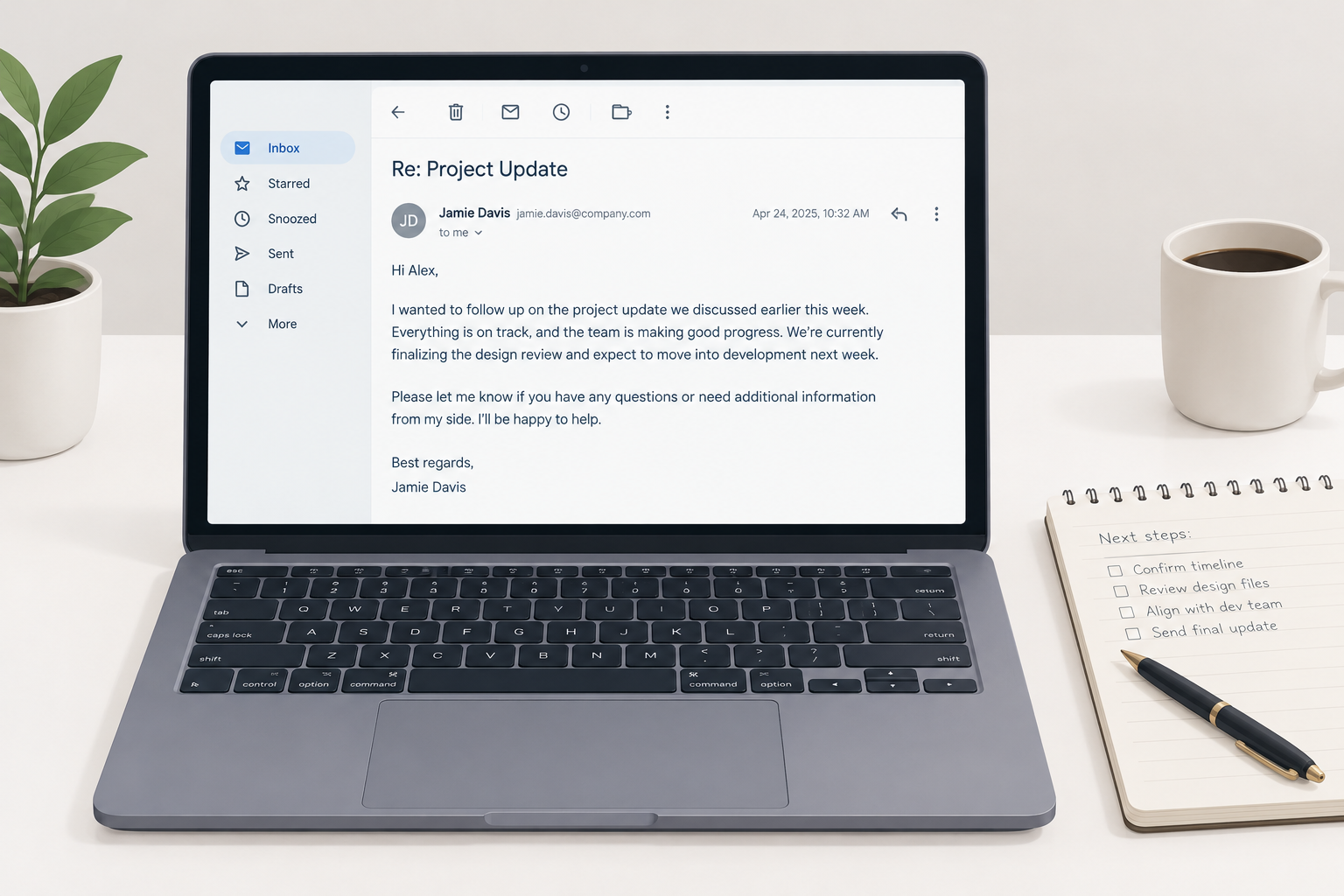
Category: Email Basics

  • How to End an Email Professionally in Any Situation

    How to End an Email Professionally in Any Situation

    How you end an email decides whether the reader knows what to do next and how they feel about doing it. This guide covers the four parts of a professional email ending, a six-step process, and more than 30 sign-offs sorted by situation, with full examples you can adapt.

    Safest sign-offBest regards
    Highest-reply familyThank-you closings
    Parts of an endingFour
    Biggest mistakeNo clear next step

    Why email closings matter more than you think

    The ending is the last thing your reader sees before they decide whether to reply. A vague ending leaves them guessing. A clear one tells them exactly what you need and by when.

    There is also data behind word choice. In a widely cited 2017 analysis of more than 350,000 email threads, Boomerang found that closings built around gratitude got noticeably more replies. “Thanks in advance” came out on top at roughly 66%, with “Thanks” close behind at about 63%. “Best” landed near 51%, against a baseline of about 47.5% across all threads.

    Treat that as a signal, not a law. The study measured correlation in mostly everyday messages, and it is several years old. Still, the pattern matches what most people who send a lot of email see: thanking someone for an action you want them to take makes the action more likely.

    What you need before you write the ending

    You will end emails faster and better if you settle a few things first. Here is the short list:

    • Your relationship with the reader. Stranger, client, manager, close colleague? This sets the tone.
    • The one action you want. A reply, a decision, a meeting, a file, or nothing at all.
    • Any deadline. A date makes the request concrete.
    • Your saved signature. Name, title, company, and the contact details people actually use.
    • The thread context. Is this the first message or the eighth reply of the day?

    If you cannot name the action you want, fix the body of the email before worrying about the sign-off.

    The anatomy of a great email ending
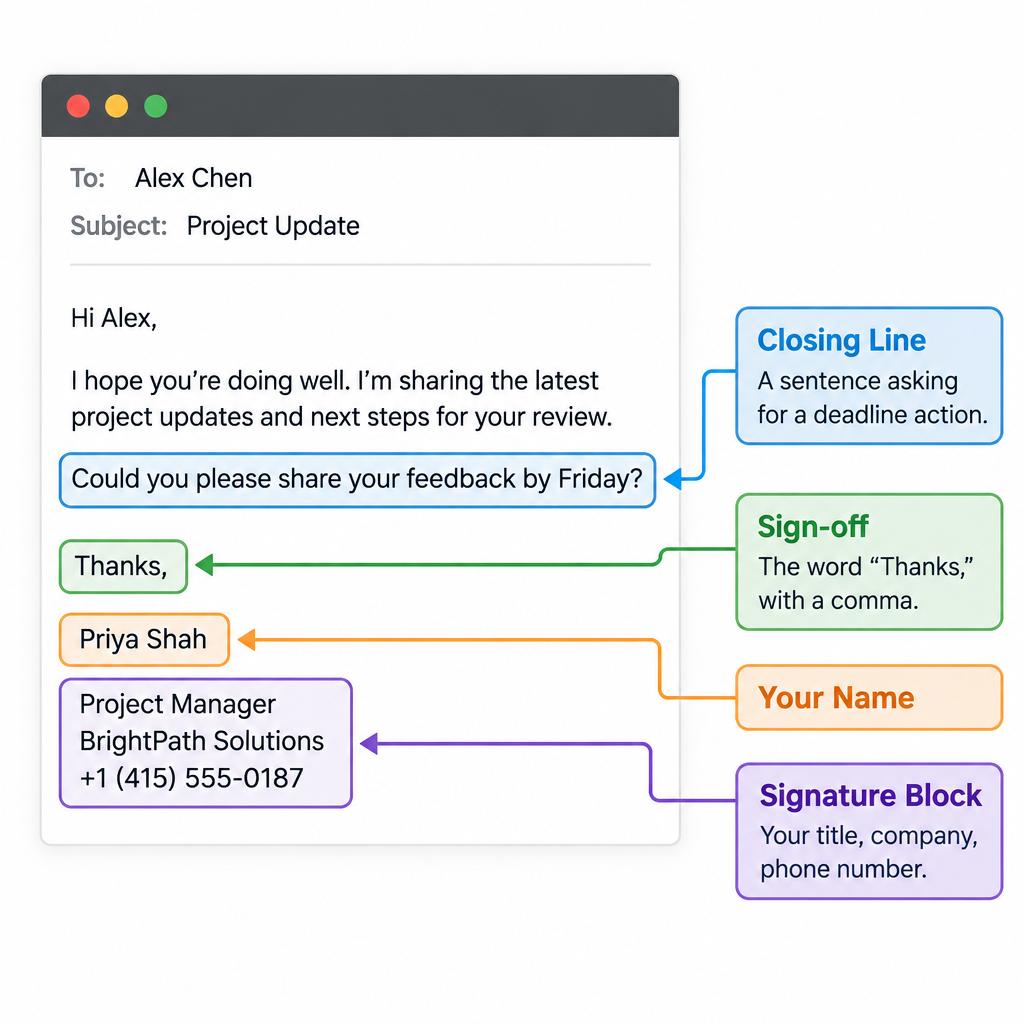
    Four Parts of an Email Ending

    A professional email ending has four parts. Most weak endings skip the first one.

    1. The closing line. One or two sentences that state the next step or wrap up the message.
    2. The sign-off. “Best regards”, “Thanks”, “Cheers”, followed by a comma.
    3. Your name. First name for people you know, full name for first contact.
    4. The signature block. Title, company, phone, and anything else the reader needs to find you.

    Here is what that looks like assembled:

    Could you confirm the revised budget by Thursday so I can send the contract on Friday?

    Thanks,

    Priya Shah
    Account Director, Northline Studio
    +44 20 7946 0123

    The closing line does most of the work. The sign-off sets the tone. The signature handles logistics. Keep each part doing its own job.

    How to end an email professionally in 6 steps

    Setup steps

    1. Write one closing line with the next step.
    2. Add a deadline if you need one.
    3. Pick a sign-off that matches the tone.
    4. Add your name and a comma before it.
    5. Check your signature block.
    6. Proofread the recipients and reread the ending.

    Step 1: Write a closing line that states the next step

    Look at what you want and say it plainly. “Let me know if you have any questions” is filler for most emails. “Can you send the signed form by noon Wednesday?” is a closing line.

    If you need nothing, say so. “No need to reply, this is just for your records” saves your reader time and earns goodwill.

    Step 2: Add a time frame where it helps

    Requests without dates drift. “By Friday” or “before the 3pm call” gives the reader a reason to act now. Skip deadlines on purely friendly messages, where they read as pushy.

    Step 3: Choose the sign-off by tone

    Match the formality of the sign-off to the formality of the email. A message to a new client gets “Kind regards”. A quick note to your teammate gets “Thanks” or just your initial. The full list by situation is below.

    Step 4: Format the sign-off and your name

    Capitalise the first word only (“Best regards”, not “Best Regards”), add a comma, then put your name on the next line. Both capitalisations are common, but first-word-only is the standard in most style guides and looks cleaner.

    Step 5: Check your signature block

    Make sure the phone number works, the title is current, and the block is not longer than the email. More on setting this up later.

    Step 6: Proofread recipients and the ending itself

    Reread the last paragraph out loud in your head. Then check who is on the email. Using cc in email properly matters here: if your closing line asks one person to do something, name them, so the people copied in know it is not on them.

    30+ ways to end an email, by situation
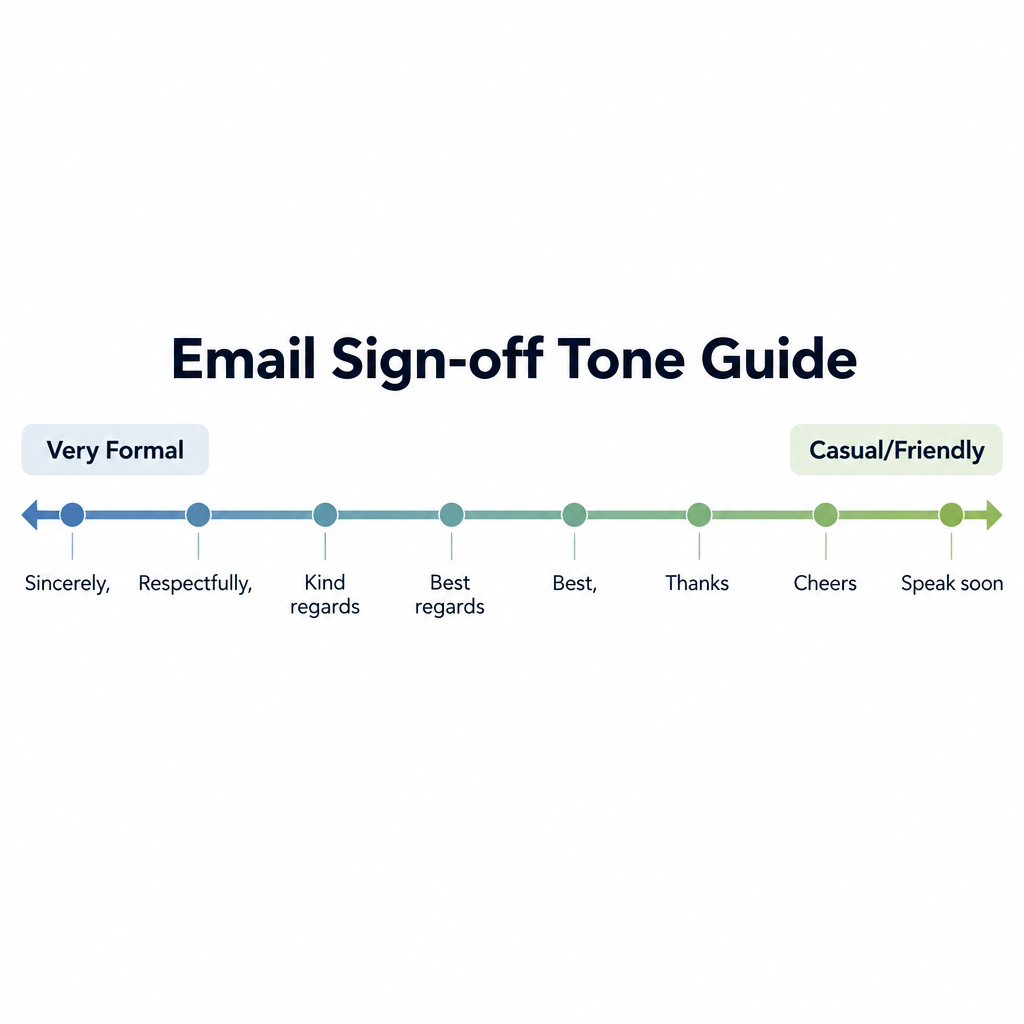
    Sign-off Tone Chart

    There are many ways to end an email. The right one depends on who is reading and what you just asked of them. Here they are grouped so you can find a fit quickly.

    Formal and first-contact sign-offs

    Use these for new clients, senior people you have not met, legal or financial matters, and anything that might get forwarded up a chain.

    Sign-off Tone Best use
    Best regards Formal, neutral Default for almost any business email
    Kind regards Formal, a little warmer Clients, partners, UK and Europe contacts
    Regards Formal, cool Short transactional notes
    Sincerely Very formal Cover letters, official letters
    Respectfully Very formal Government, legal, senior leadership
    With appreciation Formal, grateful After someone has gone out of their way
    Yours faithfully Very formal, British Letters opened with “Dear Sir or Madam”

    “Regards” on its own can read as curt, especially after a tense exchange. Add “Kind” or “Best” if you want to sound neutral rather than cold.

    Everyday professional sign-offs

    These cover most internal email and ongoing client work.

    Sign-off Tone Best use
    Best Neutral, efficient Almost anything once you have met
    All the best Warm, neutral Wrapping up a project or long thread
    Thanks Friendly, direct Any email with a request
    Thank you Slightly more formal Requests to clients or managers
    Many thanks Warm, British-leaning After someone has helped a lot
    Thanks again Friendly Second thank-you after a favour
    Speak soon Friendly When a call or meeting is booked

    Sign-offs for requests and action items

    When you need something, pair a specific closing line with a thankful sign-off.

    • Thanks in advance. Effective, but some readers find it presumptuous. Use it for routine asks, not big favours.
    • Thanks for your help with this. Better when the request takes real effort.
    • Appreciate your support. Good for asks to other departments.
    • Looking forward to your thoughts. Use when you want an opinion rather than a task.
    • Looking forward to hearing from you. Classic, slightly formal, works for clients and recruiters.

    Friendly and casual sign-offs

    Save these for colleagues you know well and contacts who write casually to you first.

    • Cheers. Everyday in the UK and Australia. In the US it can feel a bit chummy with strangers.
    • Have a great weekend. Friday emails only.
    • Talk soon. Relaxed and forward-looking.
    • Take care. Warm, good for people you have not spoken to in a while.
    • Your initial or first name only. Fine in fast internal threads.

    Job applications, networking and LinkedIn

    • Sincerely. Still the safest for cover letters.
    • Best regards. Fine for recruiter follow-ups.
    • Thank you for your time and consideration. Use after an interview.
    • Grateful for your time. Good for informational interview requests.

    Apologies, bad news and sensitive topics

    • With apologies. When you are owning a mistake.
    • Thank you for your patience. After a delay or a service problem.
    • Warm regards. For condolences or difficult personal news.
    • Thinking of you. Only for people you genuinely know.

    That is over 30 options. In practice, most people need about five: Best regards, Kind regards, Best, Thanks, and one casual choice.

    Closing lines that do the real work

    The sign-off gets all the attention, but the line above it decides whether you get a reply. Here are closing lines by purpose.

    To get a decision: “Which option works better for you, A or B? I’ll book whichever you pick.”

    To schedule something: “I’m free Tuesday 10am to noon or Wednesday after 2pm. Does either suit?”

    To confirm receipt: “Just reply ‘got it’ so I know this reached you before the deadline.”

    To close a loop: “That wraps up the onboarding. No action needed from you.”

    To offer support without filler: “If the import fails again, send me a screenshot of the error and I’ll take a look today.”

    To follow up gently: “Bumping this up in case it got buried. Is the 14th still realistic?”

    Notice what is missing: “Hope this helps”, “Let me know if you have any questions”, “Feel free to reach out”. They are not wrong, but they add nothing when the reader already knows they can reply.

    How to end an email professionally: examples by audience

    Tone shifts with the person reading. Here are full endings you can adapt.

    To your manager

    I’ve attached the draft. Could you flag anything that needs changing by end of day Thursday? I’ll send it to the client Friday morning.

    Thanks,
    Daniel

    To a new client

    I’ll send the kickoff agenda by Monday. In the meantime, the best number to reach me is below.

    Kind regards,

    Daniel Ortiz
    Project Lead, Ortiz & Wren
    +1 312 555 0187

    To a recruiter after an interview

    Thank you for walking me through the team’s roadmap today. I’m very interested in the role and happy to provide references whenever useful.

    Best regards,
    Daniel Ortiz

    To a close colleague

    Pushed the fix to staging. Shout if it breaks anything.

    D

    To a cold prospect

    Would a 15-minute call next week be worth it to see if this fits? If not, no hard feelings, and I won’t follow up more than once.

    Best,
    Daniel

    That last line about following up only once builds trust with people who get a lot of sales email.

    Signing off on replies, LinkedIn and your phone

    Long reply chains

    You do not need a full sign-off on every reply. After the first two or three exchanges in a thread, most people drop to just a name or nothing at all. Mirror the other person. If they keep signing “Best, Sam”, keep your sign-off too.

    LinkedIn messages

    LinkedIn messages read more like chat than email. A first-name sign-off is plenty, and many people skip it entirely. For a first connection request or a job inquiry, a short “Thanks, Daniel” is the safest middle ground.

    Sending from your phone

    “Sent from my iPhone” was once an excuse for brevity. Today it mostly looks like you never opened your settings. Replace it with your name and title, or a short line like “Replying from mobile, full details to follow”. On iPhone, go to Settings > Apps > Mail > Signature (on versions before iOS 18, Settings > Mail > Signature).

    Regional and cultural differences

    Sign-offs travel badly. A few patterns worth knowing:

    • UK, Ireland, Australia: “Cheers” is normal at work. “Kind regards” is the default formal choice. “Many thanks” is common.
    • United States: “Best” and “Thanks” dominate. “Cheers” can read as casual or affected depending on the reader.
    • Germany: “Mit freundlichen Grüßen” is standard in formal email, with “Viele Grüße” or “Beste Grüße” for warmer contacts. If you write in English, “Best regards” maps well.
    • France: “Cordialement” is the everyday professional sign-off. “Bien cordialement” is a touch warmer.
    • Japan: Business emails often close with “Yoroshiku onegaishimasu”, a phrase that roughly asks for continued goodwill and has no neat English equivalent.

    When you write to someone in another country, copy the formality level they use with you. That is a safer guide than any rulebook.

    Ending marketing and bulk emails

    Newsletters and promotional campaigns follow different rules. The ending of an email marketing message is mostly the footer, and parts of it are legally required.

    Under the US CAN-SPAM Act, commercial emails must include a valid physical postal address and a clear way to opt out. The opt-out has to be honoured within 10 business days. Under GDPR in Europe, you also need a lawful basis for sending in the first place, usually consent.

    Mailbox providers add their own requirements. Since February 2024, Gmail requires senders of roughly 5,000 or more messages a day to Gmail addresses to support one-click unsubscribe, with full enforcement of one-click rolling out by June 2024. Yahoo applies a similar one-click unsubscribe requirement to bulk senders, without publishing a fixed volume threshold. In May 2025, Microsoft began enforcing SPF, DKIM and DMARC authentication for senders pushing more than 5,000 messages a day to its consumer addresses.

    Deliverability risk

    Hiding or removing the unsubscribe link pushes people to hit “Report spam” instead, which damages your sender reputation far more than an unsubscribe.

    Beyond the legal minimum, a good campaign ending has one clear call to action, a human sign-off from a named person, and a reason to stay subscribed. If you want proof of what works for your list, A/B testing a personal sign-off against a brand sign-off is a cheap experiment.

    Set up a signature so the ending writes itself

    A saved signature means you only make the sign-off decision, not the logistics one, on every email.

    Gmail (web): Settings (gear icon) > See all settings > General > Signature > Create new. Then set “Signature defaults” for new emails and replies, and click Save changes at the bottom of the page.

    Outlook (new Outlook and Outlook on the web): Settings > Account > Signatures. Create the signature, then choose defaults for new messages and replies.

    Apple Mail (Mac): Mail > Settings > Signatures. On older macOS versions the menu says Preferences instead of Settings.

    What to include:

    • Full name
    • Job title and company
    • One phone number you actually answer
    • Optional: pronouns, booking link, LinkedIn profile

    A domain email address in your signature looks far more credible to clients than a free webmail one, so set that up first if you are still sending business email from a personal account.

    Inbox tip

    Keep your signature mostly text. Large logo images and stacks of social icons add weight, show as attachments in some clients, and can count against you in e-mail spam filtering.

    If you write plain-text email, the traditional signature separator is two dashes and a space on a line by themselves. Many mail clients use it to recognise and trim signatures in replies:

    -- 
    Daniel Ortiz
    Project Lead, Ortiz & Wren
    

    Common email sign-off mistakes to avoid

    These are the problems that come up again and again.

    1. No closing line. The email just stops, and the reader has to work out what you want.
    2. A sign-off that clashes with the content. “Cheers!” under a complaint or a layoff notice reads as tone-deaf.
    3. “Thanks!” after asking for something huge. Match the gratitude to the size of the ask.
    4. Overly cute sign-offs with strangers. “Stay awesome” is fine for friends, risky with a new client.
    5. “Love” or “xx” at work. Unless that is genuinely your workplace culture, leave it out.
    6. Double sign-offs. “Thanks, Best regards, Daniel” looks like you could not decide. Pick one.
    7. A signature longer than the email. Disclaimers, quotes and six icons under a two-line message bury the point.
    8. Typos in your own name or title. It happens with new signatures. Send yourself a test first.
    9. Outdated details. Old job title, old phone number, last year’s booking link.

    If you have already sent a typo email to someone important, a short, plain correction is usually better than a long apology.

    Following up after sending an email

    The ending sets up the follow-up. If your closing line had a deadline, you know exactly when to nudge.

    A reasonable rhythm for business email:

    • Internal request: follow up after 1 to 2 working days.
    • Client or partner: after 3 to 5 working days.
    • Cold outreach: wait about a week, and follow up once or twice at most.

    Make the follow-up shorter than the original. Reply in the same thread so the context sits underneath, restate the one thing you need, and end with an easy way to say yes or no. “Still keen on Tuesday, or should we push to next week?” works better than “Just checking in”.

    What a good ending gets you

    When you follow these steps, you should notice a few concrete changes. Replies come faster because the reader knows what you need. Fewer clarifying emails bounce back. Threads close sooner because you state when nothing more is needed. And your tone lands as intended, since the sign-off matches the content above it.

    Track it for a couple of weeks. Count how many requests get answered without a nudge before and after you start writing specific closing lines. For most people, that number moves more than any change to the sign-off itself.

    FAQ

    What is the best way to end a professional email?

    End with a closing line that states the next step, then “Best regards” or “Kind regards”, your name and a signature. If the email contains a request, “Thanks” or “Thank you” is a strong alternative.

    Is “Best” too casual for work email?

    No. “Best” is neutral and widely used in business. For a first email to a senior person or a formal matter, “Best regards” is a safer step up.

    Should I put a comma after my sign-off?

    Yes. Standard format is the sign-off, a comma, then your name on the next line, as in “Kind regards,” followed by your name.

    Is “Thanks in advance” rude?

    It is not rude, and it performs well for replies, but some readers feel it assumes they will say yes. Use it for small routine requests. For bigger favours, thank them properly after they help.

    Do I need a sign-off in every reply?

    No. After the first few messages in a thread, it is normal to drop the sign-off or use just your first name. Follow the other person’s lead.

    What sign-offs should I avoid at work?

    Avoid “Love”, “xx”, sarcastic closings, and anything overly cute with people you do not know. Also avoid ending without any closing line, which leaves the reader unsure what you need.
  • What Does CC Mean in Email and When Should You Use It

    What Does CC Mean in Email and When Should You Use It

    CC stands for “carbon copy,” and in email it is the field you use to send a copy of a message to people who should stay informed but don’t need to act. Everyone on the email can see who was CC’d, which is what separates it from BCC (blind carbon copy). This guide covers what CC means, when to use it, when to leave people off, and the privacy mistakes that have cost organisations real fines.

    CC stands forCarbon copy
    Visible to othersYes, always
    Use it forKeeping people informed
    Use BCC forHiding recipient addresses
    Never use forNewsletters or mass sends

    What CC Stands For and Where “Carbon Copy” Came From

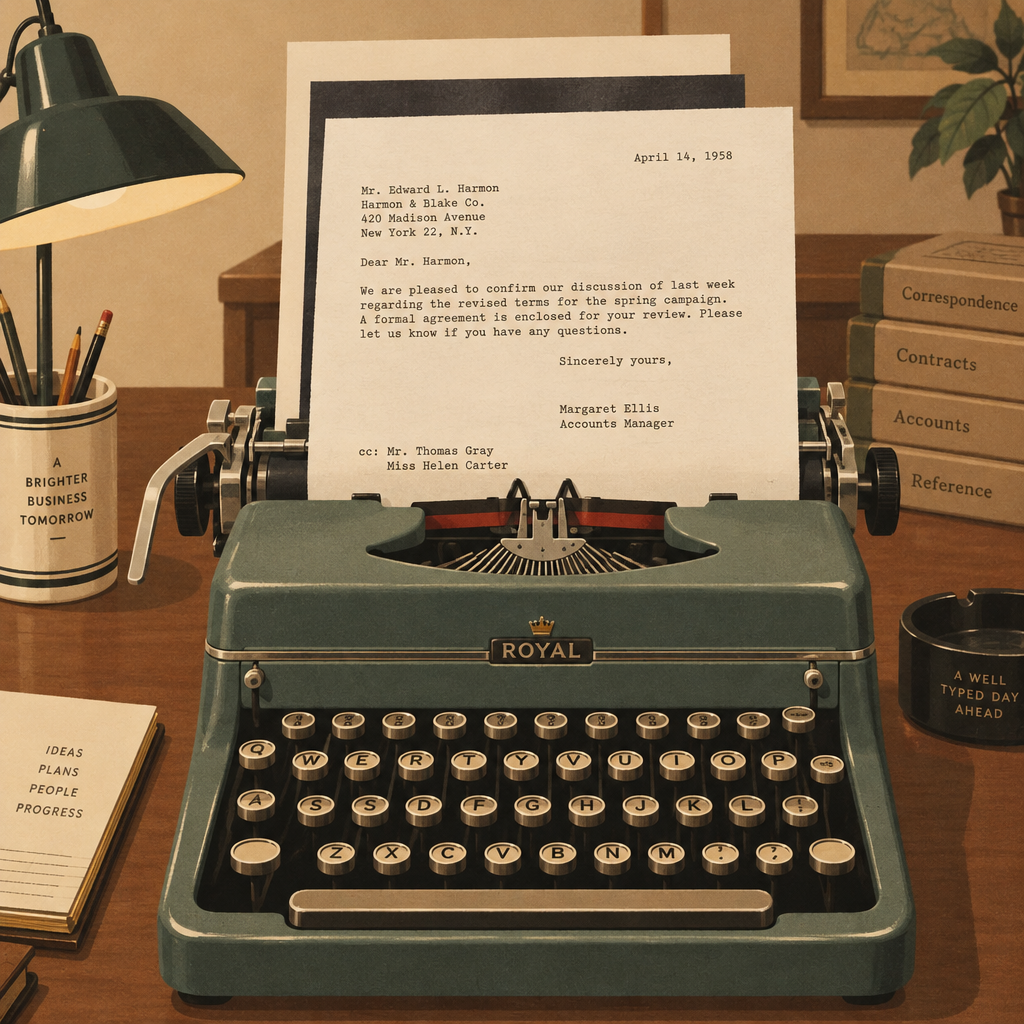
    The term is older than email. Before photocopiers, a typist slipped a sheet of carbon paper between two sheets of paper. Pressing the keys printed the letter on the top sheet and a duplicate on the sheet underneath. That duplicate was the carbon copy.

    Business letters carried a “cc:” line at the bottom listing everyone who received a duplicate. The main recipient could see exactly who else had a copy. That transparency is the whole point, and email kept it.

    When internet email was standardised, the field names came along. The current specification, RFC 5322, defines three destination fields:

    • To: the primary recipients
    • Cc: additional recipients who receive a copy
    • Bcc: recipients whose addresses are hidden from everyone else

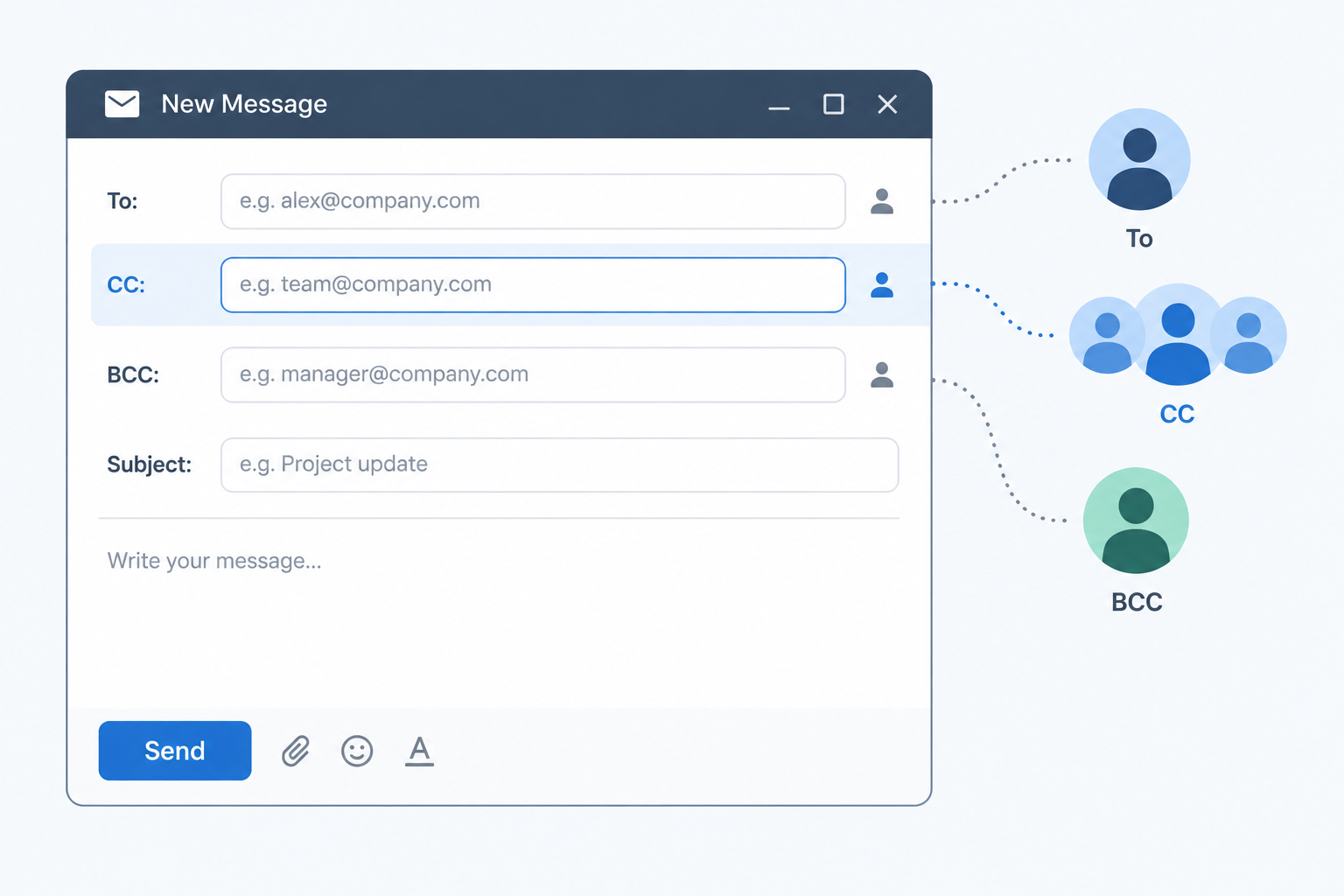
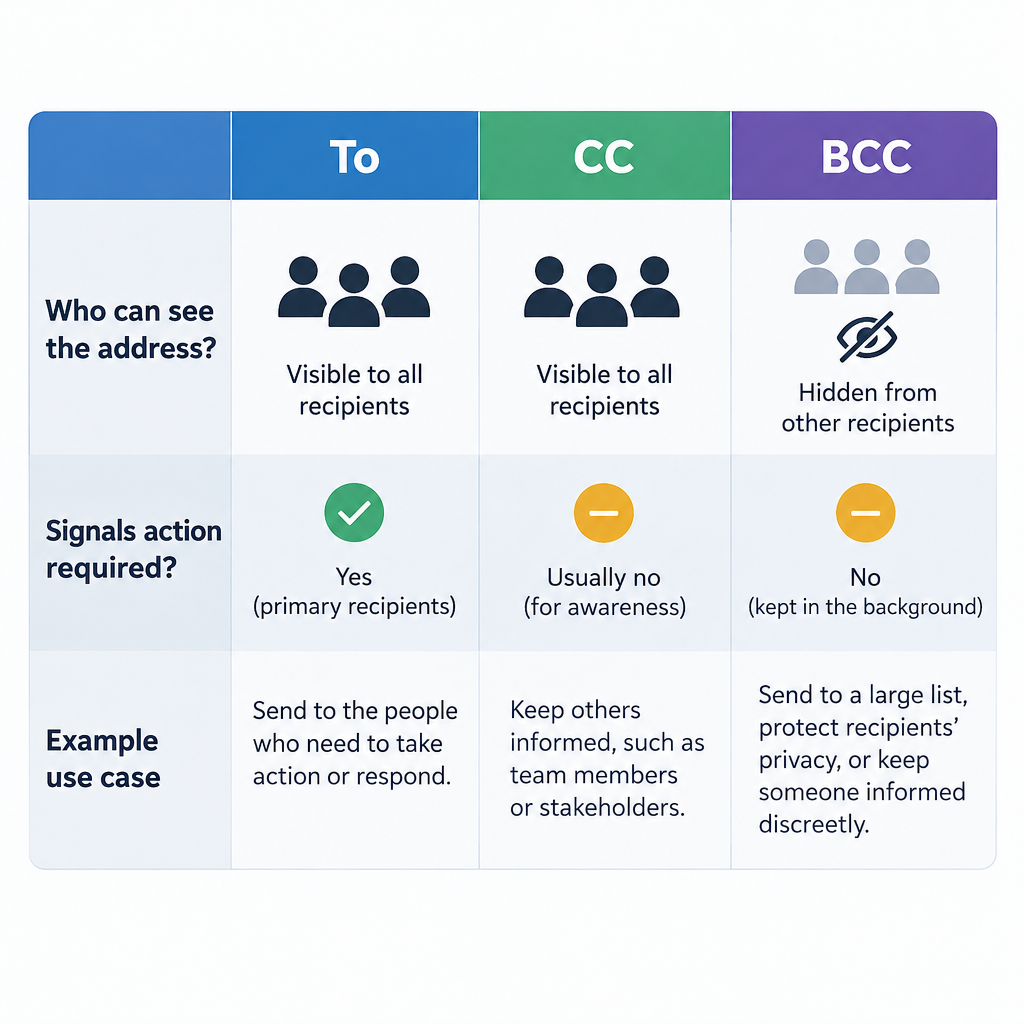
    So if you have been asking “what is a CC in email?” the plain answer is that it’s a second, visible tier of recipients. They receive exactly the same message as the people in the To field. The difference is social, not technical: CC signals “this is for your information” rather than “this is for you to handle.”

    People also use it as a verb. “I’ll CC you” or “can you CC my manager?” both mean “add that person to the CC field.”

    How CC Works Compared With To and BCC

    All three fields deliver the same message to the inbox of every person listed. What changes is who can see whom, and what recipients assume about their role.

    Field Stands for Who can see the address Gets Reply All responses What it signals
    To (primary recipient) Every recipient Yes “This is for you. Please act or reply.”
    CC Carbon copy Every recipient Yes “You should know about this. No action needed.”
    BCC Blind carbon copy Only the sender (and the BCC’d person sees their own) No “You’re receiving this quietly.”

    A message needs at least one recipient somewhere. Most clients expect something in To, but you can technically send with only CC or BCC filled in.

    What Each Recipient Actually Sees

    When someone opens your email, the header shows the To and Cc lines exactly as you filled them in. A CC’d person sees the main recipient and every other CC’d person. A To recipient sees the same.

    BCC works differently at the server level. Your mail server delivers a copy to each BCC address but strips the Bcc line from the version everyone else receives. In Gmail, a BCC’d recipient who opens the details dropdown typically sees “bcc: me,” while nobody else sees any trace of them.

    That has one practical consequence people forget. If a BCC’d person hits Reply All, their reply goes to everyone in To and CC, and now the whole group knows they were on the email. Your “quiet” copy just announced itself.

    What CC Does Not Do

    CC doesn’t change delivery speed, priority, or how spam filters treat the message. It doesn’t restrict forwarding either. Anyone who receives a copy, in any field, can forward it to anyone else. Treat CC as a label of intent, not a security setting.

    When You Should CC Someone

    To vs CC vs BCC Comparison Table

    The test is simple. Ask whether this person needs to know or needs to do. If they need to do something, they go in To. If they only need to know, CC works. If they shouldn’t be visible to the others, use BCC.

    Good reasons to CC someone at work:

    • Keeping a manager in the loop. You’re confirming a deadline with a client, and your manager should know the agreed date without being asked to reply.
    • Introductions and handovers. You’re passing a customer to a colleague. You email the customer in To and CC the colleague so both have each other’s address and the history.
    • Creating a visible record. You’re confirming a decision made on a call. CCing the people who were on the call means nobody can later claim they never saw it.
    • Sharing with a stakeholder who might chip in. A project update goes to the team in To, with the department head on CC. The head can reply if something looks wrong but isn’t expected to.
    • Looping in the other half of a shared task. You email a supplier about an invoice and CC your accounts team, who will need the paperwork later.

    CC is also handy outside work. Booking a holiday rental and CCing your travel partner means both of you have the confirmation without one of you forwarding it.

    Inbox tip

    Say why someone is CC’d in the first line, for example “CCing Priya, who’ll take over billing from Monday.” People act on context. A bare CC usually gets skimmed and archived.

    When You Should Not CC

    CC gets abused more than any other email feature. A few patterns create resentment, cluttered inboxes, or worse.

    Don’t CC to apply pressure. Copying someone’s boss on a routine request (“just checking in, CCing Mark”) reads as a threat. If you genuinely need to escalate, tell the person first that you’re going to, or email the manager separately.

    Don’t CC “just in case.” Every unnecessary CC is another notification and another thread someone has to decide whether to read. Knowledge workers already wade through a heavy daily volume. If you can’t name the reason someone needs the message, leave them off.

    Don’t CC people who don’t know each other when addresses are private. Clients, customers, patients, volunteers, parents at a school: none of these groups agreed to share their email addresses with each other. Use BCC, or better, the right tool (covered below).

    Don’t CC for sensitive content. Performance issues, salary, health, legal disputes. Every extra visible recipient is another person who can forward the message.

    Don’t use CC to dodge responsibility. “I CC’d you, so you knew” doesn’t hold up if the email didn’t clearly ask for anything. If you need a decision, put the person in To and ask a direct question.

    Examples of CC in Real Emails

    Carbon Copy Origin Illustration

    Here’s how the To, CC and BCC fields look in situations you’ll actually meet.

    Client handover

    To: [email protected]
    CC: [email protected]

    Hi Dana, I’m moving to a new role at the end of the month, so I’ve CC’d Leo, who’ll be your account manager from 1 July. He’s read through our last three months of notes and will be in touch this week to set up a call.

    Why it works: the client is the person being addressed, and Leo is copied so the introduction is visible and both sides have each other’s address.

    Decision confirmation after a meeting

    To: [email protected]
    CC: [email protected]

    Quick recap from today: we’re going with Option B for the checkout redesign, with a review on Thursday. Sam owns the prototype. Shout by end of day if I’ve missed anything.

    Why it works: the team owns the work, so they’re in To. The product lead needs the record but has nothing to do.

    Vendor request with finance looped in

    To: [email protected]
    CC: [email protected]

    Please send the corrected invoice for PO 4471 with the updated VAT number below. Our accounts team is copied so they can match it on arrival.

    Why it works: the supplier acts, accounts receives, and the sentence explains the CC.

    Group email where addresses should stay private

    To: [email protected]
    BCC: 40 volunteer addresses

    Hi everyone, the Saturday clean-up has moved to 10am. Reply to me directly if you can no longer make it.

    Why it works: the sender’s own address sits in To, everyone else is in BCC, and nobody’s address leaks to 39 strangers. Asking people to reply directly also stops a pile of Reply All messages.

    How to CC Someone in Gmail, Outlook, Apple Mail and on Your Phone

    Every major client has CC and BCC built in. The fields are sometimes hidden until you ask for them.

    How to CC someone (any email client)

    1. Open a new message, reply or forward.
    2. Find the Cc option on or next to the To line and click it.
    3. Type the address of each person you want to copy.
    4. Put the people who need to act in the To field.
    5. Add a line in the body explaining why anyone is CC’d.
    6. Check every field one more time, then send.

    The exact location varies by app:

    Email client How to show CC How to show BCC Shortcut
    Gmail (web) Click “Cc” at the right end of the To line Click “Bcc” at the right end of the To line Ctrl+Shift+C for Cc, Ctrl+Shift+B for Bcc (Cmd on Mac)
    Gmail app (iOS/Android) Tap the down arrow next to the To field Same down arrow, then the Bcc field None
    Outlook (classic desktop) Cc field shows by default in a new message Options tab > Show Fields > Bcc None by default
    New Outlook and Outlook on the web Click “Cc” at the right of the To line Click “Bcc” at the right of the To line None by default
    Apple Mail (Mac) Cc field shows by default View > Bcc Address Field Option+Command+B
    iPhone and iPad Mail Tap the “Cc/Bcc, From” line to expand it Same line, then the Bcc field None

    In classic Outlook, once you switch on the Bcc field it usually stays visible for future messages. That’s worth doing once so you never have to hunt for it under pressure.

    BCC: The Field That Hides Recipients

    If CC is the copy everyone can see, BCC is the copy nobody else can see. Each BCC recipient gets the message, but their address never appears to the To, CC or other BCC recipients.

    Legitimate uses for BCC:

    • Small group messages to people who don’t know each other. Event reminders, a club update, a note to a handful of customers.
    • Protecting privacy where the group itself is sensitive. A support group, patients of a clinic, people in a legal matter. Membership of the list is personal data.
    • Moving people off a long thread. “Thanks for the intro, Sarah. Moving you to BCC to spare your inbox.” The introducer sees the reply landed, then drops out of the conversation.
    • Copying your own CRM or archive address. Many CRMs give you a unique address to BCC so the email is logged against a contact.

    Uses to avoid:

    • Secretly copying a manager on a conversation with a colleague. If the colleague finds out (and Reply All mistakes make that likely), trust is gone.
    • Mass mailings. BCC solves the privacy problem but creates deliverability and legal ones. More on that below.

    Privacy risk

    Putting a group of private contacts in To or CC exposes every address to everyone on the list. Under UK and EU GDPR that can be a reportable personal data breach.

    The Real Cost of Using CC When You Meant BCC

    This is the angle most “what is CC in email” explainers skip. The difference between CC and BCC is a single click, and regulators have fined organisations for getting it wrong.

    The UK Information Commissioner’s Office (ICO) has issued several public penalties for exactly this mistake:

    Organisation What happened ICO penalty Year of fine
    Chelsea and Westminster Hospital NHS Foundation Trust (56 Dean Street clinic) An HIV clinic newsletter went to about 780 patients with every address visible instead of in BCC £180,000 2016
    HIV Scotland An email to 65 members of its community advisory network used CC, exposing addresses from which HIV status could be inferred £10,000 2021
    Ministry of Defence An email to 245 Afghan nationals eligible for relocation was sent with all addresses visible in the To field £350,000 2023

    Notice the pattern. None of these was a hack. Each was an ordinary email, sent to a sensitive group, with the addresses in a visible field. In two of the three cases the list alone revealed health information, because being on that mailing list told everyone something private about the people on it.

    You don’t need to work in healthcare for this to matter. A dentist emailing patients, a lawyer emailing clients in a class action, or a recruiter emailing every candidate for a confidential role can all cause harm through a CC field.

    If you do send an email with addresses exposed, act quickly. Recalling messages rarely works outside a single organisation’s Microsoft 365 environment. Apologise to the recipients, ask them to delete the email and not reply all, record what happened, and check whether your local data protection law requires you to report it. The mindset is similar to recovering after a typo email: own it fast, fix what you can, and change the process so it can’t happen twice.

    Why You Shouldn’t Use CC or BCC for Mass Emails

    Once a list gets past a couple of dozen people, CC and BCC become the wrong tool entirely. There are three reasons.

    Recipient Limits Cut You Off

    Every provider caps how many recipients one message and one account can reach. Recipients in To, CC and BCC all count toward the same total.

    Provider and account type Max recipients per message Daily sending cap
    Gmail (free personal account) 500 About 500 recipients
    Google Workspace 2,000 total, of which up to 500 external 2,000 messages per user
    Outlook.com (free personal account) 500 5,000 recipients
    Microsoft 365 / Exchange Online 500 by default (admins can raise to 1,000) 10,000 recipients

    Limits as published in Google and Microsoft help documentation in 2025. Providers adjust these without much notice, so check the current figures before a large send.

    Hit a cap and your account can be temporarily blocked from sending, often for 24 hours. That’s a bad day if it’s also your work address.

    Spam Filters Distrust It

    A personal or work mailbox blasting a single message to hundreds of BCC recipients looks a lot like spam. There’s no unsubscribe link, no list management, and replies and complaints pile up. Recipients who mark it as junk drag down your sending reputation, and future one-to-one emails from the same address start landing in spam. If you want to understand why, our explainer on how e-mail spam filtering works covers the signals filters weigh.

    The big mailbox providers have also tightened the rules for anyone sending at volume. Since February 2024, Google and Yahoo have required senders of 5,000 or more messages a day to their users to authenticate with SPF, DKIM and DMARC, offer one-click unsubscribe, and keep spam complaint rates below 0.3%. Microsoft began enforcing similar requirements for Outlook.com, Hotmail and Live addresses on 5 May 2025. A BCC blast from your inbox meets none of those standards.

    The Law Expects an Unsubscribe

    If the message is promotional, laws such as CAN-SPAM in the US and GDPR plus PECR in the UK and EU require things a BCC email can’t easily provide: a working opt-out, a valid physical address in the US case, and records of consent in the European one.

    The fix is a proper sending platform. Tools built for email marketing handle unsubscribes, bounces, authentication and personalisation, and they send each person an individual copy so no addresses are ever exposed. Most have free tiers for small lists. Our roundup of small business email platforms compares the options if you’re making that switch.

    Inbox tip

    A rough rule: if you’re emailing more than about 20 people who don’t all work together, it’s no longer a CC or BCC job. Use a mailing tool or a properly configured group list.

    Reply All, CC and Email Storms

    Every CC’d person is a potential Reply All. On a small thread that’s useful. On a big one it’s a hazard.

    A reply-all storm starts when a message goes to a huge distribution list. Someone replies to everyone asking to be removed. Others reply to everyone telling them to stop replying to everyone. Each reply goes to thousands of inboxes, and mail servers buckle. Microsoft’s own late-1990s “Bedlam DL3” incident is the textbook case, and the problem was common enough that Microsoft later added reply-all storm protection to Exchange Online. It detects bursts of reply-alls on threads with very large recipient counts and temporarily blocks further reply-alls.

    You can head off most of this yourself:

    • Use BCC for large announcements so nobody can reply to the whole group.
    • Tell people how to respond. “Reply to me directly, not to all” is one sentence and saves a lot of noise.
    • Before you Reply All, scan the CC line. Ask whether every name there needs your answer. Usually only the sender and one or two others do.
    • Trim the CC list when you reply. You’re allowed to remove people who are no longer relevant. Say so if it’s not obvious (“dropping the wider team from this”).

    CC Etiquette: Best Practices for Professional Email

    These habits make CC useful rather than annoying.

    1. Put action-owners in To, observers in CC. If you want something from someone, they should never be buried in CC.
    2. Explain every CC. One clause in the opening line is enough.
    3. Keep the list short. Three CC’d people is common. Ten is a meeting invite in disguise.
    4. Ask before CCing someone’s manager. If you need to escalate, say “I’m going to loop in Jo on this” first, or escalate in a separate email.
    5. Don’t add people mid-thread without context. If you CC someone into an existing conversation, summarise the background in two lines. Dumping a 30-message thread on them is rude.
    6. Remove people when they’re done. Move introducers to BCC and drop people whose part is finished.
    7. Respect a CC as FYI. If you’re CC’d, you generally don’t need to reply. If you do reply, it’s usually to the sender only.
    8. Use BCC for groups of strangers, a mailing tool for anything bigger.
    9. Re-check fields before sending anything sensitive. Autocomplete is the main culprit in misdirected email. A colleague called Alex and a client called Alex sit side by side in your address suggestions.
    10. Mind your signature on CC-heavy threads. When five external people are reading, a clear, current signature saves them hunting for your title or number. Our email signature examples are a good starting point.

    Common CC Mistakes to Avoid

    Most CC trouble comes from a handful of recurring errors.

    Using CC when you meant BCC. The most expensive mistake on this list, as the ICO cases show. If addresses are private, they go in BCC every time.

    Burying the person who needs to act. Putting the decision-maker in CC and an assistant in To means the decision-maker assumes it’s FYI. Then nothing happens.

    Passive-aggressive CCs. Copying a boss on a minor complaint, or CCing HR on a disagreement without warning, damages relationships faster than the original problem ever would.

    Forgetting that CC’d people see the whole thread. When you reply on a thread that includes clients, every earlier message (including internal comments someone added lower down) goes with it. Read the full quoted text before you send.

    Replying all to a BCC. If you were BCC’d, reply only to the sender. Otherwise you reveal that you were quietly copied.

    CCing too many people on a thread that will grow. A message to 12 people becomes 12 copies of every reply. Over a week that’s a lot of clutter. If you’re on the receiving end of that kind of thread, filters, mute and labels help, and when the clutter has already piled up our guide to bulk delete Gmail emails will clear it out quickly.

    Assuming CC means the person read it. Being copied isn’t the same as being informed. If something matters, ask for a confirmation or put the person in To with a direct question.

    Key Takeaways

    • CC stands for carbon copy, a term inherited from typed business letters.
    • CC’d recipients get the full message and can see everyone else in To and CC.
    • To is for people who must act, CC for people who should know, BCC for people whose addresses must stay private.
    • Explain every CC in the body of the email, and keep the list short.
    • Using CC or To for private contact lists can be a data breach. The largest UK fine for this kind of email mistake so far is £350,000, and UK GDPR allows far higher penalties.
    • Past a small group, neither CC nor BCC is the right tool. Use a proper sending platform that handles unsubscribes and authentication.

    FAQ

    What does CC stand for in email?

    CC stands for “carbon copy.” It comes from the carbon paper used to make duplicates of typed letters. In email, the CC field sends a copy of your message to extra recipients, and every recipient can see who was copied.

    What is the difference between CC and BCC?

    Both send the same message to extra people. CC recipients are visible to everyone on the email. BCC (blind carbon copy) recipients are hidden from all other recipients, and they don’t receive replies when someone clicks Reply All.

    Do CC recipients need to reply?

    Usually not. CC traditionally means “for your information.” If you need someone to respond or take action, put them in the To field and ask them directly in the email.

    Can people in the To field see who was CC’d?

    Yes. Everyone in To and CC can see every address in both fields. Only BCC addresses stay hidden.

    Can a BCC recipient see who else was BCC’d?

    No. Each BCC recipient sees the To and CC addresses, plus usually a note that they themselves were BCC’d. Other BCC recipients are invisible to them.

    Is it rude to CC someone’s boss?

    It depends on why. CCing a manager who genuinely needs the information is normal. CCing someone’s boss to pressure them, especially without warning, is widely seen as hostile. If you need to escalate, tell the person first or email the manager separately.

    How many people can I CC on one email?

    Providers cap total recipients per message across To, CC and BCC combined. Free Gmail accounts allow up to 500 per message, free Outlook.com accounts have lower limits (roughly 100 per message), and Microsoft 365 defaults to 500. Google Workspace allows up to 2,000 per message, of which a maximum of 500 can be outside your organisation. Long before you hit those limits, a mailing platform is the better choice.

    What does “cc’d” mean?

    “CC’d” is the past tense of CC used as a verb. “I’ve CC’d Maria” means Maria’s address was added to the CC field, so she received a copy of the email.

  • What to Do After You Send an Email With a Typo

    What to Do After You Send an Email With a Typo

    You just spotted a typo in an email that already went out, and your first instinct is to fire off a correction. Slow down for two minutes. Most typos don’t need a follow-up, some need one urgently, and the wrong kind of correction can do more damage than the original mistake.

    Fastest fixUndo Send
    Usually ignoreMinor spelling slips
    Always correctWrong price, date, link
    Hidden fixRedirect the broken URL
    PreventionA written preflight checklist

    What You Need Before You Act

    Have these in front of you before you send anything else:

    • The exact sent version. Open it from your Sent folder or your email platform’s campaign report. Don’t work from the draft or from memory.
    • The recipient count. One client, a team of 12, or a list of 40,000 each call for a different response.
    • Access to wherever links point. That might be your website, landing page builder or ecommerce admin. Many link mistakes can be fixed there without another email.
    • Your campaign stats for a bulk send. You want delivered, opened and clicked counts.
    • A second pair of eyes. A colleague who didn’t write the email will judge severity more calmly than you will right now.

    Step 1: Check Whether You Can Still Pull It Back

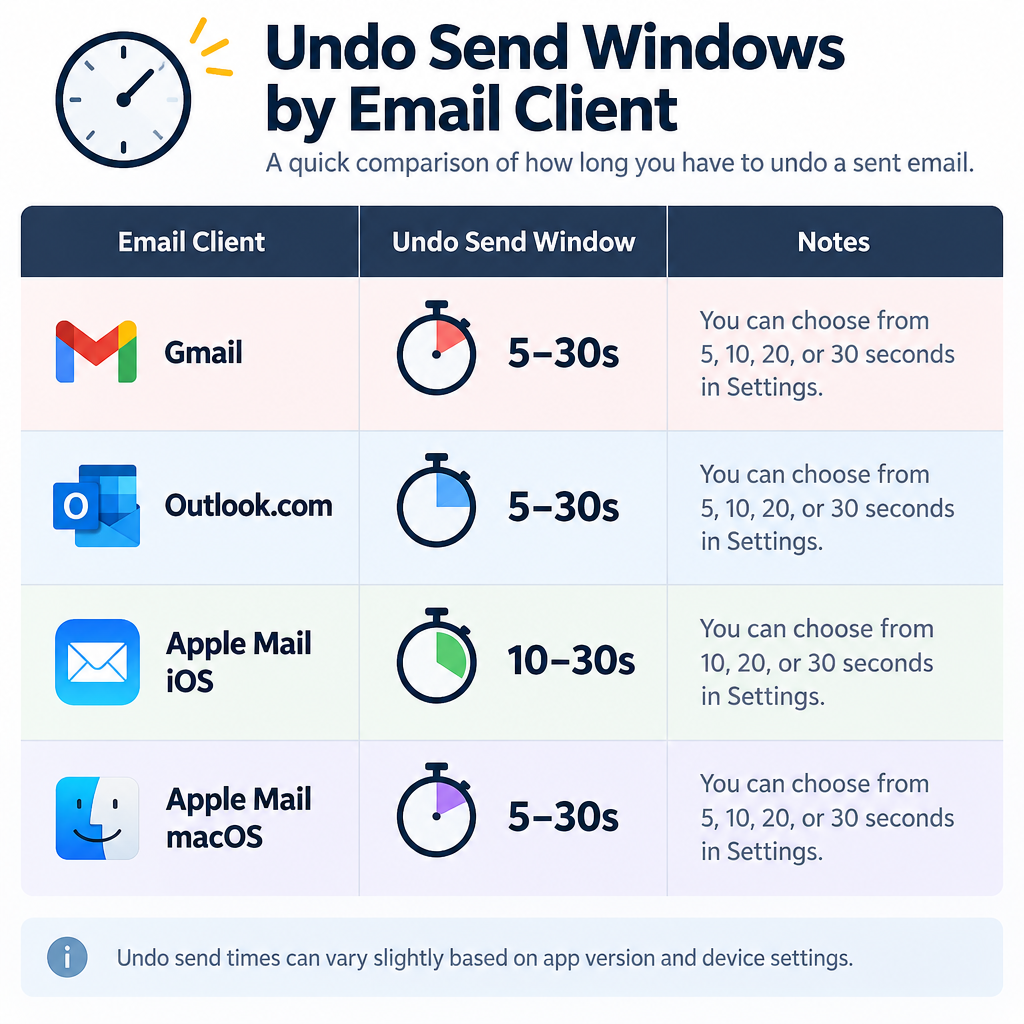
    If you sent from a personal inbox in the last few seconds, you may still be inside an undo window. Here is how long each major client gives you.

    Email client Undo window Where to set it
    Gmail (web and app) 5, 10, 20 or 30 seconds (default 5) Settings gear > See all settings > General > Undo Send
    Outlook.com and new Outlook Up to 10 seconds Settings > Mail > Compose and reply > Undo send
    Apple Mail (iOS 16 and later) Off, 10, 20 or 30 seconds (default 10) Settings > Apps > Mail > Undo Send Delay
    Apple Mail (macOS Ventura and later) Off, 10, 20 or 30 seconds Mail > Settings > Composing > Undo send delay
    Classic Outlook for Windows Recall, not undo Open the sent message > Recall This Message

    Undo Send doesn’t pull a message back from someone’s inbox. Your client simply holds the email for that many seconds before it actually goes out. Once the timer runs out, it’s gone.

    Outlook’s Recall feature is different. It only works when you and the recipient are in the same Microsoft 365 or Exchange organization. It will never recall a message sent to a Gmail, Yahoo or other outside address. Recipients may also get a notice that you tried to recall something, which draws more attention to the email than the typo would have.

    Marketing platforms work the same way once a campaign is delivered. Klaviyo, HubSpot and Mailchimp all let you cancel a scheduled campaign. None of them can edit or remove an email that has already landed in an inbox. Large sends go out in batches, so if a campaign is still sending, check your platform’s help docs right away to see whether you can cancel the remaining batches.

    Inbox tip

    Set Gmail’s Undo Send to 30 seconds today. It costs you nothing, and most people spot a typo within a few seconds of clicking Send.

    Step 2: Find Out What Actually Went Wrong

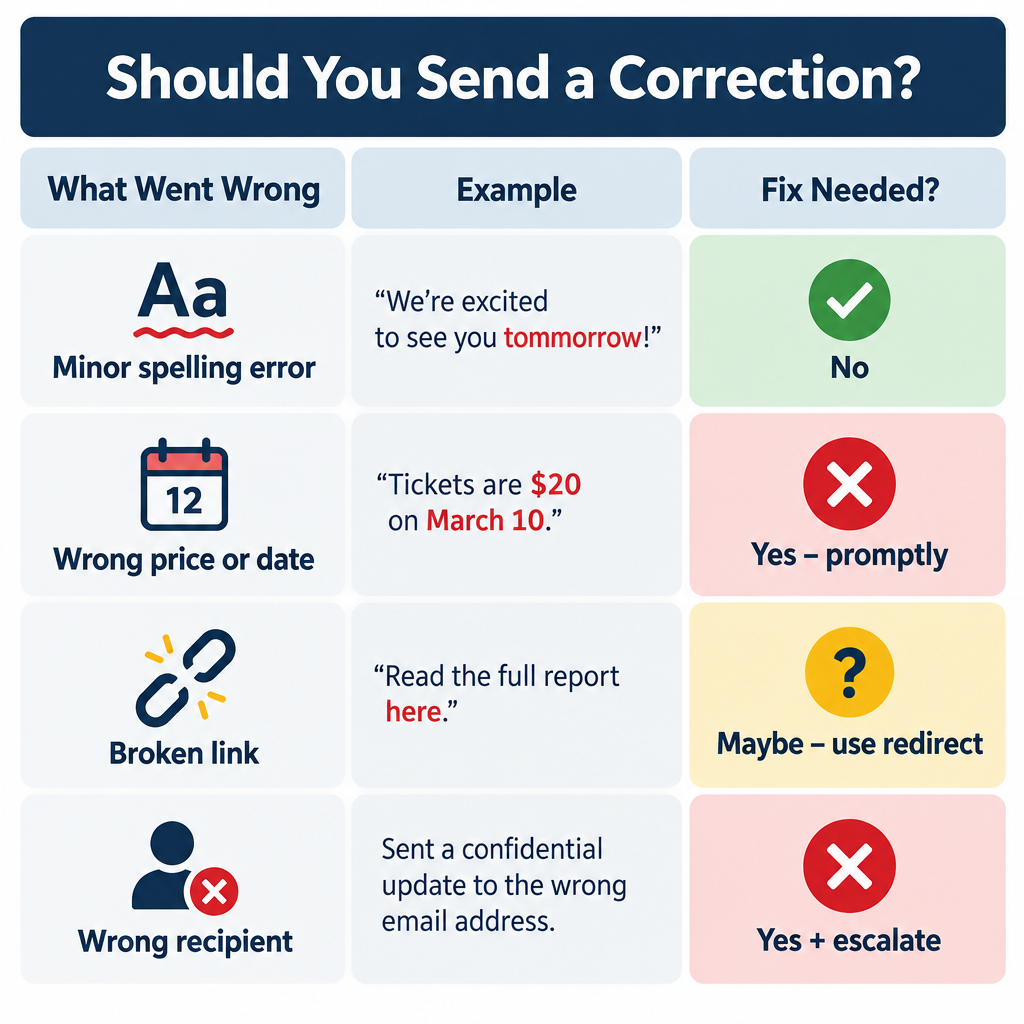
    Typo Triage Decision Chart

    Before you write a single word of apology, pin down the error precisely. “There’s a typo” isn’t a diagnosis.

    Open the sent email and check each part separately:

    1. Subject line and preview text. These are seen by everyone, including people who never open.
    2. Facts. Prices, discount codes, dates, times, time zones, addresses and deadlines.
    3. Links and buttons. Click every one in the sent version. Don’t trust the editor preview.
    4. Personalization. Look for “Hi {first_name}” left blank or showing raw merge tags.
    5. Names. A misspelled client name is a bigger deal than a misspelled common word.
    6. Plain spelling and grammar. These are usually the least important item on this list.

    In a marketing platform, open the campaign report and look at link click data. A link with zero clicks while others are healthy often points to a broken URL. In Klaviyo, the campaign’s click map shows which links got activity. In HubSpot, the email’s performance page lists clicks per link.

    Step 3: Decide Whether the Typo Needs a Correction

    Not every mistake is a mistake your reader will notice or care about. Teams fixate on a missing comma while recipients skim past it. Use this triage table.

    What went wrong Example Send a correction?
    Minor spelling or grammar “recieve”, a doubled word No
    Wrong word that changes nothing “their” for “there” No
    Misspelled recipient name, one-to-one “Dear Jon” to Joan Yes, a short private reply
    Broken link to your own site /spring-sael instead of /spring-sale Usually no, fix with a redirect
    Broken link to a third-party page Wrong event registration URL Yes
    Wrong price, code or date “Ends Friday” when it ends Thursday Yes, promptly
    Blank or raw merge tags “Hi {{ first_name }},” Usually no, unless it’s widespread and embarrassing
    Sent to the wrong list or person Internal pricing sent to customers Yes, and possibly legal steps (see below)

    The test is simple. If the error will cause someone to take the wrong action, miss a deadline, lose money or feel personally slighted, correct it. If it’s only untidy, let it go.

    Repeat offenders are another matter. One typo in one email gets forgiven. Typos in every email tell readers nobody is checking, so fix your process even when you skip the correction.

    Step 4: Fix What You Can at the Destination

    Undo Send Timer Comparison

    Here’s the angle most people miss: the email is frozen, but the things it points to are not.

    You can’t change You often can change
    Subject line, body copy, link URLs in the email The landing page those links open
    Images already cached by Gmail or Apple Mail Images served from your own server at the same URL (only for clients that haven’t cached them)
    The discount code printed in the email Whether your store accepts the misspelled code
    The date written in the email The actual deadline (honor the wrong date if it’s later)

    If your link points to a mistyped path on your own site, add a 301 redirect from the wrong URL to the right one. Everyone who clicks lands in the right place, and nobody needs a second email.

    On an Apache server, that’s one line in .htaccess:

    Redirect 301 /spring-sael /spring-sale
    

    On Nginx:

    location = /spring-sael {
        return 301 /spring-sale;
    }
    

    Most ecommerce and landing page platforms, including Shopify and WordPress plugins, offer the same thing through a URL redirect setting with no code.

    Discount codes work the same way. If you printed SPRNG20 instead of SPRING20, create SPRNG20 as a valid code. If you printed a deadline later than the real one, honor the later date. Fixing it at the source and saying nothing is the cleanest correction there is.

    Step 5: Write the Correction for the Person Who Needs It

    If you do need to correct, keep it short, factual and lighter than the original. Nobody wants three paragraphs of regret over a wrong time.

    One-to-one emails

    Reply in the same thread so the context is right there. Lead with the correct information, not the apology.

    Quick correction: the call is at 2pm ET, not 3pm. Sorry for the typo.

    For a misspelled name, a single line is enough:

    Apologies for misspelling your name in my last email, Joan.

    “Sorry for the typo” is fine for colleagues and most clients. In more formal settings, “Apologies for the error in my previous message” reads cleaner. Skip “sorry for any inconvenience” unless there was real inconvenience.

    Don’t send a correction for a trivial typo to a client. Pointing out “recieve” makes them reread the email looking for it.

    Marketing campaigns

    A correction campaign should be shorter than the original and name the fix in the subject line:

    • “Correction: your code is SPRING20”
    • “Oops, here’s the working link”
    • “Wrong date in our last email: the sale ends Thursday”

    Put the corrected information in the first line of the body. Add one sentence of apology, repeat the main call to action and stop. A touch of humor works if it fits your brand voice. Groveling doesn’t.

    Leave your normal footer and unsubscribe link in place. A correction is still a marketing email under CAN-SPAM and GDPR.

    Step 6: Send the Correction to the Right People

    Don’t resend to your whole list by reflex. Target the people the mistake affected.

    Who to include:

    • Clickers of a broken link, if the fix needs a new link.
    • Openers, for a wrong fact in the body. Since Apple Mail Privacy Protection launched in 2021, open data is inflated by automatic opens, so treat it as a broad net.
    • Everyone delivered, only for errors in the subject line or a deadline nobody can afford to miss.

    In Klaviyo, build a segment using “What someone has done” with the Received Email, Opened Email or Clicked Email metric, filtered to the campaign name. In HubSpot, create an active list or segment filtered on the specific marketing email’s sent, opened or clicked activity. Mailchimp lets you segment by campaign activity in the same way.

    A second send has real deliverability cost. Every extra email to people who didn’t need it raises your odds of unsubscribes and spam complaints, and mailbox providers watch those numbers closely. Understanding how e-mail spam filtering weighs complaints explains why a sloppy blast can hurt your next ten campaigns.

    Provider Who the rules cover Key requirements Dates
    Gmail Senders of 5,000+ messages a day to personal Gmail SPF, DKIM and DMARC; one-click unsubscribe; spam rate under 0.3% February 2024; one-click unsubscribe by June 1, 2024
    Yahoo Bulk senders SPF, DKIM and DMARC; one-click unsubscribe; spam rate under 0.3% February 2024
    Microsoft (Outlook.com, Hotmail, Live) Senders of 5,000+ messages a day SPF, DKIM and DMARC passing Enforcement began May 5, 2025

    Google also recommends keeping spam rates below 0.1%. A correction that annoys 0.2% of recipients can tip a healthy sender toward that 0.3% ceiling.

    Deliverability risk

    Blasting a correction to your full list, including people who never opened the original, is how a harmless typo turns into a complaint spike.

    If the Typo Was in an Email Address

    Some typos aren’t in the message at all. They’re in the address.

    You sent to the wrong person. If the email went to “jon@” instead of “joan@” and contained nothing sensitive, ask the wrong recipient to delete it and resend to the right person. If it contained personal data about someone else, treat it as a possible data breach. Under GDPR Article 33, organizations must report a breach that poses a risk to people’s rights to their supervisory authority within 72 hours of becoming aware of it. Tell your data protection lead immediately.

    You mistyped your own address when signing up for something. You won’t get the verification email, and you usually can’t fix it yourself. Contact the company’s support team through their website or chat, prove who you are, and ask them to update the address.

    Your subscribers mistype their addresses. Addresses like “[email protected]” bounce and drag down your sender reputation. Use double opt-in so mistyped addresses never get confirmed, and turn on any typo suggestion your sign-up form offers.

    Common Mistakes That Make a Typo Worse

    • Silently fixing a fact that mattered. If you quoted the wrong price and just update your website, anyone who acted on the email feels misled. Silent fixes only suit errors nobody could act on.
    • Sending the correction before checking it. Corrections get rushed, and a typo in the correction is far more memorable than the first one.
    • Over-apologizing. A long apology makes the error look bigger than it was.
    • Resending the entire original email. People get a duplicate, can’t tell what changed and start unsubscribing.
    • Correcting at 11pm. Unless a deadline forces it, send the correction at your normal send time.
    • Blaming a person. “Our intern made a mistake” is never something readers need to hear.

    Build a Preflight That Catches the Next One

    Typos in emails come from rushing, not from bad spelling. A written checklist slows you down at exactly the right moment. Never rely on memory for this.

    Preflight checklist

    1. Turn on spelling and grammar checks in your client (Gmail: Settings > General).
    2. Read the email out loud, or use text-to-speech.
    3. Send a test to yourself and open it on your phone.
    4. Click every link in the test email, not the editor.
    5. Check prices, codes, dates and time zones against the source.
    6. Preview personalization with a real contact and one with blank fields.
    7. Have someone who didn’t write it read the subject line and first paragraph.
    8. Add the recipients or audience last.

    Reading out loud is the step teams skip, and it’s the one that catches the most. Your eyes fill in missing words. Your ears don’t.

    In Klaviyo, use Preview and test to view the email as a specific profile and send test emails. In HubSpot, use the Preview option to check how it renders for different contacts, then send a test email before you hit Review and send. Both platforms render personalization differently from what you see in the editor, so the test send matters.

    Check your signature once in a while too. A typo there repeats in every email you send. If you’re redoing it, a few good email signature examples will help you keep it short and easy to proofread.

    Inbox tip

    Write the email first and add the recipient’s address last. You can’t send a half-checked email to someone who isn’t in the To field yet.

    What a Good Outcome Looks Like

    After the dust settles, you should have:

    • The right people holding the right information, and nobody else bothered.
    • Broken links redirected and wrong codes made valid, so stragglers who open late still get a working email.
    • Unsubscribe and complaint rates on any correction send roughly in line with your normal campaigns.
    • One new line on your preflight checklist covering whatever slipped through this time.

    That last point is the real fix. Every mistake shows you a gap in your process, so close it before your next send.

    FAQ

    Should I apologize for a typo in an email?

    Only when the typo changes the meaning, affects an action or misspells someone’s name. For ordinary spelling slips, an apology draws attention to something most readers missed.

    How do I say sorry for a typo professionally?

    Lead with the correct information, then add one short line. “Correction: the meeting is Tuesday, not Thursday. Apologies for the error.” That’s all it takes.

    Can I unsend an email in Gmail after 30 seconds?

    No. Thirty seconds is Gmail’s maximum Undo Send window. After that, the message is delivered, and you’ll need to send a follow-up if a correction is warranted.

    Do typos in emails hurt deliverability?

    Occasional honest typos don’t trigger spam filters. Your sending reputation, authentication and complaint rate matter far more. Deliberate misspellings used to dodge filters, like swapping letters for numbers in spammy words, are a different story and do get flagged.

    Should I resend the whole campaign with the typo fixed?

    Rarely. Send a short correction to the affected segment instead. A full resend duplicates the email for everyone and increases unsubscribes and spam complaints.