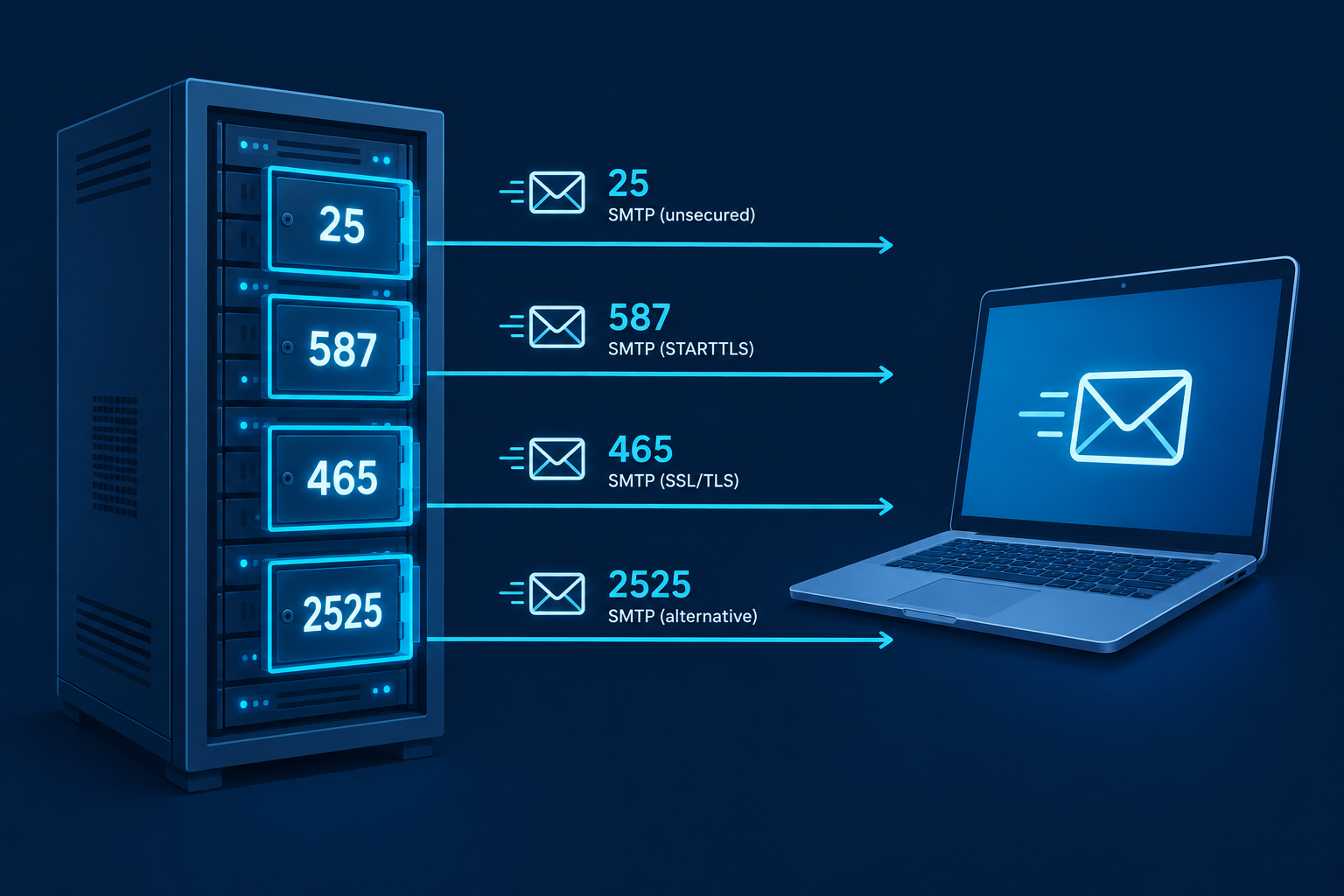
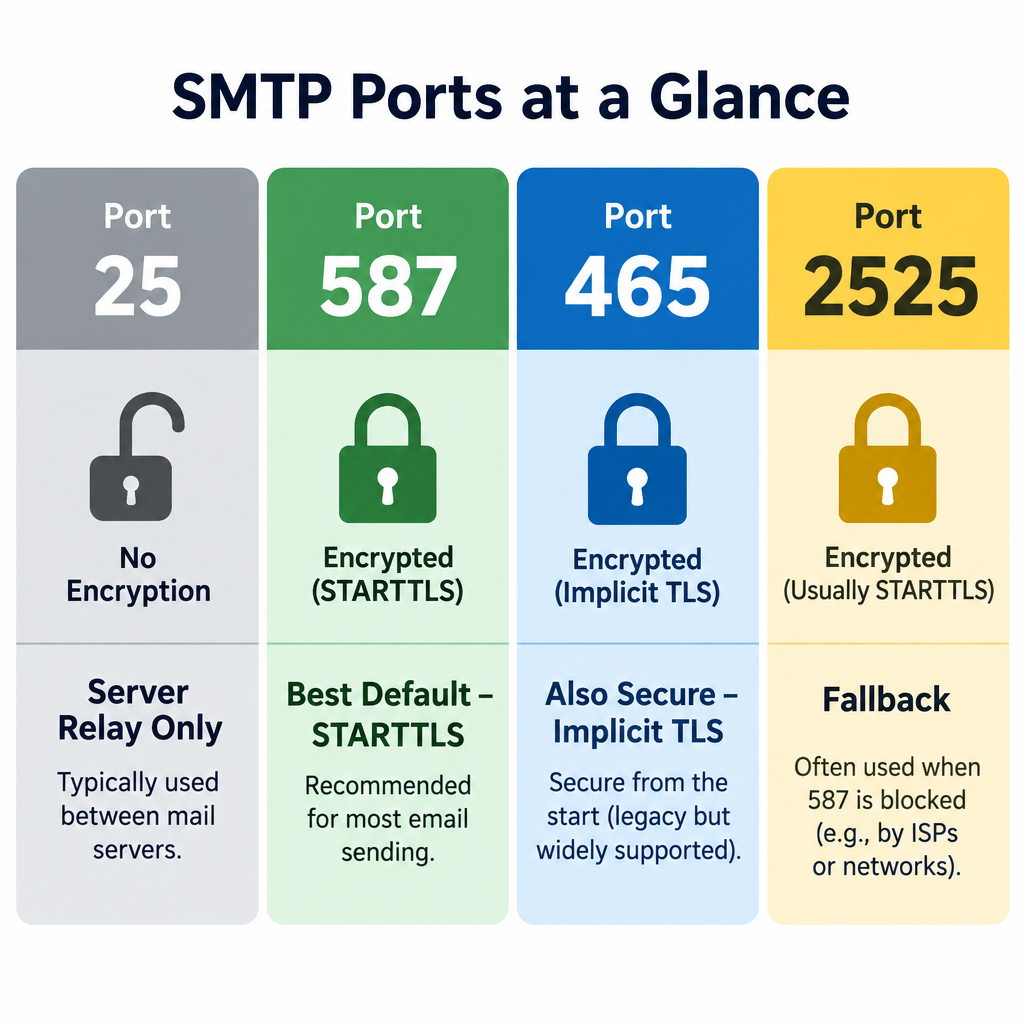
Use port 587 with STARTTLS for sending email from an app, website or mail client. Port 465 with implicit TLS is just as good if your provider supports it. Port 25 is the default SMTP port, but it is meant for server-to-server relay and is often blocked on home and cloud networks.
Best defaultPort 587 (STARTTLS)
Also securePort 465 (implicit TLS)
Server relay onlyPort 25
Fallback when blockedPort 2525
Quick SMTP port reference
Here is every SMTP port number you will run into, and what each is actually for.
Port
Encryption
Main use
Recommended?
25
None or opportunistic STARTTLS
Server-to-server relay (MTA to MTA)
Only for mail servers
587
STARTTLS (upgrade after connecting)
Authenticated message submission
Yes, the safe default
465
Implicit TLS (encrypted from the start)
Authenticated message submission
Yes, if supported
2525
Usually STARTTLS
Unofficial alternative to 587
Fallback only
What an SMTP port actually is
SMTP (Simple Mail Transfer Protocol) is the protocol that sends mail. A port is the numbered “door” on a server that a connection knocks on. Your mail client, website plugin or app needs both the server hostname and the right port to hand off a message.
SMTP only handles sending. Receiving and reading mail uses IMAP or POP3, which have their own ports (covered below).
Port 25: the original default SMTP port
Port 25 is the default port for SMTP, defined back in the early 1980s. It is still how mail servers pass messages to each other across the internet. When Gmail delivers a message to a company’s mail server, it connects on port 25.
The problem is that port 25 became the favourite of spam botnets. Infected home computers could connect directly to any mail server and blast junk. So many ISPs now block outbound port 25 on residential connections. Major cloud providers do too. Google Cloud blocks outbound port 25 to external addresses, and AWS restricts it on EC2 until you request removal.
Deliverability risk
Sending directly from a home or cloud IP on port 25 usually fails outright. If it gets through, receiving servers tend to treat residential IPs as spam sources.
That is a big part of how e-mail spam filtering works: the sending IP’s reputation matters as much as the message itself.
Port 587: your best bet for sending
Port 587 is the official message submission port (RFC 6409). It exists so that clients and apps can hand mail to their own provider, with a login, separate from server-to-server relay on port 25.
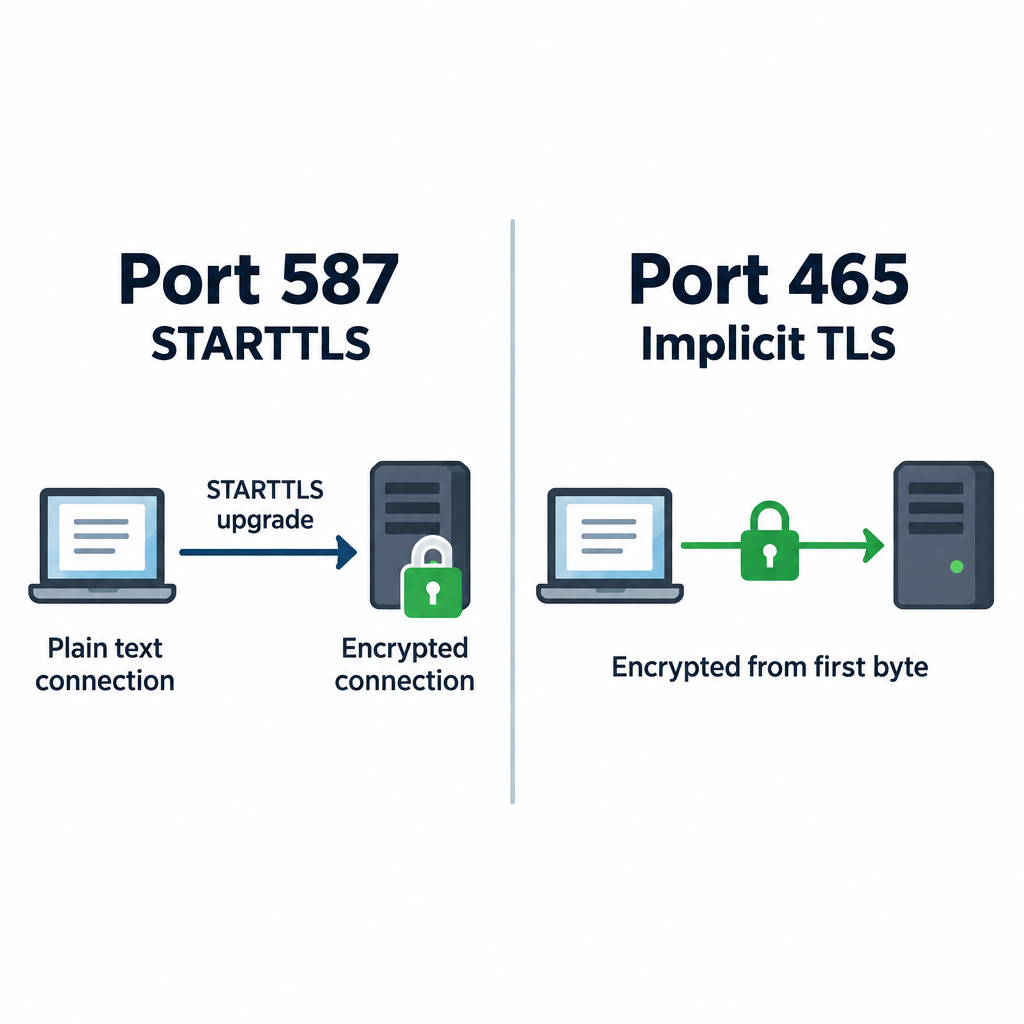
The connection starts in plain text. The client then issues the STARTTLS command, and the session upgrades to an encrypted one before your password is sent. Every major provider supports it, and ISPs rarely block it.
If you only remember one SMTP port, make it 587.
Port 465: SMTP over SSL/TLS
Port 465 has a messy history. It was assigned for SMTPS in the late 1990s, then revoked, but providers kept using it anyway. In 2018, RFC 8314 officially brought it back for message submission using implicit TLS.
Implicit TLS means the connection is encrypted from the first byte. There is no plain-text phase and no upgrade step. RFC 8314 actually prefers this approach over STARTTLS, because a STARTTLS upgrade can in theory be stripped by an attacker on the network.
In practice, both 465 and 587 are secure when configured correctly. Pick whichever your provider documents first.
Port 2525: the unofficial fallback
Port 2525 is not registered with IANA for SMTP. Transactional email services offer it anyway because some hosting companies block 25, 465 and even 587. If your server cannot reach your email service on standard ports, 2525 often gets through.
Email service
SMTP host
Supported ports
SendGrid
smtp.sendgrid.net
25, 587, 2525 (STARTTLS); 465 (TLS)
Mailgun
smtp.mailgun.org
25, 587, 2525 (STARTTLS); 465 (TLS)
Amazon SES
email-smtp.[region].amazonaws.com
25, 587, 2587 (STARTTLS); 465, 2465 (TLS)
Many small business email platforms hide these settings entirely and give you an API or plugin instead. If you are only doing email marketing through a hosted tool, you may never touch an SMTP port at all.
SMTP server and port for Gmail, Outlook and other providers
These are the common SMTP mail port settings for the big mailbox providers.
Provider
SMTP server
Port
Encryption
Gmail / Google Workspace
smtp.gmail.com
587 or 465
STARTTLS / SSL
Outlook.com / Hotmail
smtp-mail.outlook.com
587
STARTTLS
Microsoft 365
smtp.office365.com
587
STARTTLS
Yahoo Mail
smtp.mail.yahoo.com
465 or 587
SSL / STARTTLS
iCloud Mail
smtp.mail.me.com
587
STARTTLS
Zoho Mail
smtp.zoho.com
465 or 587
SSL / STARTTLS
Your normal account password usually will not work here. Gmail, Yahoo and iCloud expect an app password, which requires two-step verification, or an OAuth sign-in. Microsoft is retiring basic password authentication for SMTP, so plan on OAuth or an app password for Outlook and Microsoft 365 too.
SMTP, IMAP and POP3 ports
Setting up a mail client means entering both incoming and outgoing servers. Here is the full email port list.
Protocol
Job
Plain / STARTTLS port
Implicit TLS port
SMTP
Sending mail
587 (25 for relay)
465
IMAP
Reading mail, synced to server
143
993
POP3
Downloading mail to one device
110
995
For incoming mail, use 993 for IMAP or 995 for POP3. The unencrypted variants are rarely needed today.
How to choose the right SMTP port
Pick your port in four checks
Check your provider’s help page for its documented SMTP port.
Use 587 with STARTTLS if both 587 and 465 are listed.
Switch to 465 with SSL/TLS if 587 times out.
Try 2525 only if your email service supports it and both fail.
Only use port 25 if you run a mail server that relays to other mail servers. Apps, websites and mail clients should never need it.
How to tell if an SMTP port is blocked
Test the connection before you blame your password. On macOS or Linux, open a terminal and run:
nc -vz smtp.gmail.com 587
On Windows, use PowerShell:
Test-NetConnection smtp.gmail.com -Port 587
A “succeeded” or “TcpTestSucceeded : True” result means the port is open. A timeout means something between you and the server is blocking it.
To confirm encryption actually works, use OpenSSL. For port 587:
You should see a certificate chain and a 220 greeting from the server. If the port is blocked, contact your ISP or hosting company. Most will unblock 587 on request. Very few will open port 25 for residential customers.
Inbox tip
If you can connect on 587 from your laptop but not from your web server, the block is at the host. Switch to 2525 or use your email service’s HTTP API instead.
Common mistakes when setting the SMTP port
Most “can’t send mail” tickets come down to a handful of errors:
Encryption mismatch. Choosing SSL on port 587 or STARTTLS on port 465. The client hangs, then times out. Match 587 with STARTTLS and 465 with SSL/TLS.
Using port 25 from an app. It gets blocked or lands in spam. Use 587.
Account password instead of an app password. You will see an authentication error like 535. Generate an app password.
Wrong hostname. smtp.office365.com and smtp-mail.outlook.com are not interchangeable for every account type.
Local firewall or antivirus. Some security suites intercept outgoing mail connections. Temporarily disable the email scanning feature to test.
No authentication enabled. Port 587 and 465 expect a username and password. Without them, the server rejects the message.
Correct ports get mail out of your app. They do not guarantee inbox placement. That still depends on SPF, DKIM and DMARC records for your sending domain.
FAQ
How to find port for SMTP server?
Check your email provider’s help documentation for “SMTP settings.” It will list the server name, port and encryption type. If you use a hosting company’s mailbox, the settings are usually in your control panel under email accounts. When in doubt, try 587 with STARTTLS first.
Is SMTP always port 25?
No. Port 25 is the default SMTP port for server-to-server relay. Mail clients and apps should send on port 587 with STARTTLS or port 465 with implicit TLS. Port 2525 is an unofficial alternative some services offer.
What are the port numbers used for IMAP and POP3?
IMAP uses port 143 (plain or STARTTLS) and port 993 (implicit TLS). POP3 uses port 110 (plain or STARTTLS) and port 995 (implicit TLS). Use the encrypted ports, 993 and 995, whenever possible.
What is the difference between IMAP and POP3?
IMAP keeps your mail on the server and syncs it across every device, so reading or deleting on your phone shows up on your laptop. POP3 downloads messages to one device and, by default, removes them from the server. IMAP is the better choice for almost everyone today.
Which is more secure, port 465 or 587?
Both are secure when configured correctly. Port 465 encrypts from the first byte, which RFC 8314 prefers. Port 587 upgrades to encryption with STARTTLS before any login details are sent. Use whichever your provider supports.
Email marketing is the practice of sending commercial or relationship-building emails to people who have given you permission to contact them. It works by collecting opt-in addresses, sending campaigns and automated messages through an email service provider, and measuring what recipients do next. Below you’ll find the definition, the mechanics behind every send, the rules from Gmail, Yahoo and Microsoft, and the habits that keep your emails out of spam.
Best forAny business with customers
Starting costFree plans exist
Core assetAn opt-in list
Key recordDMARC
Main riskSpam complaints
Email Marketing Definition: What It Actually Means
The plain email marketing definition: using email to promote your products, services or content to a list of people who asked to hear from you. That last part matters most. Without permission, it’s spam, and the law and mailbox providers both treat it that way.
You’ll see a few email marketing definitions floating around. They emphasize different things, and each one is useful:
Direct marketing definition. Email is a direct channel. You send a message straight to one person’s inbox, with no algorithm deciding whether your followers see it.
Owned media definition. Your list belongs to you. A social platform can change its reach overnight. Your subscriber list moves with you from one email platform to the next.
Permission marketing definition. Coined by Seth Godin in his 1999 book Permission Marketing, this view frames email as a privilege the subscriber grants and can revoke with one click.
Lifecycle definition. Email follows the customer journey: a welcome after signup, a reminder after an abandoned cart, a receipt after purchase, a win-back after months of silence.
To explain email marketing in one sentence to a colleague: you earn someone’s address, then you keep earning their attention with emails worth opening. The selling happens because of the relationship, not instead of it.
What email marketing is not
It isn’t sending one-to-one emails from your Outlook account to prospects. That’s sales outreach, and it runs on different rules and tools. It isn’t buying a list of 50,000 “targeted” addresses either. Purchased lists contain spam traps, dead addresses and people who never agreed to hear from you. Using one is the fastest way to wreck a sending domain.
It also isn’t the same as an internal newsletter sent to staff. That uses similar tools but has no marketing consent issues and very different goals.
How Email Marketing Works, Step by Step
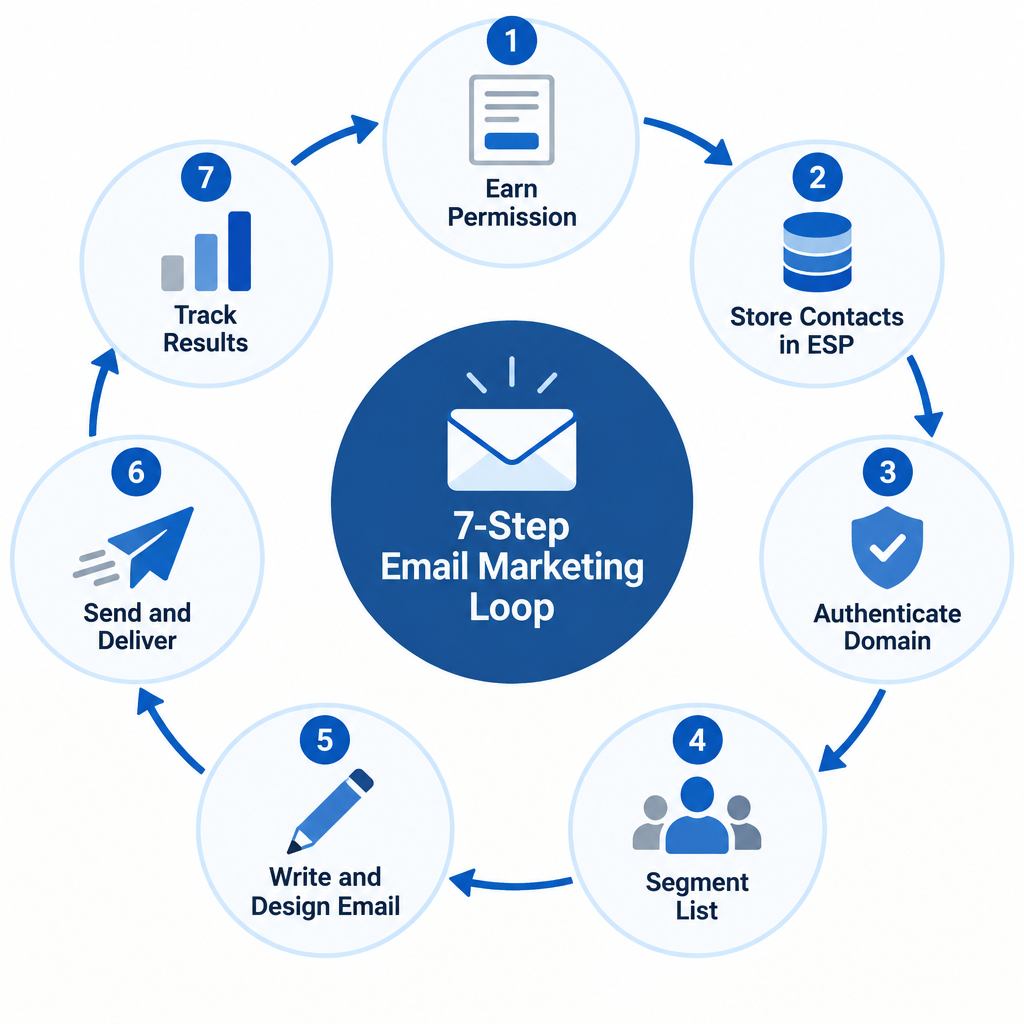
Every functioning email program, from a one-person Etsy shop to a retailer sending millions of messages a week, follows the same seven steps. The scale changes. The sequence doesn’t.
The 7-step email marketing loop
Earn permission with a clear opt-in form.
Store contacts in an email service provider.
Authenticate your sending domain.
Segment your list by behavior or interest.
Write and design the email.
Send, and let mailbox providers judge it.
Track results and feed them into the next send.
Step 1: Earn permission
Your list starts with a signup form. It might be on your homepage, a checkout page, a pop-up offering 10% off, or a gated guide. The form needs to say what people will receive and roughly how often.
Many senders use double opt-in: after signing up, the subscriber clicks a confirmation link in a follow-up email. You’ll lose a slice of signups to unclicked confirmations. In exchange, you get proof of consent, fewer typo addresses and almost no spam traps. For a brand-new domain, double opt-in is the safer choice.
Step 2: Store contacts in an email service provider
An email service provider (ESP) such as Mailchimp, Klaviyo, Brevo, Kit or MailerLite stores your contacts, builds your emails, sends them through high-volume mail servers and reports on results. You can’t run email marketing from Gmail or Outlook. Those accounts have daily sending caps, no unsubscribe handling and no list management.
The ESP also stores information about each contact: signup date, source, purchase history, location and custom fields like “dog owner” or “wholesale buyer.” That data powers everything personalized you’ll send later.
Step 3: Authenticate your domain
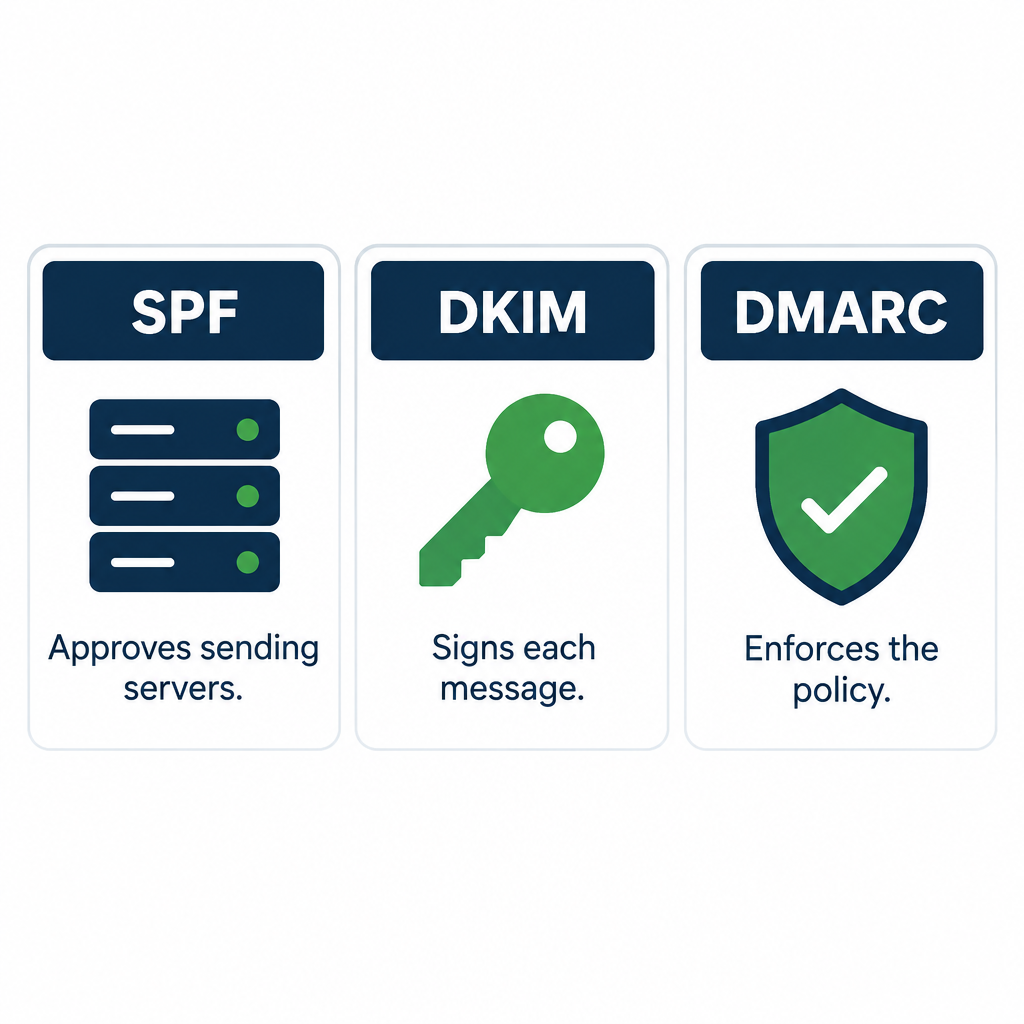
Before your first campaign, you add DNS records that prove your ESP is allowed to send on behalf of your domain. The three essentials are SPF, DKIM and DMARC. Since February 2024, Gmail and Yahoo have required them for bulk senders, and Microsoft followed for Outlook.com in May 2025. The exact records are covered in the deliverability section below.
You also want to send from your own domain ([email protected]), not a free address like [email protected]. Free-mail addresses fail DMARC when sent through an ESP, so mailbox providers will junk or reject them.
Step 4: Segment your list
Segmentation means splitting your list into groups so each person gets relevant emails. Common segments include:
New subscribers who haven’t bought yet
Customers who bought in the last 90 days
People who clicked a specific product category
Subscribers who haven’t opened or clicked in six months
Location, for time zones and local offers
A pet store sending one dog-food promotion to its entire list will annoy every cat owner on it. Splitting by past purchases fixes that in about ten minutes of setup.
Step 5: Write and design the email
A marketing email has five parts readers notice: the from name, the subject line, the preheader (the preview text after the subject), the body and the call to action. Design follows from the goal. A product launch might use a hero image and a single “Shop now” button. A founder’s update might be plain text that looks like a personal note.
Step 6: Send and pass the mailbox provider’s judgment
Clicking send hands your message to the ESP’s servers, which then deliver it to Gmail, Outlook, Yahoo, Apple iCloud and corporate mail servers. Each receiving system decides whether your email lands in the inbox, a promotions tab or spam. That decision is the part most beginners never think about, so it gets its own section next.
Step 7: Track results
Your ESP reports deliveries, bounces, opens, clicks, unsubscribes, spam complaints and, if connected to your store, revenue. You use those numbers to decide what to send next, who to send it to, and who to stop emailing. Then the loop starts again.
What Happens After You Click Send
Understanding this path explains most deliverability problems you’ll ever face.
Queueing. Your ESP splits your campaign into individual messages, one per recipient, and personalizes each (name, product recommendations, unsubscribe link).
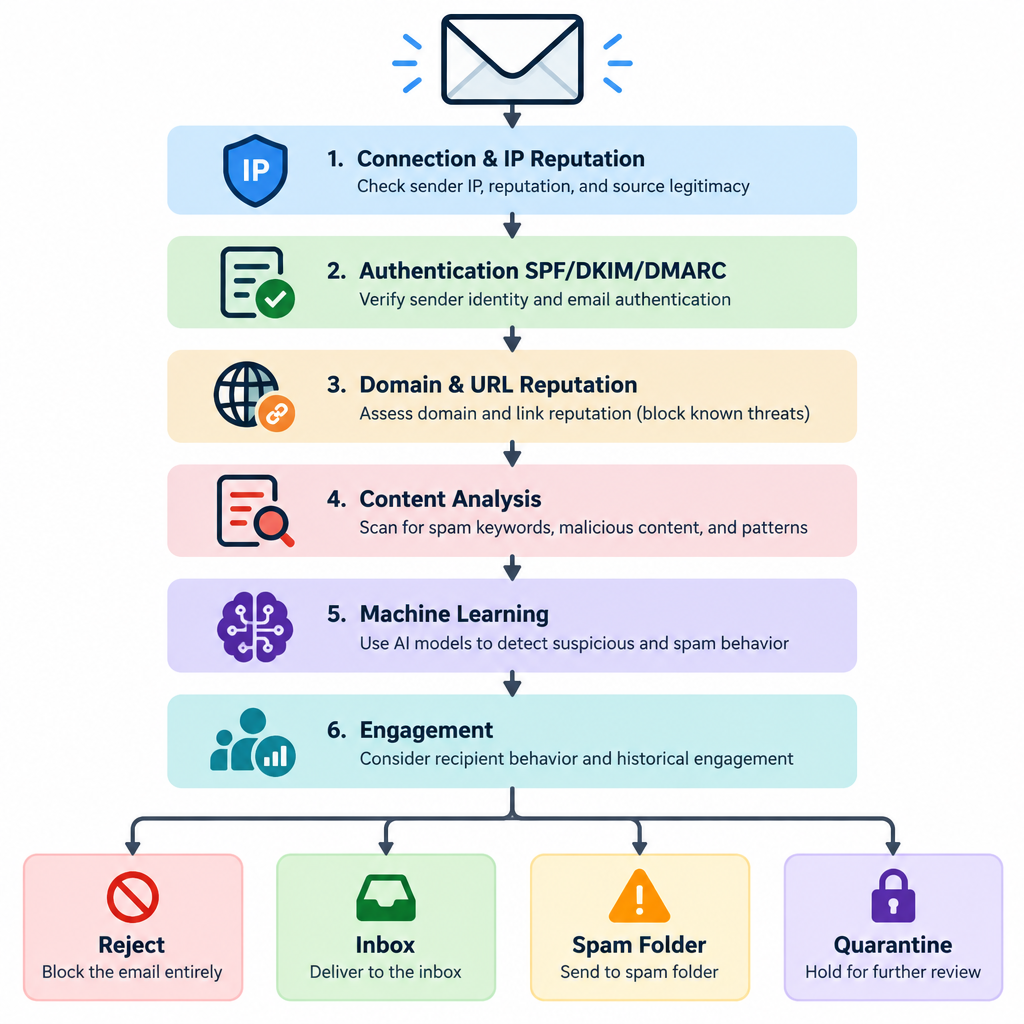
Connection. The ESP’s mail server opens an SMTP connection to the recipient’s mail server. Gmail’s servers see the sending IP address first and check its reputation.
Authentication checks. The receiving server looks up your SPF record, verifies the DKIM signature and applies your DMARC policy. If the message fails DMARC and your policy says reject, it never arrives.
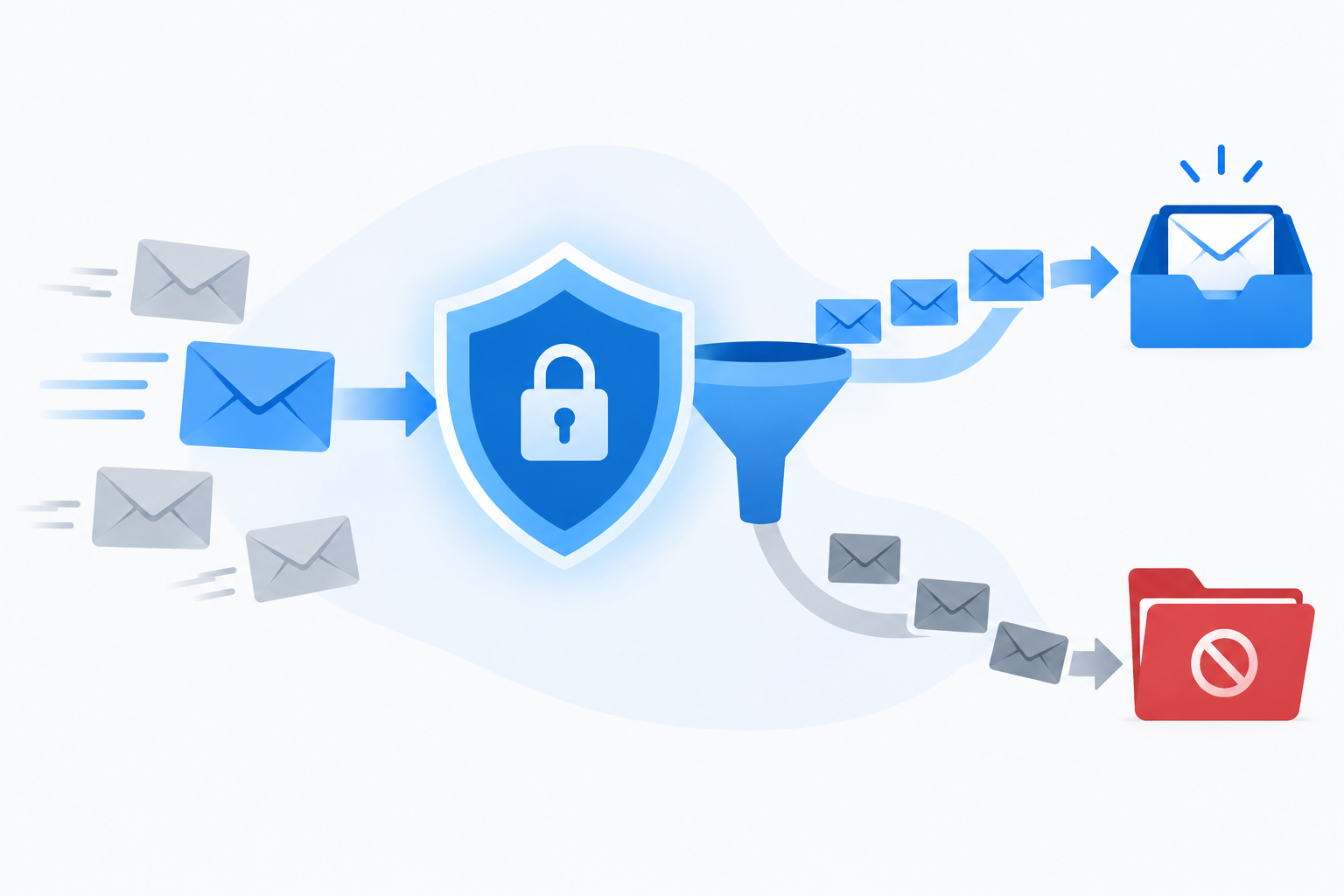
Filtering. The mailbox provider weighs domain reputation, IP reputation, past engagement from this specific user, complaint rates and the content itself. How those filters decide is a topic in its own right, and our explainer on e-mail spam filtering walks through the signals in detail.
Placement. If accepted, the message goes to the inbox, a tab such as Gmail’s Promotions, or the spam folder.
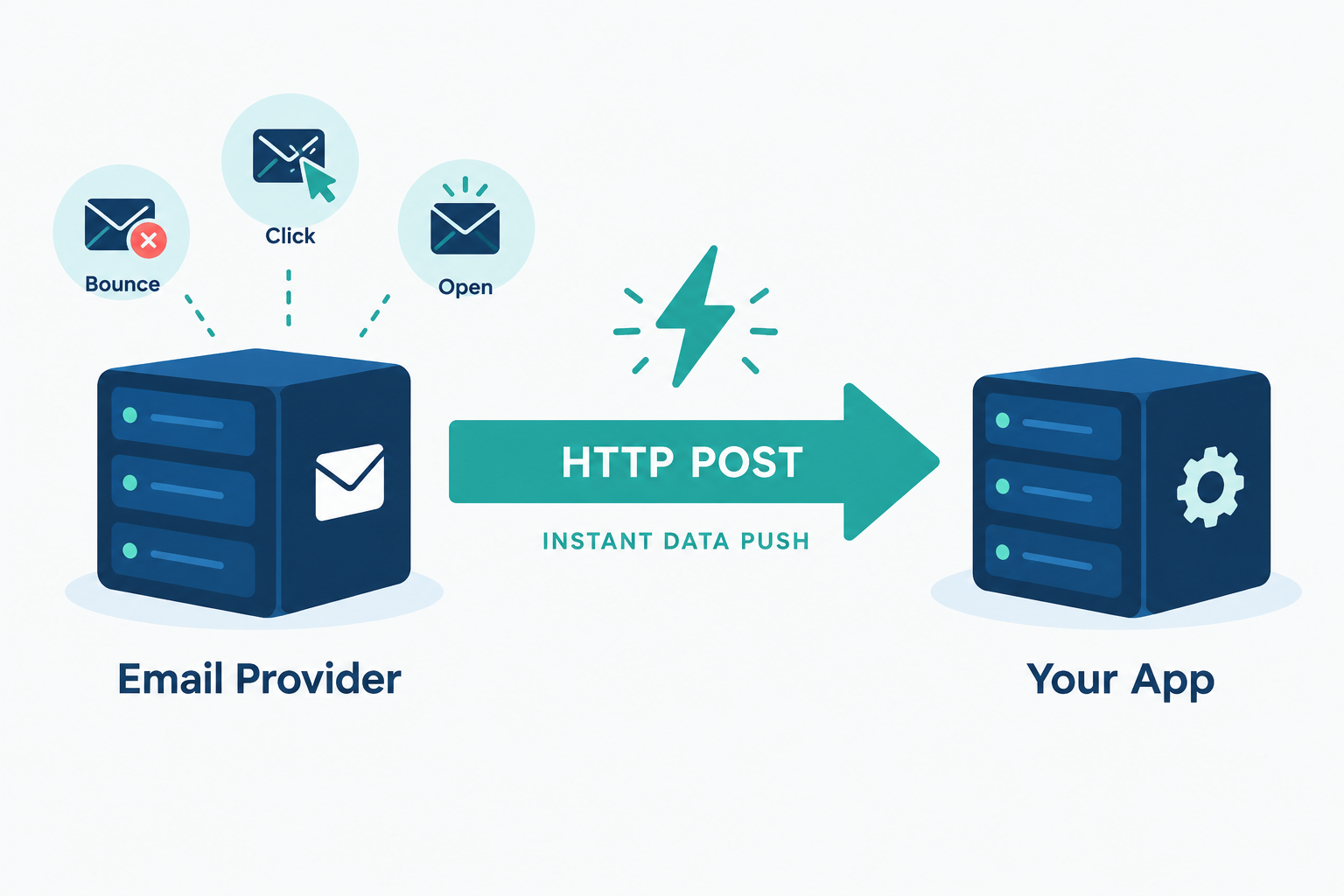
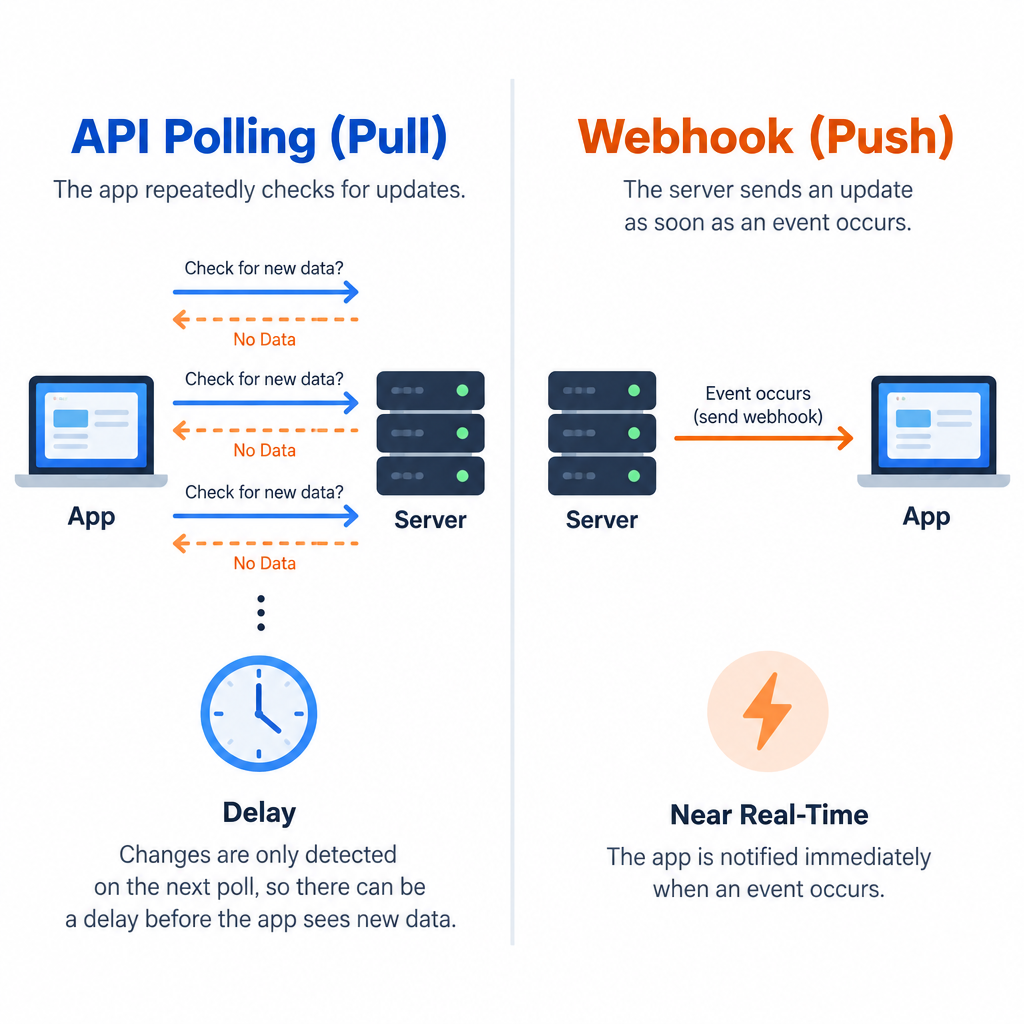
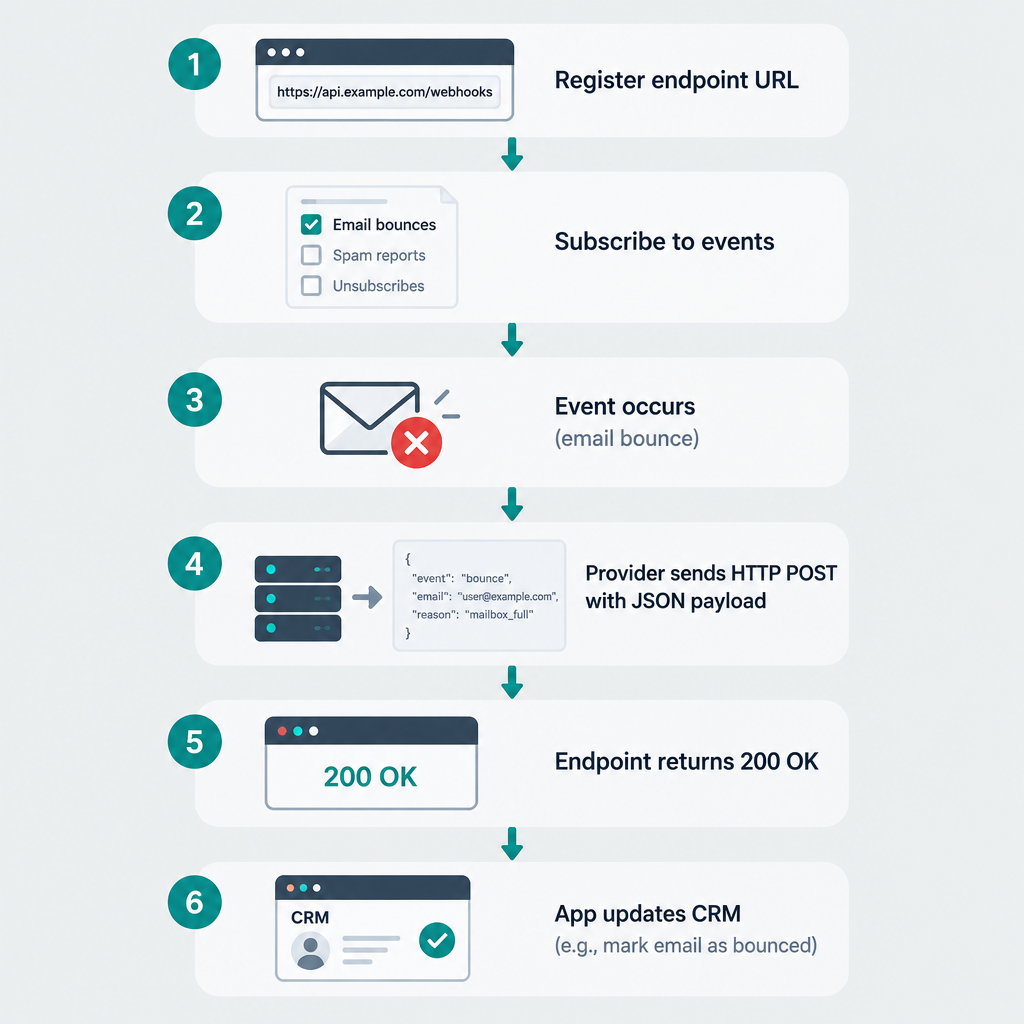
Event reporting. Every bounce, open and click flows back to your ESP. Many platforms then push those events to your other tools in real time through webhooks, which is how your CRM knows someone clicked within seconds. If that term is new, a quick webhook definition will make your ESP’s integration settings far less confusing.
Opens are tracked with a tiny invisible image in the email. When the image loads, the ESP logs an open. Clicks are tracked by routing each link through the ESP’s redirect domain before sending the reader to your page.
Both methods have limits, and you’ll see why in the metrics section.
Why Email Marketing Is Worth Your Time
Email is old. It’s also where your customers check in every single day. The Radicati Group, a technology market research firm, publishes the most widely cited figures on email usage.
Metric
2023
2027 (forecast)
Source
Worldwide email users
4.37 billion
4.89 billion
Radicati Group, Email Statistics Report 2023–2027
Emails sent and received per day
347.3 billion
408.2 billion
Radicati Group, Email Statistics Report 2023–2027
That’s more than half the planet with an inbox, and the number is still growing.
The main email marketing benefits
You own the audience. If a social network cuts organic reach, your followers vanish behind a paywall. Your email list stays yours. Export it, move platforms, keep sending.
It’s cheap to run. Many ESPs offer free plans for small lists, and paid plans for a few thousand contacts often cost less than a modest ad budget for a single week. Litmus, an email testing company, has put average email ROI at roughly $36 for every $1 spent. Treat that as an industry-wide average, not a promise for your business.
It drives sales directly. A well-timed abandoned-cart email reaches someone who already wanted the product. Few channels let you reach a warm buyer within an hour of hesitation.
It builds loyalty. Regular, useful emails keep you in mind between purchases. A coffee roaster that sends brewing tips and early access to limited lots is building loyalty that discounts alone can’t buy.
It’s measurable. You can track exactly how many people clicked, which link they chose and how much revenue followed. That makes testing easy and decisions concrete.
It’s personal at scale. One template can greet 40,000 people by name, show each of them products related to their last order and arrive at 9 a.m. in their own time zone.
9 Types of Emails You Can Send
People searching for “emails for email marketing” usually want to know what to actually send. These nine types cover nearly every program. Most businesses start with the first three and add the rest over time.
Email type
When it’s sent
Main goal
Automated or manual
Welcome email
Right after signup
Set expectations, deliver the promised offer
Automated
Newsletter
Weekly or monthly
Keep subscribers engaged with useful content
Manual
Promotional campaign
Sales, launches, seasonal events
Drive sales
Manual
Abandoned cart
1–24 hours after a cart is left
Recover the sale
Automated
Transactional
After a purchase, signup or password reset
Confirm an action
Automated
Post-purchase follow-up
Days after delivery
Reviews, how-to tips, cross-sells
Automated
Re-engagement (win-back)
After months of inactivity
Revive or remove inactive subscribers
Automated
Announcement
New product, feature or policy
Inform
Manual
Survey or feedback request
After an interaction or periodically
Learn what customers want
Either
The welcome email
This is usually the most-opened email you’ll ever send, because the subscriber just asked for it. Deliver whatever you promised on the signup form immediately: the discount code, the guide, the first lesson. Then tell them what’s coming and how often.
A welcome series of three to five emails over two weeks works better than a single message for most businesses. Use it to tell your story, show bestsellers and answer common objections.
Newsletters
A newsletter is a regular send built around content: tips, news, stories, curated links. It works when it gives readers something they’d miss if it stopped arriving. It fails when it’s a sales flyer with a “newsletter” label.
Promotional campaigns
These are your sales emails: Black Friday offers, product launches, limited stock alerts. Send them to segments that care. A 20% off code for running shoes should go to people who have browsed or bought running gear.
Abandoned cart emails
A shopper adds items, then leaves. An automated email arrives an hour later with the items pictured and a link back to the cart. Many stores add a second reminder at 24 hours, sometimes with free shipping. This is one of the highest-earning automations in ecommerce because the intent is already there.
Transactional emails
Order confirmations, shipping notices, receipts and password resets are transactional. They aren’t marketing under CAN-SPAM as long as their primary purpose is the transaction. Keep promotions inside them minimal, or you risk changing their legal status.
They also get read by machines. Google says Chrome’s autofill can now pull flight and order details from Gmail, which is a strong reason to keep order numbers, dates and addresses in clean, readable text rather than burying them in images.
Re-engagement emails
Subscribers who haven’t opened or clicked in six months drag down your engagement signals. Send them a short series asking if they still want your emails. Anyone who doesn’t respond gets removed. Smaller, engaged lists outperform larger, sleepy ones in the inbox every time.
Email Marketing vs. Marketing Automation
These terms overlap, and people often use them interchangeably. They aren’t the same thing.
Email marketing is the channel: everything you send to subscribers by email, including one-off campaigns you write and schedule by hand.
Marketing automation is the method: software that triggers actions based on rules and behavior. Those actions can include emails, but also SMS messages, CRM updates, lead scoring and ad audience syncing.
Where they meet is the automated email flow. A trigger (signup, purchase, cart abandonment, birthday, inactivity) starts a sequence of emails with delays and conditions between them. “If the customer bought within three days, skip the second reminder” is a typical rule.
Most modern ESPs include basic automation. Dedicated automation platforms such as HubSpot or ActiveCampaign go further with multi-channel journeys and sales-team handoffs. For a small business starting out, the automation built into a standard email platform is plenty. You can graduate later.
A practical split for a new program:
Automate anything triggered by a person’s own action: welcome, abandoned cart, post-purchase, win-back.
Send manually anything tied to your calendar: newsletters, sales, launches, announcements.
Set up the automations once, and they earn while you sleep. Spend your weekly writing time on campaigns.
Gmail, Yahoo and Microsoft Sender Rules
In October 2023, Google and Yahoo announced joint requirements for bulk senders, with enforcement starting in February 2024. Microsoft announced matching rules for Outlook.com, Hotmail and Live addresses in April 2025, effective May 5, 2025. If you send marketing email in any real volume, these rules apply to you.
Requirement
Gmail
Yahoo
Microsoft (Outlook.com, Hotmail, Live)
Who it applies to
Senders of about 5,000+ messages a day to personal Gmail accounts
Bulk senders (no fixed public number)
Senders of 5,000+ messages a day to consumer Outlook domains
SPF and DKIM
Required
Required
Required
DMARC
Required, minimum p=none, aligned with SPF or DKIM
Required, minimum p=none
Required, minimum p=none, aligned with SPF or DKIM
One-click unsubscribe
Required for marketing mail (from June 1, 2024)
Required
Functional unsubscribe link expected
Honor unsubscribes
Within 2 days
Within 2 days
Expected promptly
Spam complaint rate
Stay below 0.3%, aim for under 0.1%
Stay below 0.3%
Low complaint rates expected
Enforcement start
February 2024
February 2024
May 5, 2025
Google also says that once you’re classified as a bulk sender, you stay classified, even if your volume later drops.
The DNS records you need
These go into your domain’s DNS settings, usually at your registrar or DNS host. Your ESP will give you the exact values. Here’s what each looks like.
SPF lists the servers allowed to send for your domain. You get one SPF record per domain, so combine all senders into it:
DKIM adds a cryptographic signature to each message. Many ESPs give you a CNAME record that points to a key they manage. Others give you a TXT record like this:
DMARC tells receivers what to do when a message fails authentication and where to send reports. Start at p=none to monitor, then tighten to quarantine and reject once your reports show everything legitimate passes:
One-click unsubscribe is handled by two email headers. Your ESP adds them automatically, but it’s worth confirming they’re present in a test message’s raw source:
BIMI is optional. It displays your logo next to your emails in supporting inboxes, including Gmail and Apple Mail. It requires DMARC at p=quarantine or p=reject, and Gmail also needs a Verified Mark Certificate or Common Mark Certificate. Treat it as a later upgrade, not a launch requirement.
Deliverability risk
A spam complaint rate above 0.3% in Google Postmaster Tools puts you at real risk of Gmail filtering or rejecting your mail. Purchased lists and surprise sends to old contacts are the usual cause.
The Laws Behind Email Marketing
Spam laws differ by country, and they follow your recipients, not your office. A US store emailing customers in Germany needs to respect GDPR. Here are the three you’re most likely to meet.
Law
Region
Consent model
Key requirements
Maximum penalty
CAN-SPAM Act
United States
Opt-out (consent not required beforehand)
Honest headers and subject lines, identify ads, include a physical postal address, working opt-out honored within 10 business days
Over $50,000 per violating email (inflation-adjusted annually)
GDPR (with ePrivacy rules)
EU and UK (UK GDPR plus PECR)
Opt-in; consent must be freely given, specific, informed and unambiguous
No pre-ticked boxes, record of consent, easy withdrawal
Up to €20 million or 4% of global annual turnover, whichever is higher
CASL
Canada
Opt-in (express or implied consent)
Identify sender, include contact info and unsubscribe, process unsubscribes within 10 business days
Up to CAD $10 million per violation for organizations
A few practical notes:
CAN-SPAM covers B2B email too. There’s no business-to-business exemption.
Implied consent under CASL expires. An existing business relationship from a purchase generally counts for two years.
The UK’s soft opt-in lets you email existing customers about similar products, as long as you offered an opt-out when you collected their address and in every email since.
Business cards aren’t blanket consent. Under GDPR and CASL, a card handed over at a trade show doesn’t automatically mean someone agreed to your newsletter.
The safe default for any business with international customers: get clear opt-in consent, record when and where it was given, and make unsubscribing a single click.
Choosing the Right Email Marketing Tool
Your ESP choice shapes how easily you can do everything else. Price matters, but it’s rarely the deciding factor for long.
What to look for
Pricing model. Most platforms charge by contact count. Some charge by emails sent. If you send rarely to a large list, a send-based plan can be cheaper.
Ecommerce integration. Shopify, WooCommerce or BigCommerce stores need purchase data flowing into the ESP for abandoned cart and product recommendation emails.
Automation depth. Check for visual flow builders, conditional splits and behavior-based triggers.
Deliverability support. Look for guided domain authentication, dedicated IP options at higher volume and responsive support.
Templates and editor. A drag-and-drop editor with mobile preview saves hours each month.
Reporting. Revenue attribution, click maps and segment-level reporting beat basic open counts.
Data portability. Make sure you can export your full contact list, including custom fields and consent data.
Free plans to start on
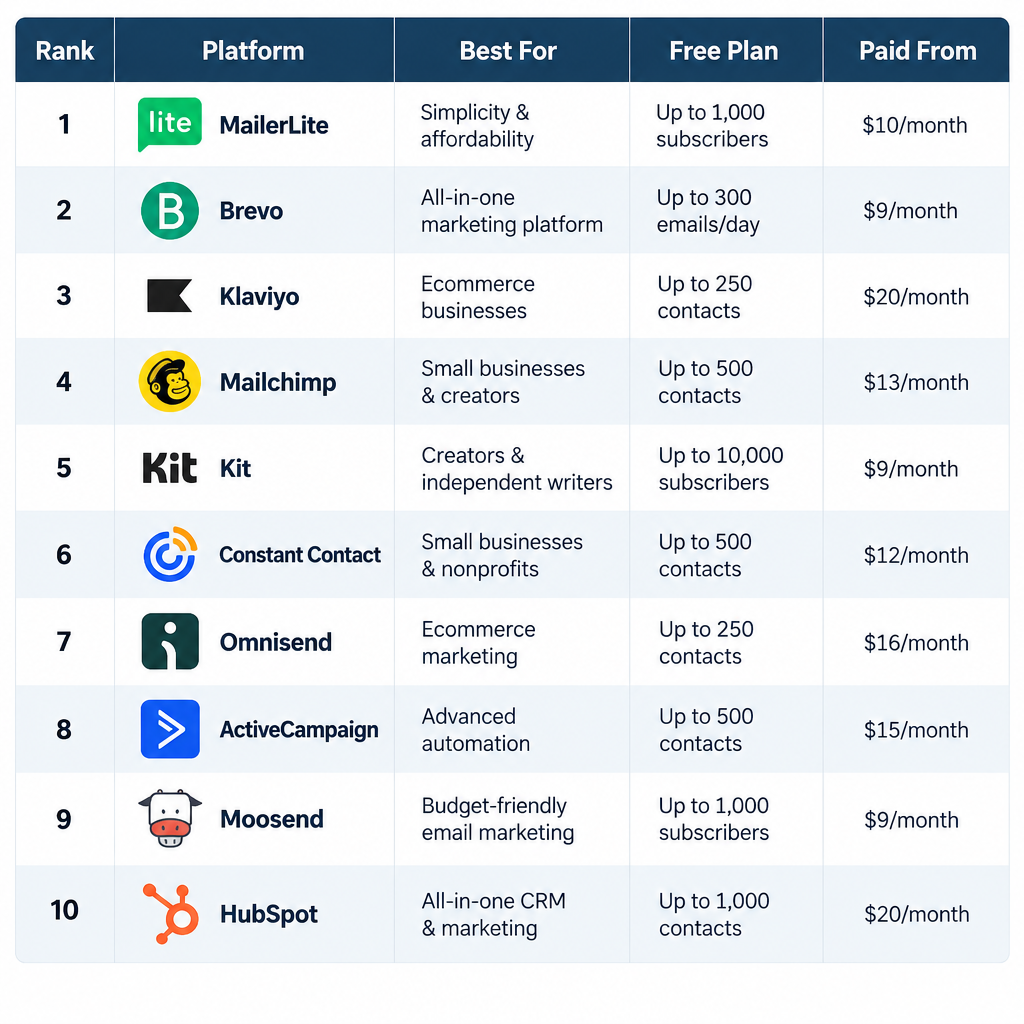
Several well-known ESPs offer free tiers. At the time of writing, Mailchimp’s free plan covers up to 250 contacts with 500 emails per month and a daily cap of 250, Brevo’s free plan allows 300 emails per day, and Kit’s free Newsletter plan supports up to 10,000 subscribers. Free plans change often, so check the current limits on each provider’s pricing page before you commit.
For a side-by-side look at features, costs and who each tool suits, our roundup of small business email platforms compares the main options in detail.
Inbox tip
Pick an ESP that makes domain authentication part of onboarding. Platforms that walk you through SPF, DKIM and DMARC on day one save you from the most common first-campaign spam problem.
Writing Emails People Actually Open
Design and copy decide whether a delivered email gets read, ignored or reported. Good emails share a handful of habits.
From name and subject line
Your from name should be recognizable instantly. Use your brand name, or “First name at Brand” if you want a personal feel. Keep it consistent so subscribers learn to trust it.
Subject lines work best when they’re specific. “New: the waterproof version of our best-selling jacket” beats “You won’t believe this!” The first tells people what’s inside. The second reads like spam and often gets treated like it.
A few subject line rules worth following:
Front-load the important words, because mobile clients cut subjects short.
Avoid ALL CAPS, rows of exclamation marks and fake “RE:” or “FWD:” prefixes. The fake reply trick also breaks CAN-SPAM’s rule against deceptive subject lines.
Use the preheader to add a second piece of information, not to repeat the subject.
Body copy
Write like a person talking to one customer. Short paragraphs, one main idea, one primary call to action. If you want readers to shop the sale, don’t also ask them to read a blog post, follow you on Instagram and fill out a survey.
Personalization goes far beyond adding a first name. Product recommendations based on browsing, content matched to a subscriber’s stated interests and local event invitations all feel personalized because they’re relevant.
Design
Design for mobile first. Most opens happen on phones. Use a single-column layout, 14–16px body text and buttons big enough for a thumb.
Don’t send image-only emails. Some clients block images by default, and filters dislike emails with almost no live text. Keep a healthy balance of text to images.
Add alt text to every image so the message makes sense when images don’t load and works with screen readers.
Include a plain-text version. Most ESPs generate one automatically. Check that it reads sensibly.
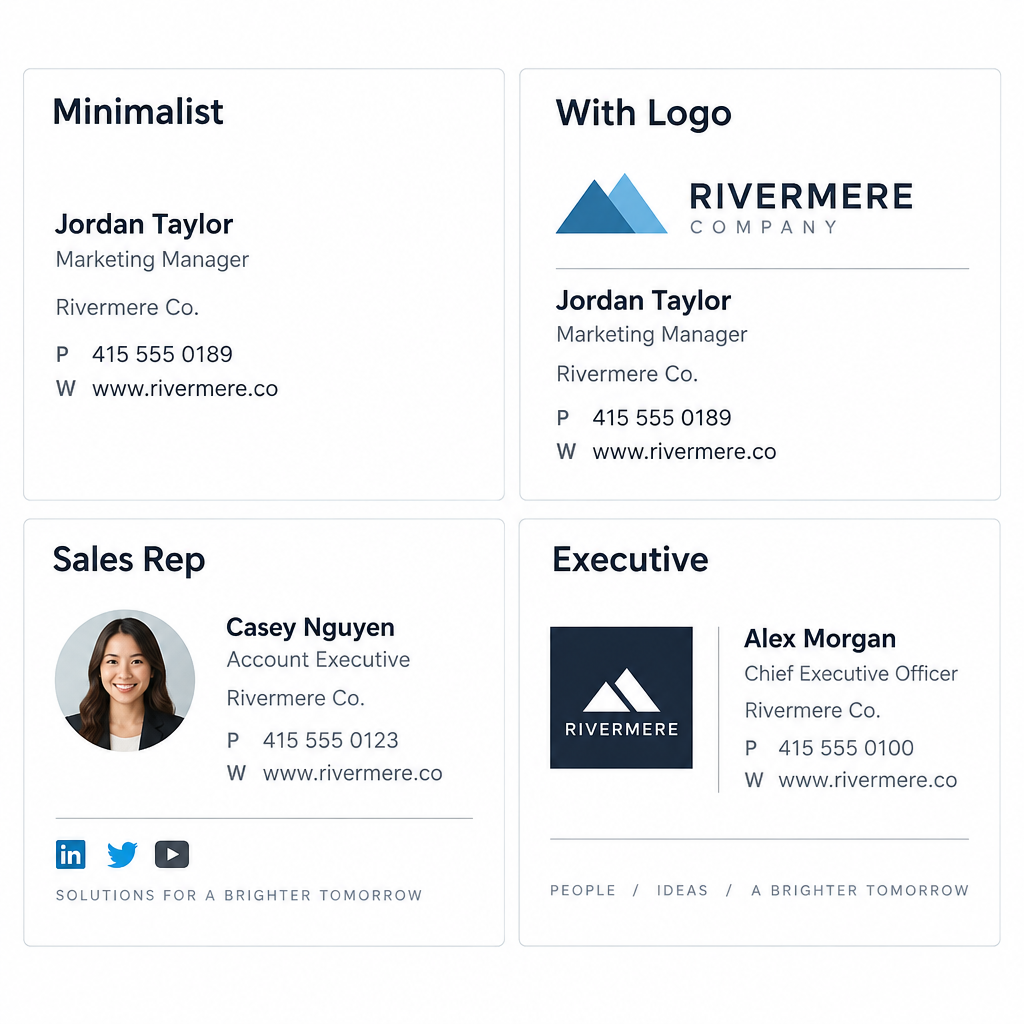
Plain-text-style emails from a founder or support lead often outperform heavy designs for relationship messages. Close those with a proper sign-off. A clean, human signature makes them feel personal, and you can borrow ideas from our email signature examples.
Proofreading and test sends
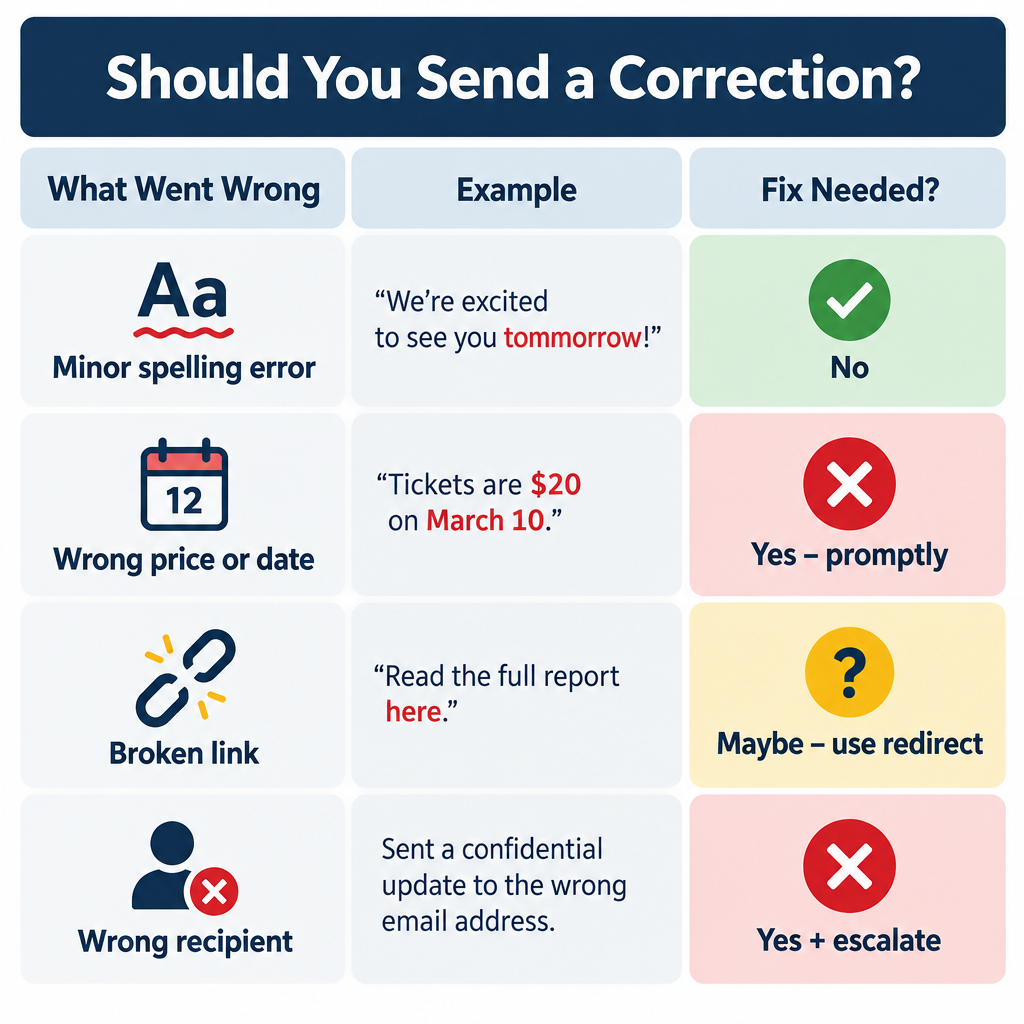
Send a test to yourself on desktop and mobile before every campaign. Click every link. Check the personalization fallback, because “Hi {FNAME}” in a live campaign is embarrassing. If a mistake does slip through, a calm correction usually beats silence, and our guide on handling a typo email covers when a follow-up is worth sending.
Metrics to Track (and Which Ones to Trust)
Your ESP will show you dozens of numbers. These are the ones that matter, with reference points.
Metric
What it tells you
Reference point
Source
Open rate
Subject line and sender appeal (unreliable since 2021)
21.33% average across industries
Mailchimp benchmarks, pre-2021 data
Click rate
Content relevance and call-to-action strength
2.62% average across industries
Mailchimp benchmarks, pre-2021 data
Unsubscribe rate
Frequency or relevance problems
0.26% average
Mailchimp benchmarks, pre-2021 data
Hard bounce rate
List quality (invalid addresses)
0.40% average
Mailchimp benchmarks, pre-2021 data
Spam complaint rate
Whether people want your mail
Under 0.1% target, 0.3% maximum
Google bulk sender guidelines
Why open rates lie now
In September 2021, Apple launched Mail Privacy Protection with iOS 15. When it’s turned on, Apple Mail preloads email content, including the tracking pixel, on Apple’s servers. Your ESP logs an “open” whether or not the person ever looked at the message.
The result: open rates jumped across the industry, and they no longer reliably reflect reading. The Mailchimp averages above predate that change, which makes them a useful baseline for how opens used to look but a poor target for today’s inflated numbers.
What to do about it:
Judge campaigns by clicks, conversions and revenue, not opens.
Don’t use opens alone to define “engaged” subscribers. Combine them with clicks and purchases.
Be cautious with open-based A/B subject line tests, since Apple users skew the results.
Revenue per recipient
For ecommerce, revenue per recipient (total campaign revenue divided by emails delivered) is the single most useful number. It lets you compare a 5,000-person segment send with a 50,000-person blast fairly. A smaller, better-targeted campaign often earns more per email.
Inbox health signals
Set up Google Postmaster Tools for your domain. It shows your spam complaint rate, domain reputation and authentication pass rates for Gmail traffic. Microsoft offers Smart Network Data Services (SNDS) for IP-level data. Check both weekly once you’re sending regularly.
How Subscribers Treat Your Emails Once They Land
This angle rarely shows up in beginner guides, yet it drives inbox placement more than any subject line trick.
Mailbox providers watch what each user does with your messages. Opening, replying, moving an email from Promotions to Primary and adding you to contacts all count as positive signals. Deleting without reading, marking as spam and ignoring you for months count against you.
Inbox cleaning matters here. Plenty of people periodically wipe out thousands of unread promotions at once, and guides showing how to bulk delete Gmail emails are popular for a reason. If your messages are the ones getting cleared in bulk without ever being opened, Gmail notices the pattern over time.
You can counter this in a few ways:
Ask for a reply in your welcome email. A question like “What’s the one thing you want help with?” earns replies, and replies are a strong positive signal.
Send less to people who engage less. Many ESPs let you create a “sunset” segment that receives only your best campaigns.
Make unsubscribing painless. Someone who can’t find the unsubscribe link will hit “Report spam” instead. A clean unsubscribe protects your reputation.
Keep transactional and marketing streams separate. Many senders use a subdomain like mail.yourbrand.com for marketing, so a rough campaign doesn’t slow down order confirmations.
Before You Click Send: 10 Things to Check
Run through this list before every campaign. It takes five minutes and prevents most of the problems we see.
Authentication passes. SPF, DKIM and DMARC all show “pass” in a test message’s headers.
The audience is right. You’ve selected the correct segment and excluded unsubscribes, bounces and suppressed contacts.
Consent is real. Everyone on the list opted in or has a legitimate relationship under the law that applies.
The subject line is honest. It matches what’s inside.
The preheader is set. Otherwise, clients show the first line of body text, often “View in browser.”
Links work. Every one, including the logo and footer.
Personalization has fallbacks. “Hi there” instead of a blank or a raw merge tag.
The footer is complete. Physical postal address, unsubscribe link and a line explaining why they’re receiving the email.
It looks right on mobile. Check on an actual phone, not just the editor preview.
Send time fits the audience. Schedule by recipient time zone if your ESP supports it.
5 Email Marketing Practices You Should Never Forget
Strip email marketing down to its essentials, and these five practices remain.
1. Never buy, rent or scrape a list. Purchased lists contain spam traps and people who never consented. They break GDPR and CASL outright, and they’ll destroy your domain reputation within a few sends. Build your list slowly and legally.
2. Warm up a new domain gradually. Mailbox providers distrust sudden volume from unknown senders. Start by emailing your most engaged subscribers, then increase volume over several weeks.
3. Clean your list regularly. Remove hard bounces immediately (your ESP should do this automatically). Run a re-engagement series every few months, and remove people who don’t respond.
4. Keep a consistent schedule. Subscribers who expect your newsletter every Tuesday open it. Subscribers who hear from you twice in March and then nothing until November forget who you are and hit spam.
5. Give more than you ask. For every sales email, send something useful: a tip, a story, early access, a how-to. People stay subscribed to senders who make their inbox better.
Common Beginner Mistakes
A few errors show up again and again with new senders:
Sending from a free Gmail or Yahoo address. It fails DMARC through any ESP. Use your own domain.
Importing an old contact list into a new ESP and blasting it. Addresses from three years ago include dead accounts and people who’ve forgotten you. Expect bounces and complaints.
Hiding the unsubscribe link. Tiny grey text on a grey background pushes people to the spam button instead.
Only sending promotions. A list that hears “SALE” every week stops listening.
Ignoring automation. A welcome series and abandoned cart flow take an afternoon to set up and keep working for years.
Chasing open rates. Since Apple’s privacy change, opens mislead. Clicks and revenue tell the truth.
FAQ
Is email marketing still effective?
Yes. Email reaches more than four billion users worldwide, according to Radicati Group figures, and it remains one of the highest-ROI channels marketers use. It works best for businesses that send relevant, permission-based emails rather than mass blasts.
How much does email marketing cost?
You can start free. Several major ESPs have free plans for small lists, though limits change, so check current pricing. Paid plans scale with the number of contacts, so a list of a few thousand subscribers typically costs tens of dollars a month, not hundreds.
What’s the difference between email marketing and spam?
Permission. Email marketing goes to people who opted in, clearly identifies the sender and lets recipients unsubscribe easily. Spam is unsolicited bulk email, often with misleading headers or subject lines. Mailbox providers and spam laws treat the two very differently.
How often should I send marketing emails?
Most small businesses do well with one newsletter or campaign a week, plus automated emails triggered by customer actions. Watch your unsubscribe and complaint rates. If they climb after you increase frequency, scale back or let subscribers choose how often they hear from you.
Do I need my own domain for email marketing?
Yes. Gmail, Yahoo and Microsoft require bulk senders to authenticate with SPF, DKIM and DMARC, which you can only set up on a domain you control. Sending marketing email from a free webmail address through an ESP will fail authentication.
Can I email people who gave me their business card?
In the US, CAN-SPAM allows it as long as you include an opt-out and follow the other rules. In the EU, UK and Canada, a business card alone generally isn’t enough consent for marketing emails. The safest approach is to send one personal follow-up and invite them to subscribe.
Gmail can delete thousands of emails in a few clicks, but only if you know where the hidden “select all” link sits and how to aim it. This guide shows you how to bulk delete emails in Gmail on the web and in the app, how to target exactly the messages you want gone, and how to avoid losing anything you still need.
Best methodSearch, then select all
Works best onGmail in a browser
Trash keeps mail30 days
Mobile limitNo full select-all
What You Need Before You Start
Mass deleting is fast. Undoing it is not. Spend two minutes on these first.
A computer with a web browser. The Gmail website is the only place with a true “select all conversations” option. The phone apps cannot do this.
Your Gmail password and 2-Step Verification device, in case Google asks you to sign in again.
A backup, if the mail matters. Google Takeout can export your Gmail as an MBOX file before a big purge. This step is optional for clearing newsletters. It is essential before wiping years of work mail.
A list of what to keep. Think about receipts, tax documents, contracts, travel bookings and password reset emails.
Ten quiet minutes for very large inboxes. Deleting tens of thousands of conversations can take a while to process.
One more thing to check. If you rely on Chrome autofill reading Gmail for flight and order details, deleting those confirmation emails removes the data it pulls from. Keep anything from the last few months that you might still need.
The Fastest Way to Mass Delete Emails on Gmail
This is the core method. Every other technique in this article is a variation of it.
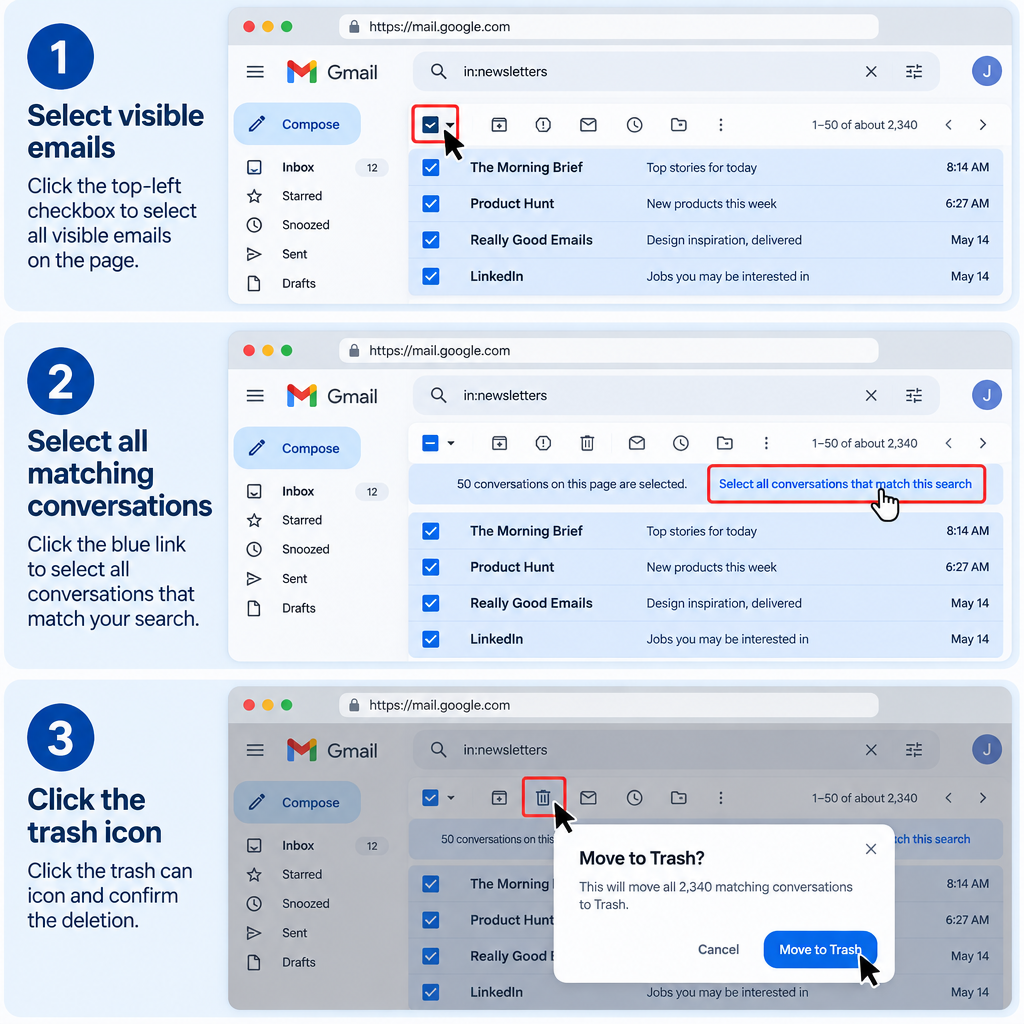
Gmail’s checkbox only selects the conversations visible on your current page. Most people stop there and wonder why only 50 emails disappeared. The trick is a small link that appears after you click the checkbox.
Delete every email that matches a search
Open Gmail in a browser and go to the folder, label or search you want to clear.
Click the empty square checkbox above your email list, at the far left.
Look for the blue link at the top that reads “Select all conversations that match this search” (or “Select all X conversations in Inbox”).
Click that link. Gmail now selects every matching conversation, not just the visible page.
Click the trash can icon to delete.
Confirm in the pop-up that warns you this affects all selected conversations.
That’s it. Gmail moves everything to Trash, where it stays for 30 days before permanent deletion.
Show 100 Emails Per Page Instead of 50
A bigger page size helps when you’re picking messages by hand. Gmail allows up to 100 conversations per page.
Go to Settings (gear icon) > See all settings > General > Maximum page size and choose 100. Scroll down and click Save Changes.
This doesn’t change how many emails “select all” can grab. It just lets you review and tick more messages at once.
Bulk Deleting Emails From Your Inbox, a Label, or a Category
The same select-all method works anywhere in Gmail. What changes is where you start.
From your inbox. Click Inbox in the left sidebar, tick the checkbox, then click the “Select all conversations in Inbox” link. Note that if you use category tabs, this only selects mail in the tab you’re viewing.
From a label. Click the label name in the sidebar. Tick the checkbox, choose the select-all link, then delete. Deleting from a label deletes the email everywhere, not just from that label. If you only want to remove the label, use the “Remove label” icon instead.
From a category tab. Click the Promotions, Social, Updates or Forums tab. Select all, then delete. These tabs are where most bulk junk piles up: retailer offers, social network alerts, YouTube notifications and shipping updates.
Don’t see category tabs? Go to Settings > See all settings > Inbox, set Inbox type to Default, and tick the categories you want to show.
Inbox tip
Promotions emails from senders you actually love still count. Before you wipe the tab, search category:promotions is:starred to rescue anything you starred.
Delete Specific Types of Emails Using Gmail’s Search Bar
The search bar is the real power tool here. A precise search means you delete exactly the right emails and nothing else.
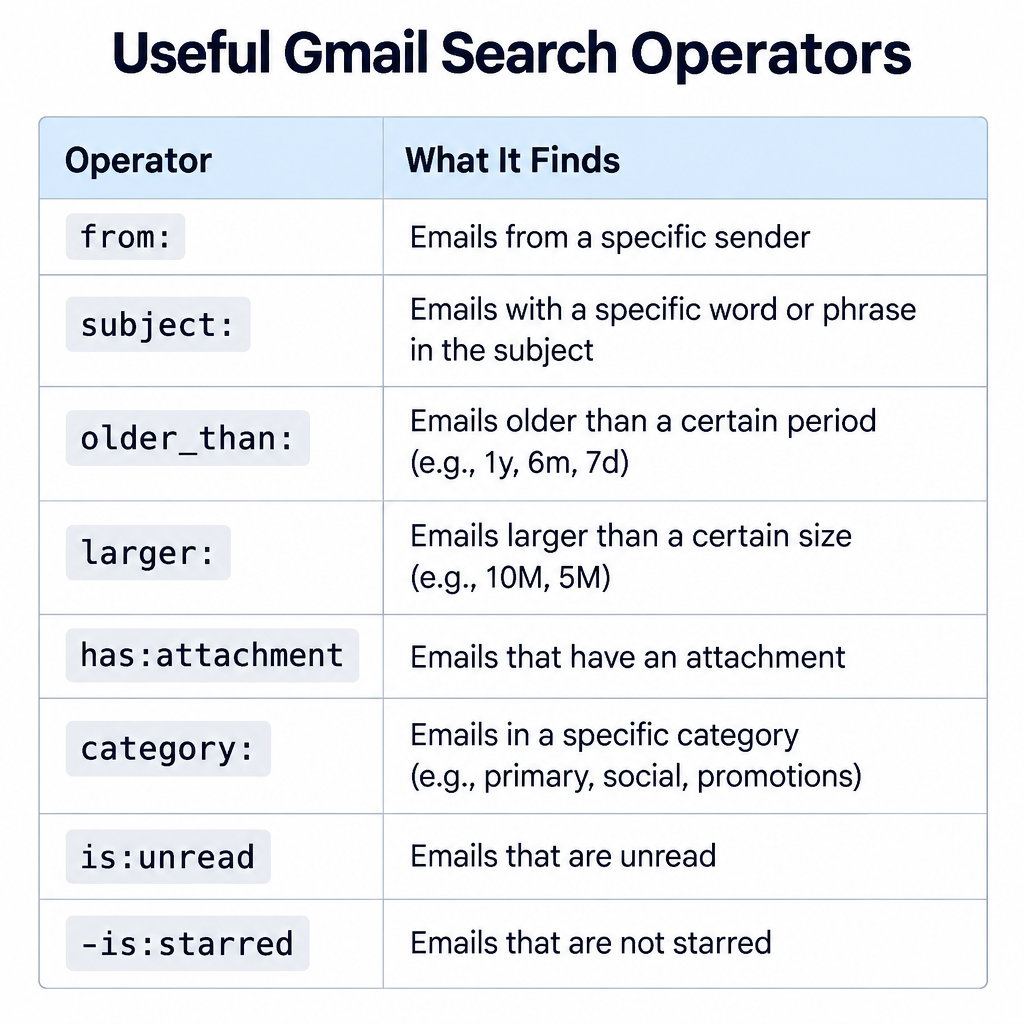
Type an operator into the search bar at the top of Gmail, press Enter, then use the select-all method on the results. These are the operators worth knowing:
Always scroll through the first page of results before you delete. A search like unsubscribe can catch messages from services you still use, like your bank or utility company.
How to Delete Very Large Volumes (Tens of Thousands of Emails)
The select-all method can technically handle huge numbers. In practice, Gmail sometimes stalls when you throw 50,000 conversations at it in one go. The screen hangs, the counter freezes, or some emails come back after a refresh.
Two techniques get around that.
Method 1: Delete in Date Batches
Split the job by year. Search one year at a time, delete, then move to the next.
Batches of 10,000 to 20,000 conversations tend to go through cleanly. If a batch hangs, wait a few minutes and refresh. Gmail often keeps processing in the background.
Method 2: Use a Filter to Delete Existing Mail
This is the trick most guides skip. A Gmail filter can apply a “Delete it” action to every existing email that matches, not just new arrivals. Google processes it on its side, so you don’t have to babysit a browser tab.
Delete thousands of emails with a filter
Type your search into the Gmail search bar, for example from:@oldjob.com.
Click the filter icon at the right end of the search bar (the sliders).
Check the criteria, then click Create filter.
Tick Delete it.
Tick Also apply filter to matching conversations.
Click Create filter. Gmail moves every match to Trash.
Keep the filter if you never want mail from that sender again. Remove it afterwards in Settings > See all settings > Filters and Blocked Addresses if this was a one-time cleanup.
Deliverability risk
A “Delete it” filter is silent. If you build it on a broad word like “invoice”, real invoices will vanish into Trash without warning. Keep filter criteria narrow.
How to Delete All Your Emails
Want a completely empty account? Here’s how to delete everything at once.
Click More in the left sidebar, then All Mail. (Alternatively, search in:all.)
Tick the checkbox above the list.
Click Select all conversations in All Mail.
Click the trash icon and confirm.
All Mail includes your inbox, archived mail, sent mail and everything under labels. It does not include Spam or Trash, which you’ll clear separately.
For an account holding 30,000 or more emails, the date-batch approach above is more reliable than one giant delete.
Think carefully before you do this. Sent mail often holds the only record of quotes, agreements and attachments you sent. Export it with Google Takeout first.
How to Delete Archived Emails in Gmail
Gmail has no “Archive” folder, which confuses many people looking for one. Archiving simply removes the Inbox label. The email still lives in All Mail.
To find archived mail, use this search:
-in:inbox -in:sent -in:drafts -in:spam -in:trash
To find archived mail with no labels at all (the true orphans):
has:nouserlabels -in:inbox -in:sent -in:drafts
Then select all and delete as usual. Add older_than:1y if you only want to clear the old stuff.
How to Mass Delete Emails on the Gmail App
Here’s the honest answer: you can’t truly mass delete on the phone. Neither the Android nor the iPhone app offers “select all conversations that match this search.”
You can still delete in small batches.
On Android: Tap the sender’s profile picture (or long-press an email) to enter selection mode. Newer versions of the app show a Select all option at the top once you’re in selection mode, which grabs up to 50 conversations at a time. Tap the trash icon.
On iPhone and iPad: Tap the profile picture next to an email to select it. Keep tapping others to add them. Tap the trash icon at the top. There’s no select-all, so this is slow for big jobs.
The workaround: Open a browser on your phone, go to Gmail, and request the desktop site from the browser menu. You get the full web interface, select-all link included. It’s fiddly on a small screen, but it works.
Method
Select-all for a whole search
Max per action
Best for
Gmail web (desktop browser)
Yes
Every matching conversation
Any bulk job
Gmail filter with “Delete it”
Yes, server-side
Every matching conversation
10,000+ emails
Gmail app, Android
No
Up to 50 via Select all
Quick small cleanups
Gmail app, iPhone/iPad
No
Whatever you tap by hand
A handful of emails
Desktop site in a phone browser
Yes
Every matching conversation
No computer nearby
Empty Your Trash to Actually Free Up Storage
Deleting an email doesn’t free storage right away. It sits in Trash, still counting against your quota, for 30 days.
If you’re cleaning up because Gmail says your storage is full, you need to empty Trash too.
Click More > Trash in the sidebar.
Click Empty Trash now at the top.
Confirm.
Do the same for spam: open Spam and click Delete all spam messages now. If legitimate mail keeps landing there, it helps to understand e-mail spam filtering and why messages get caught, so you can fix it at the source.
Item
Limit or timing
Time emails stay in Trash
30 days, then permanently deleted
Time emails stay in Spam
30 days, then permanently deleted
Free Google storage (shared with Drive and Photos)
15 GB
Maximum conversations per page
100
Google Workspace admin restore window
25 days after permanent deletion
Personal Gmail accounts have no admin to fall back on. Once Trash is emptied, treat those emails as gone for good.
Expert Insight: How to Bulk Delete Emails After a Mail Merge Campaign
If you send mail merges straight from Gmail with an add-on, your account fills up fast. One campaign to 500 people leaves 500 sent copies, a wave of auto-replies, and a pile of bounce notices.
Here’s the cleanup routine I use after every send.
Clear the bounces. Bounce notices come from Google’s mail delivery system. Search:
from:mailer-daemon OR from:postmaster after:2025/01/01
Before deleting, copy the bounced addresses into your suppression list. Mailing a bad address again hurts your sender reputation.
Clear the auto-replies. Out-of-office messages usually share subject words:
subject:("out of office" OR "automatic reply" OR "auto-reply")
Thin out sent copies. Search by the exact campaign subject and date:
in:sent subject:"Your March update" after:2025/03/01 before:2025/03/05
Keep a few as a record, then delete the rest. Many mail merge tools also apply their own label to campaign mail, which makes this even easier.
If you’re doing this cleanup every week, Gmail is probably the wrong tool. Regular campaigns belong on one of the small business email platforms built for bulk sending, with proper bounce handling and unsubscribe links. Gmail’s own sender rules, in force since February 2024, also require one-click unsubscribe and low spam rates once you send around 5,000 messages a day to Gmail addresses.
Common Mistakes and How to Fix Them
Only 50 emails got deleted. You clicked the checkbox but missed the blue “Select all conversations” link. Go back and click it before hitting delete.
Deleted emails reappeared. Large deletes sometimes finish in the background. Wait a few minutes and refresh. If they’re still there, delete in smaller date batches.
A whole thread vanished when you wanted one message gone. Conversation view groups replies together, so deleting the thread deletes every message in it. To work with single messages, go to Settings > See all settings > General > Conversation View and select Conversation view off.
Storage didn’t go down. Trash and Spam still count against your quota. Empty both. Storage figures can take up to a day to update.
You deleted something important. Open Trash, find the email, tick it and click Move to > Inbox. You have 30 days. Right after a delete, an Undo link also appears at the bottom left for a few seconds.
Deleting in Outlook or Apple Mail didn’t delete in Gmail. Mail apps connected by IMAP follow Gmail’s IMAP settings. Check Settings > See all settings > Forwarding and POP/IMAP. Under the expunge setting, choose Move the message to the Trash if you want deletions in your mail app to count.
The select-all link never appears. It only shows when there are more matching conversations than fit on one page. If you see fewer than 50 results, the checkbox already selected them all.
What You Should See When You’re Done
After a successful cleanup:
Your search for the deleted criteria returns “No messages matched your search.”
Trash shows the deleted conversations (until you empty it).
Your storage meter at the bottom of the Gmail sidebar, or at one.google.com/storage, shows lower usage within about 24 hours of emptying Trash.
Your inbox count drops, and the tabs you cleared are empty or close to it.
Keep It From Piling Up Again
A clean inbox stays clean with a little automation.
Unsubscribe as you go. Gmail shows an Unsubscribe link next to the sender name on most bulk mail. One tap beats a monthly purge.
Set filters for repeat offenders. Auto-archive or auto-delete alerts you never read, such as social notifications.
Run a quarterly sweep. Paste older_than:1y category:promotions -is:starred and delete. It takes under a minute.
If you send company updates and your colleagues are drowning in your mail, it might be worth rethinking frequency. A tighter internal newsletter, sent once a week, creates far less clutter than daily one-offs.
FAQ
Can you mass delete old emails on Gmail?
Yes. On the Gmail website, search older_than:1y (or 2y, 5y), tick the checkbox, click “Select all conversations that match this search,” then click the trash icon. Add -is:starred -is:important to protect emails you’ve flagged.
How do I delete 30,000 emails at once?
Use Gmail on a computer. Search for the emails, select all with the checkbox and the blue select-all link, then delete. For 30,000 or more, deleting in yearly batches with before: and after: is more reliable. Another option is a filter with “Delete it” and “Also apply filter to matching conversations” ticked, which Google processes server-side.
How to delete promotional emails in Gmail?
Click the Promotions tab, or search category:promotions. Tick the checkbox, click “Select all conversations,” then delete. To keep favourites, search category:promotions -is:starred instead. Then empty Trash if you want the storage back immediately.
How do I select all 3000 emails in Gmail?
Tick the checkbox above your email list. Gmail selects the current page, then shows a blue link reading “Select all 3,000 conversations” (or “Select all conversations that match this search”). Click it, and all 3,000 are selected. This only works in a web browser, not in the Gmail app.
A good internal newsletter is the one company email people open on purpose. This guide gives you 40 section ideas, five proven formats, a month-by-month content calendar, and a step-by-step plan to build, send and measure your own. It also covers the deliverability work most internal comms guides skip.
Best forHR and internal comms teams
Ideal cadenceWeekly or fortnightly
Ideal length5 to 7 items
Key metricClicks per section
What an internal newsletter is for
An internal newsletter is a recurring email to your own employees. It collects company news, people updates and practical reminders in one predictable place.
It does three jobs well:
Cuts noise. One digest replaces a dozen scattered “FYI” emails.
Gives context. Slack and Teams carry fast-moving chatter. The newsletter explains what it means.
Builds connection. It shows colleagues in other teams, offices and time zones what everyone else is working on.
It does a few jobs badly. It should not carry urgent safety alerts, anything needing a reply within hours, or sensitive news that deserves a face-to-face conversation. Layoffs, restructures and leadership exits belong in a meeting first. The newsletter can follow up with the written detail.
Why it’s worth the effort: the data
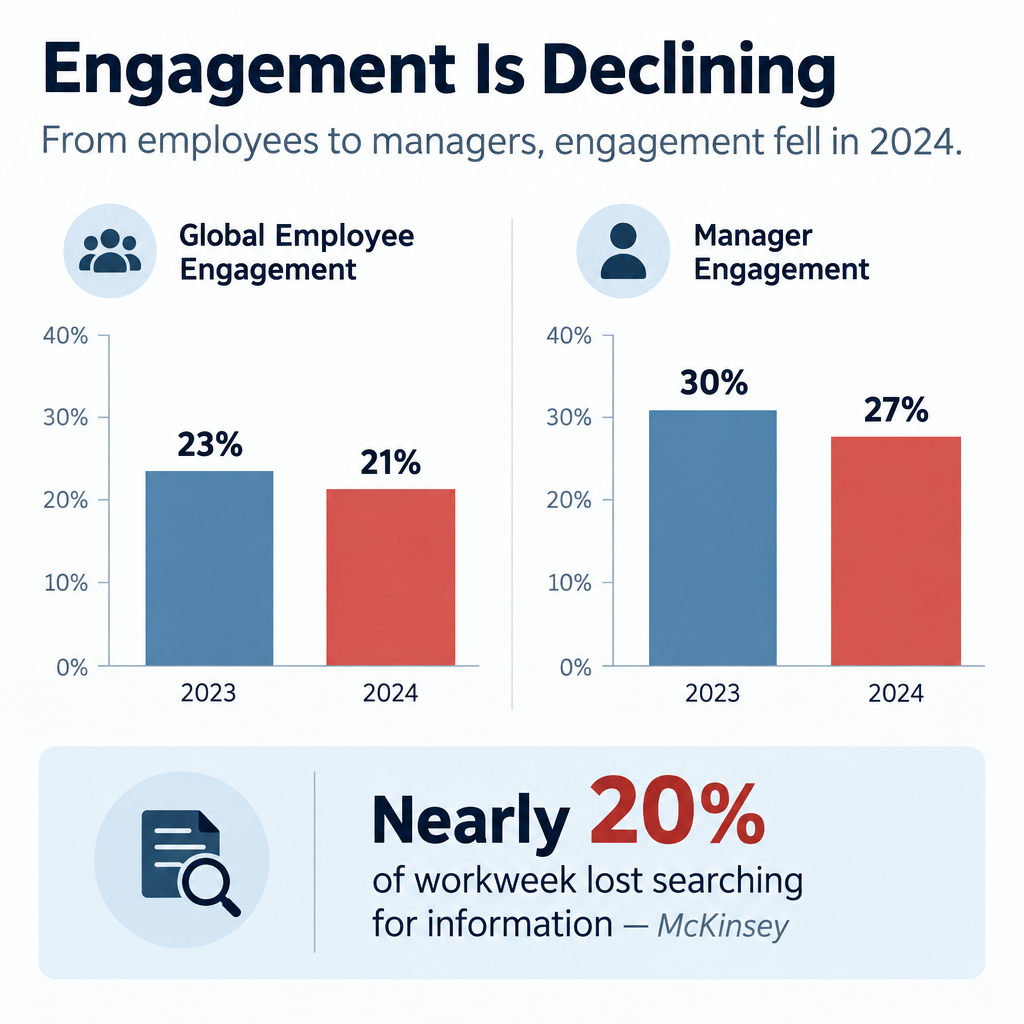
Engagement is low and falling, and communication is part of the fix. Gallup’s State of the Global Workplace research is the most cited source here.
Metric
Figure
Source
Global employees engaged at work, 2023
23%
Gallup, State of the Global Workplace 2024
Global employees engaged at work, 2024
21%
Gallup, State of the Global Workplace 2025
Managers engaged, 2023 to 2024
Fell from 30% to 27%
Gallup, State of the Global Workplace 2025
Lost productivity from the 2024 engagement drop
$438 billion
Gallup, State of the Global Workplace 2025
Share of team engagement variance tied to the manager
70%
Gallup
Workweek spent searching for internal info or tracking down colleagues
Nearly 20%
McKinsey Global Institute, The Social Economy (2012)
Two numbers matter most for your newsletter.
The first is the manager figure. Gallup attributes about 70% of the variance in team engagement to the manager. Managers are disengaging too. A newsletter that equips managers with talking points has more leverage than one written only for individual staff.
The second is the McKinsey finding. Knowledge workers lose close to a fifth of their week hunting for information. A well-organised newsletter with a clear “where to find it” section gives some of that time back.
A newsletter won’t fix a bad culture. It does make a good one visible, and it stops people from feeling like the last to know.
What you need before you start
Get these in place before you write a word. Skipping them is how newsletters die by issue four.
A clear owner. One named person who edits, chases contributors and hits send.
An executive sponsor. Someone senior who will contribute and defend the newsletter’s time.
A distribution list. Synced to your HR system or directory, so joiners and leavers update automatically.
A sending tool. Outlook or Gmail for small teams. An email service provider (ESP) or internal comms platform for tracking and design.
A content pipeline. A simple form or shared channel where colleagues submit news.
A template. Fixed sections, in a fixed order, that you reuse every issue.
A goal. One or two outcomes you want, written down. “Fewer repeat HR questions” is a goal. “Better engagement” is not.
Brand basics. Logo, colours and a tone guide, even a one-page one.
How to build your internal newsletter in 6 steps
Setup steps
Pick one or two concrete goals.
Choose your audience and cadence.
Design a fixed section template.
Set up a contribution pipeline.
Choose a sending tool and authenticate it.
Launch, measure and cut what nobody reads.
Step 1: Set focused goals
Pick goals you can check. Good examples:
Reduce “where do I find X?” tickets to HR or IT by a set amount over a quarter.
Get a target share of staff to click the quarterly strategy update.
Raise employee referral applications.
Increase sign-ups for internal events or training.
Each goal should map to at least one recurring section. If a section serves no goal, it’s filler.
Step 2: Choose audience and cadence
One newsletter for everyone works up to a few hundred people. Beyond that, you typically need layers: a company-wide edition plus team or region editions.
For cadence, these rules hold up:
Weekly suits fast-moving companies with lots of operational change.
Fortnightly is the best default for most organisations of 50 to 500 people.
Monthly suits culture and story content, not deadlines.
Pick a day and time and never move it. Tuesday or Wednesday morning in your main time zone avoids Monday inbox pile-ups and Friday drift.
Step 3: Design a fixed template
Readers learn where things live. Use the same order every issue so people can jump to what they care about. The structure section below gives you a template to copy.
Step 4: Build the content pipeline
The editor should not write everything. Set up:
A short form with three fields: what happened, who’s involved, why it matters.
A rota of department contributors, one per issue.
A standing deadline, such as noon two days before send.
A shared Slack or Teams channel called something like #newsletter-tips works well for photos and quick wins.
Step 5: Pick a tool and authenticate it
Small teams can send from Outlook or Gmail. Once you want design, tracking and scheduling, move to an ESP or internal comms platform. If you send through an ESP, you must authenticate your domain. Internal mail from an outside service can land in junk just like marketing mail. The deliverability section covers this.
Step 6: Launch, measure and prune
Send the first issue with a one-line explanation of what it is and when it arrives. After four issues, look at which sections got clicks. Cut or rework the bottom one. Repeat every quarter.
40 internal newsletter ideas, by section
These are ideas for a company newsletter that hold up issue after issue. Most work as recurring sections, which saves you reinventing the wheel every time.
Company news and strategy
Leader’s note in 150 words. One topic, plain language, signed by a real person. Cap it hard.
Decision log. “What we decided this month and why.” This kills more rumours than any FAQ.
Goals scorecard. Progress on three to five company goals, shown as a simple green, amber or red status.
Customer win of the week. Name the customer (if allowed), the team and the problem solved.
Lost deal lesson. What we learned from a loss. It signals honesty and helps sales and product.
Release notes for non-product people. What shipped, explained so finance and HR understand it.
All-hands follow-up. Answers to questions that ran out of time in the meeting.
Myth vs fact. Address one rumour directly. If people are talking about it, they’re already reading about it somewhere.
People and culture
New starters. Photo, role, team and one fun fact. Include who their manager is.
Work anniversaries and milestones. Group them by month to save space.
Internal moves and promotions. This shows career paths exist.
Day in the life. One team per issue explains what they actually do.
Workspace tour. Desk setups, home offices, or the warehouse floor.
Employee resource group spotlight. Upcoming events and how to join.
What we’re reading. Book, podcast or article picks from colleagues.
Ten years in. Lessons from a long-tenure employee.
Recognition
Peer shout-outs. Submitted through a form, published with names.
Values in action. A short story tied to one company value.
Customer praise. Reviews or emails that mention staff by name.
The small fix award. Recognise someone who removed an annoying process step.
Learning and how-tos
Tool tip of the week. One shortcut in Slack, Teams, Outlook or your CRM.
Acronym decoder. Define three internal acronyms per issue. New starters love this.
Phishing example of the week. A real (sanitised) phish someone reported, with the giveaways marked.
Learning budget reminder. What courses staff can take and how to claim.
Lunch-and-learn recap. Three takeaways and a recording location.
Email signature rollout. When you standardise signatures, include email signature examples people can copy.
Need-to-know operations
Deadlines box. Expenses, timesheets, reviews, benefits enrollment. Dates in bold.
Policy change in plain English. Lead with “What changes for you” before any legal detail.
Facilities updates. Office closures, parking, building works.
IT maintenance windows. What’s down, when, and the workaround.
Open roles and referrals. Three roles and the referral bonus terms.
Events calendar. Next four weeks only.
Engagement and fun
One-question poll. Publish last issue’s results alongside the new question.
Photo of the week. Pets, team outings, views from the office.
Caption contest. Winner gets a small prize and bragging rights.
Company history trivia. Old logos, first office, first customer.
Local tips from another office. Where colleagues in Berlin eat lunch.
Volunteering and charity. Hours logged, causes supported, how to join.
Employee-generated
Guest editor rotation. A different team curates one issue per quarter.
What I wish I knew in my first month. One tip from a recent hire.
Inbox tip
Rotate who appears in people sections. If the same five names show up every issue, everyone else stops reading.
Internal newsletter examples by format
Different formats serve different goals. Most companies end up with two: one operational, one cultural.
Format
Cadence
Length
Best for
Core sections
Need-to-know digest
Weekly
3 to 5 items
Deadlines and changes
Deadlines, policy, IT, events
Culture digest
Monthly
6 to 8 items
Connection and recognition
People, shout-outs, stories
Leader’s letter
Monthly or quarterly
One essay
Strategy and context
Note, scorecard, Q&A
Frontline digest
Weekly
3 items
Deskless workers
Shifts, safety, recognition
Team newsletter
Fortnightly
4 to 6 items
Departments over 30 people
Wins, priorities, who’s who
Example 1: Weekly need-to-know all-company newsletter
This is the workhorse format. It answers one question: what do I need to do or know this week?
A typical issue:
Subject: “This week: expense deadline Friday, new VPN Monday”
Top block: three bullet points, each with an action and a date
Policy change: two sentences plus a “read the full policy” button
IT notice: maintenance window and workaround
Events: next seven days only
Footer: who to contact, how to submit news
Keep it under 300 words. People read it in under a minute, and that is the point.
Example 2: Monthly culture digest
This format earns the “newsletter” name. It’s where stories, photos and recognition live.
A typical issue opens with a short leadership note, then a team spotlight, new starters, anniversaries, peer shout-outs, a photo of the month and a poll. It can run longer because readers choose to spend time on it.
Use visually rich layouts here. Photos of real colleagues outperform stock images every time.
Example 3: The leader’s letter
A CEO or division head writes one focused piece. It covers what’s going well, what isn’t, and what comes next.
The best ones read like a person talking. They name specific numbers and admit specific problems. Add a goals scorecard and two or three answered questions from staff below the letter.
Avoid having comms ghost-write it into corporate mush. Edit for clarity, not personality.
Example 4: Frontline digest for deskless workers
Retail, healthcare, logistics and manufacturing staff often don’t have a work email they check. Many don’t sit at a computer at all.
For them, the content needs to shrink and the channel needs to change:
Print a one-page version for break rooms.
Send a three-item summary by SMS or through a staff app.
Ask shift leads to read the top item aloud in pre-shift huddles.
Lead with schedules, safety and pay dates, then one recognition story.
If your organisation has frontline staff, check what share of them actually receive your email version. It is often far lower than leadership assumes.
Example 5: Team or department newsletter
Once a department passes about 30 people, it needs its own update. Engineering, sales and operations are the usual candidates.
Keep it distinct from the company edition. Focus on team priorities, wins, who’s working on what, and decisions that affect the team. Don’t repeat company news. Link to the main edition instead.
How to structure an internal newsletter
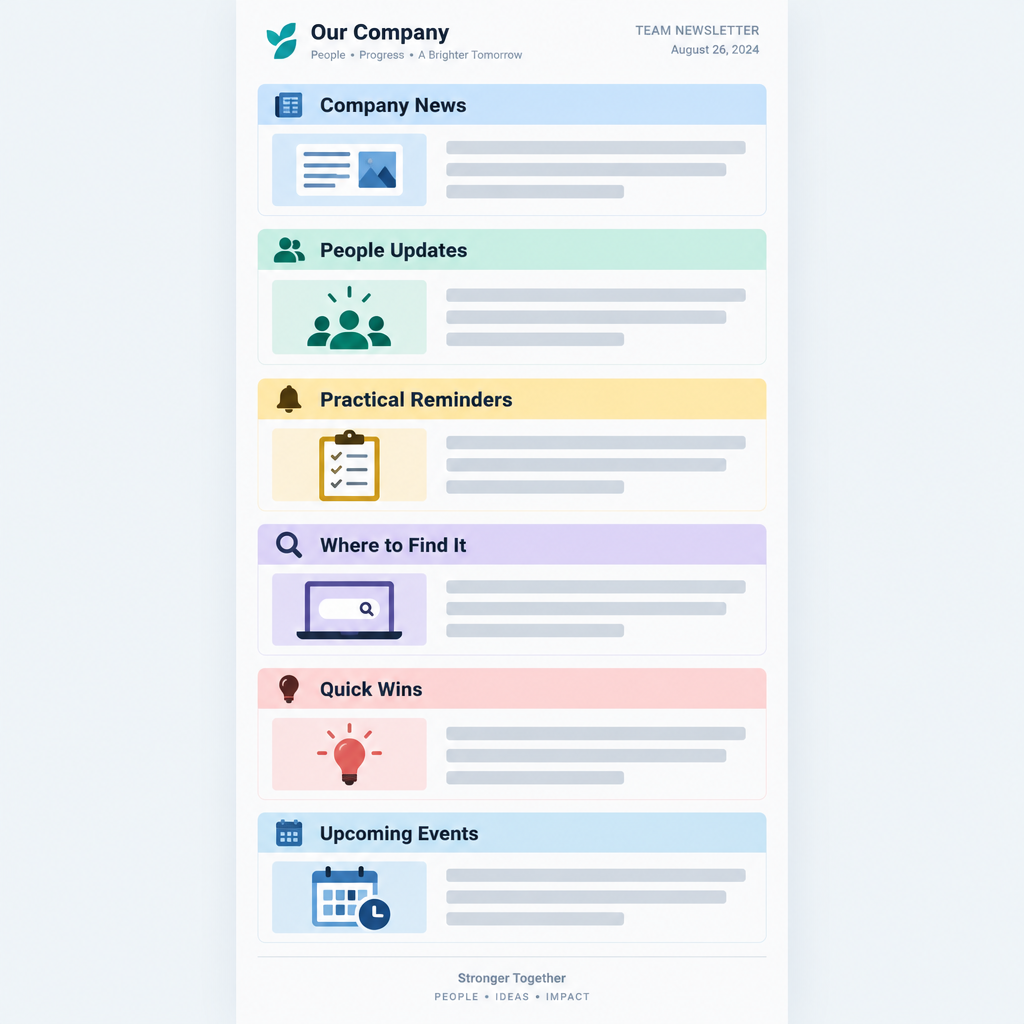
Use this order. It puts action first and stories second, which matches how people triage email.
Subject line naming the one or two most useful items.
Preheader with a third item or a teaser.
Top three: short bullets with actions and dates.
Lead story: one item with a headline, 80 to 120 words and a button.
Headlines that tell the story, such as “Benefits enrollment closes 14 November”, not “Benefits update”.
Buttons with specific labels, such as “Book your flu shot”, not “Learn more”.
Single-column layout so it reads well on phones.
Alt text on every image, and never put key information only inside an image.
Tone: how internal newsletters should sound
Write like a well-informed colleague, not a press office.
Do:
Use “we” and “you”.
Name people and teams.
Use numbers. “We closed 42 support tickets faster than last quarter” beats “Support had a great quarter.”
Admit when things went wrong.
Don’t:
Use jargon nobody outside the exec team understands.
Write “exciting news” or “we’re thrilled”. Let the news be exciting.
Hide bad news at the bottom.
Make jokes at anyone’s expense.
A quick test: read a paragraph aloud. If you wouldn’t say it to a colleague over coffee, rewrite it.
How to get employees to actually read it
Open rates on internal email suffer from the same problem as any email. People have too much of it. These tactics move the numbers.
Make subject lines specific. “Issue #47” tells people nothing. “Pay date moves to the 25th, plus a new parking app” gets opened.
Keep it short. Five to seven items is the sweet spot for most digests. If you have more, you have two newsletters.
Put people in it. Names and faces are the most reliable hook you have. People open emails that might mention them or someone they know.
Make it useful every time. Include at least one thing per issue that saves time or prevents a mistake, like a deadline or a how-to.
Close the loop on feedback. When a poll or suggestion leads to a change, say so. “You asked for later Friday lunches. Starting next week, the canteen stays open until 2:30.”
Get leaders to reference it. When a manager says “it was in the newsletter” in a meeting, readership climbs.
Pair it with chat. Post a one-line teaser and link in your main Slack or Teams channel on send day.
Make it easy to contribute. Every issue should end with a one-click way to submit news.
Inbox tip
Send at the same time every issue. Predictability trains people to look for it, and it shows up in your open timing data within a few sends.
Employee newsletter content calendar: ideas by month
A content calendar stops the panic of a blank issue. Plan recurring themes a quarter ahead, then fill in news as it happens.
Dates below are fixed observances. Check which ones fit your workforce and region. Some are US-specific.
Month
Observances and dates
Newsletter ideas
January
Data Privacy Day (28 Jan)
Goals for the year, privacy tips, benefits reminders
February
Black History Month (US, Canada)
ERG spotlight, history stories, Q4 results recap
March
Employee Appreciation Day (first Friday), International Women’s Day (8 Mar)
International Day of Persons with Disabilities (3 Dec)
Year in review, milestones, holiday schedules
Layer your own business calendar on top: fiscal year end, review cycles, product launches, peak seasons and company anniversaries.
Tools for sending an internal newsletter
You have three realistic options. The right one depends on headcount and how much tracking you need.
Option
Typical fit
Tracking
Design
Main drawback
Outlook or Gmail
Under 50 people
None built in
Basic
No metrics, inconsistent rendering
ESP (Brevo, Mailchimp and similar)
50 to several hundred
Opens, clicks, per-link data
Drag-and-drop templates
Needs domain authentication, unsubscribe link
Internal comms platform (Staffbase, Poppulo, ContactMonkey and similar)
Large or complex organisations
Detailed, often by department
Templates plus intranet and app
Higher cost, longer setup
ESPs built for marketing work fine for internal email if you configure them properly. Many teams start with one of the small business email platforms they already pay for.
Internal comms platforms add features ESPs lack. These include directory sync, sending as an Outlook mailbox, and reporting by department or location. They earn their price once you have thousands of staff or multiple languages.
Sending an employee newsletter with Brevo
Brevo is a common pick for smaller companies. As of 2025, its free plan allows 300 emails per day, which covers a weekly send for a team of up to 300. Paid plans remove the daily cap. Check Brevo’s pricing page for current plan prices before you commit.
Brevo setup for an internal newsletter
Authenticate your sending domain under your account menu, then Senders, Domains & Dedicated IPs, then Domains.
Go to Contacts, then Lists, and create a list named for your audience.
Import employees from a CSV exported from your HR system.
Go to Campaigns, then Email, then Create campaign.
Build your template in the drag-and-drop editor and save it for reuse.
Send a test to three colleagues on different devices.
Schedule the send for your fixed day and time.
A few practical notes:
Add custom fields for department, location and start date. You can then segment by office or send a “welcome” block only to people who joined recently.
Save the template after your first issue. Every later issue starts from it.
Keep the unsubscribe link. Brevo, like most ESPs, expects campaigns to carry one. Treat it as a signal. If people opt out of the culture digest, the content needs work. Truly mandatory notices should go out through a separate channel your IT team controls, such as a mailbox in your own tenant.
Pipe data into other systems if you need it. Brevo supports webhooks, which push events like clicks to another app automatically. For a quick webhook definition: it’s an automated message one system sends another when something happens.
Employee data is personal data. Under GDPR and similar laws, your ESP acts as a data processor. Make sure a data processing agreement is in place and only upload the fields you need.
Deliverability: yes, internal email can land in junk
This is where many internal newsletters quietly fail. When you send from an ESP, your email comes from the ESP’s servers, not your company’s mail system. Your own mail filters treat it as external email claiming to come from your domain. That’s exactly what a phishing attack looks like.
If authentication isn’t right, Microsoft 365 or Google Workspace may junk or quarantine your newsletter. Understanding how e-mail spam filtering works makes this obvious: filters check whether the sender is authorised to use your domain.
The big consumer mailbox providers have also tightened the rules. These apply to personal accounts, not your company tenant, but they set the standard every filter now expects.
Requirement
Gmail (from Feb 2024)
Yahoo (from Feb 2024)
Outlook.com (from 5 May 2025)
Applies to
Senders of 5,000+ messages a day to personal Gmail
Bulk senders
Senders of 5,000+ messages a day to consumer Outlook domains
SPF
Required
Required
Required
DKIM
Required
Required
Required
DMARC
Required, p=none minimum
Required, p=none minimum
Required, p=none minimum, aligned with SPF or DKIM
One-click unsubscribe
Required for marketing mail (from June 2024)
Required
Expected as best practice
Spam complaint rate
Below 0.3%, ideally below 0.1%
Below 0.3%
Not stated as a hard number
For your internal send, the practical steps are the same.
SPF authorises the ESP to send for your domain. You add its include to your existing SPF record. Use the exact value your ESP gives you. The example below uses a placeholder.
Start with p=none while you confirm all your legitimate senders pass. Then move to quarantine and reject in stages.
Better still, send from a subdomain such as news.example.com. It keeps the newsletter’s reputation separate from your main domain.
Deliverability risk
Don’t ask IT to allowlist your whole domain to rescue the newsletter. Allowing a sender domain without authentication checks lets spoofed phishing emails straight into every inbox.
If your newsletter still lands in junk after authentication, ask your Microsoft 365 admin to check message headers in a test send. They can confirm SPF, DKIM and DMARC results and review any mail flow rules. Microsoft’s guidance is to avoid broad domain allow entries. A rule tied to authentication results or your ESP’s sending infrastructure is safer.
How to measure your internal newsletter
Measure against the goals you set in step one. Raw open rates are a weak signal on their own.
Metric
What it tells you
Watch out for
Open rate
Whether subject lines and send timing work
Apple Mail Privacy Protection (since iOS 15, 2021) preloads images and inflates opens
Click-through rate
Whether content drives action
Low counts per section in small companies, so look at trends
Clicks per section
Which sections earn their space
Position bias: top items always get more clicks
Read time (comms platforms)
Whether people scan or read
Not available in most ESPs
Replies and submissions
Whether people feel ownership
Hard to automate, so track manually
Downstream actions
Real outcomes such as event sign-ups or enrollment completions
Needs tracking links or system data
Survey feedback
What people want more or less of
Run it quarterly, keep it to three questions
Track a few numbers consistently rather than everything once. A simple sheet with issue number, send date, open rate, click rate and top three sections is enough.
The most useful tracking habit is per-section clicks over time. After eight issues, the pattern is clear. A section that never gets clicks either needs a rewrite or needs to go.
For small teams, qualitative signals matter more than percentages. If people mention the newsletter in meetings, submit stories without being chased, and complain when it’s late, it’s working.
Common mistakes and troubleshooting
Nobody opens it
Your subject lines are probably generic. Name specific, useful items. Check deliverability too. A test send to a few colleagues’ junk folders often reveals the real problem.
Opens are fine, clicks are near zero
Everything is in the email and there’s nothing to click, or the buttons are vague. Add one clear action per item. Move the most useful item to the top.
The editor writes everything
The pipeline is broken. Assign a contributor rota and set a deadline. Reduce the template if needed. A shorter issue with real contributions beats a long one written by one person.
It’s become a leadership press release
If every item is an announcement from the top, readers disengage. Aim for at least half the content to be about colleagues, not executives.
It keeps getting longer
Teams add sections and nobody removes them. Each quarter, cut the lowest-performing section. New sections must replace old ones, not stack on top.
A mistake went out to everyone
It happens. A wrong date or broken link in a typo email to 2,000 colleagues feels huge but rarely is. Send a correction only if the error changes meaning, such as a wrong deadline. Otherwise, fix it in the archive and note it in the next issue.
Frontline staff never see it
Email isn’t reaching them. Add print, SMS or app versions, and ask shift leads to share the top item in person.
Mandatory messages get lost
You’re mixing must-read notices with culture content. Separate them. Critical compliance or safety notices need their own direct email, with read tracking if required.
Fixes at a glance
Symptom
Likely cause
First fix
Low opens
Vague subject or junk folder
Specific subject, check authentication
Low clicks
No clear action
One button per item, specific labels
Few submissions
Hard to contribute
One-click form in footer, contributor rota
Unsubscribes rising
Too long or irrelevant
Cut sections, segment by team or location
Complaints of missing info
Wrong channel for urgent news
Separate urgent notices from the digest
What a good result looks like
After about three months of consistent sends, a healthy internal newsletter typically shows:
A stable or rising open trend, issue to issue.
Clicks concentrated in three or four sections you can name.
Contributions arriving without chasing for at least half the content.
Fewer repeat questions to HR, IT and facilities about things you covered.
Leaders and managers referencing it in meetings.
Your send landing in the inbox, not junk, with SPF, DKIM and DMARC all passing.
If you see most of those, keep going and refine. If you see few of them after six issues, go back to your goals and template, not just the subject lines.
FAQ
How often should you send an internal newsletter?
Fortnightly is the best default for most companies. Go weekly if you have frequent operational changes and keep it short. Go monthly for culture-focused editions. Consistency matters more than frequency.
How long should an internal newsletter be?
Five to seven items, or roughly 300 to 600 words, for most digests. Weekly need-to-know editions should be shorter. If you regularly exceed that, split it into two newsletters.
Who should write the internal newsletter?
One editor owns it, usually in HR, internal comms or the CEO’s office. Content should come from across the business through a submission form and a contributor rota. The editor curates and polishes.
Should employees be able to unsubscribe?
From culture and engagement content, yes. ESPs generally require an unsubscribe link anyway, and opt-outs tell you something useful. Mandatory notices such as policy or compliance updates should go out through a separate channel that people can’t opt out of.
What’s the difference between an internal newsletter and Slack or Teams updates?
Chat handles quick, fast-moving conversation. The newsletter is a curated summary with context, people stories and deadlines. Most companies need both, and the best setups tease the newsletter in chat on send day.
Can I send an internal newsletter from Outlook?
Yes, and it’s fine for small teams. You won’t get click tracking or reliable design, and large distribution lists can trigger sending limits. Most organisations move to an ESP or internal comms platform past about 50 employees.
What are good ideas for a company newsletter when there’s no big news?
Lean on recurring people and learning sections: new starters, milestones, peer shout-outs, a tool tip, an acronym decoder, a poll with last issue’s results, and a team spotlight. A quiet month is the perfect time for a day-in-the-life feature.
The best email marketing platforms for small businesses keep the bill small while your list is small. They also get your mail into the inbox under the Gmail, Yahoo and Microsoft sender rules, and they let you send a good-looking newsletter without hiring a designer. Below are ten platforms ranked for small teams, with pricing, free-plan limits, how each one bills you, and the specific type of business each one suits.
Our top pick, in one paragraph
MailerLite is the best email marketing platform for most small businesses. Its drag-and-drop editor is the easiest to learn on this list. The automation builder handles welcome series and abandoned carts without a manual. Landing pages, signup forms and a website builder are included, and paid plans start at $12 a month. It lacks a CRM and a native SMS-first setup. Most small teams don’t need either in year one.
Top pickMailerLite
Best for ecommerceKlaviyo
Best for high volumeBrevo
Best for creatorsKit
If you run a Shopify store and expect email to drive a big share of revenue, skip to Klaviyo. If you send a lot of email to a modest list, look at Brevo first. It bills by emails sent, not by contacts.
Quick comparison: best email marketing services for small businesses
Prices below are US list prices from each vendor’s pricing page in 2025, for the smallest paid tier on monthly billing unless noted. Vendors change these often, so treat them as a starting point and confirm before you commit.
Rank
Platform
Best for
Free plan
Paid plans from
1
MailerLite
Most small businesses
Yes, up to 250 subscribers, 12,000 emails/month
$12/month
2
Brevo
High send volume, transactional plus marketing
Yes, 300 emails/day
$9/month
3
Klaviyo
Shopify and ecommerce stores
Yes, 250 active profiles, 500 emails/month
$20/month
4
Mailchimp
Integrations and brand familiarity
Yes, 250 contacts, 500 sends/month
$13/month (Essentials)
5
Kit (formerly ConvertKit)
Creators, newsletters, digital products
Yes, up to 10,000 subscribers
About $33/month billed annually
6
Constant Contact
Local businesses, events, phone support
No (free trial)
$12/month (Lite)
7
Omnisend
Budget ecommerce, email plus SMS
Yes, 250 contacts, 500 emails/month
$16/month
8
ActiveCampaign
Advanced automation and sales follow-up
No (14-day trial)
$15/month billed annually
9
Moosend
Cheapest paid automation
No (30-day trial)
$9/month
10
HubSpot
Teams already using HubSpot CRM
Yes, 2,000 sends/month with HubSpot branding
$15/seat/month billed annually
How we ranked these email platforms for businesses
The ranking weighs the things that actually decide whether a small business sticks with a platform after the first three months. Feature count was not one of them.
Cost at your size, and at 5x your size. A cheap starting price means little if the next contact tier doubles your bill. We looked at how each platform counts what you pay for (more on that below, because it trips up a lot of owners).
Ease of use. Can a non-designer create a branded campaign in under an hour? Can one person run the whole thing?
Automation that a small team will actually use. Welcome series, abandoned cart, post-purchase, re-engagement. Branching logic matters more than a list of 200 triggers.
Deliverability tooling. Custom domain authentication (SPF, DKIM, DMARC alignment), automatic one-click unsubscribe headers, and list hygiene features. Every platform here handles the basics. Some make it much easier than others.
Integrations. Your store, your booking tool, your forms, your CRM. Native integrations beat Zapier workarounds for anything revenue-critical.
Support. Chat and email support on the plan you’ll actually be on, not only on the enterprise tier.
Nothing here is ranked on affiliate payout, and no platform paid for placement.
The 10 best email marketing platforms for small business
1. MailerLite: best overall for small businesses
Best forMost small businesses
Free planUp to 250 subscribers
Paid from$12/month
StandoutClean editor, fair pricing
MailerLite wins because it gets the fundamentals right at a price that stays reasonable as you grow. The drag-and-drop editor produces clean, mobile-friendly emails with very little fiddling. The automation builder is visual and covers the flows most small businesses need: welcome sequences, abandoned cart (with its Shopify and WooCommerce integrations), birthday or anniversary emails, and re-engagement.
Beyond email, you get landing pages, pop-up and embedded forms, a basic website builder, and the ability to sell digital products and paid newsletter subscriptions. For a bakery, a consultancy or a small Shopify shop, that covers the full stack.
Where it falls short: There’s no built-in CRM or sales pipeline, so B2B teams tracking deals will need a separate tool. Reporting is solid but not deep. Klaviyo’s revenue attribution is far ahead for ecommerce. MailerLite also reviews new accounts before approving them to send. That’s good for the platform’s deliverability, but it can slow your first campaign by a day or two if your signup forms or list source raise questions.
Pricing: The free plan has covered fewer subscribers over the years, so check the current cap. Paid plans start at $12 a month for 500 subscribers and scale by subscriber count. The Advanced plan adds features like a custom HTML editor, promotion pop-ups and multiple triggers per automation.
Choose it if you want one tool that handles newsletters, automations, forms and landing pages without a learning curve.
2. Brevo: best for high send volume
Best forFrequent senders
Free plan300 emails/day
Paid from$9/month
StandoutBills by emails sent
Brevo (it was called Sendinblue until 2023) flips the usual pricing model. You pay for the number of emails you send each month, not the number of contacts you store. If you have 8,000 contacts and email them twice a month, you’ll pay far less here than on a contact-based platform.
It also covers more channels than most tools at this price. Brevo includes transactional email (order confirmations, password resets) through the same account, plus SMS and WhatsApp campaigns, a shared inbox for live chat, and a lightweight sales CRM. A small business that wants marketing email and receipts coming from one provider will appreciate that.
Where it falls short: The editor is functional but feels busier than MailerLite’s. The free plan’s 300-emails-a-day cap means you can’t send one campaign to 1,000 people on the same day. Free and lower-tier emails also carry Brevo branding.
Pricing: Free with 300 emails per day. Starter begins at $9 a month for a monthly email volume tier, and Business at $18 a month adds features like marketing automation without Brevo’s Starter limits, A/B testing and advanced statistics.
Choose it if you have a large list that you email infrequently, or you want transactional and marketing email under one roof.
3. Klaviyo: best for ecommerce stores
Best forShopify stores
Free plan250 active profiles
Paid from$20/month
StandoutRevenue attribution
If you sell online, and especially on Shopify, Klaviyo is the platform the rest are measured against. It pulls in your product catalogue, order history and browsing behaviour, then lets you segment and personalise on that data. “Customers who bought twice, spent over $100, and haven’t ordered in 60 days” takes about a minute to build.
The pre-built flows are where it pays for itself: welcome series, browse abandonment, abandoned cart, post-purchase cross-sell, win-back and back-in-stock. Each flow reports the revenue it drove. That makes it easy to see which emails earn their keep. SMS lives in the same platform, so you can coordinate both channels in one flow.
Where it falls short: Price. Klaviyo gets expensive as your profile count grows, and it’s overkill for a service business with no product catalogue. The interface has a real learning curve. Its strength is data, so if your store data is thin, you won’t get much from it.
Pricing: Free for up to 250 active profiles and 500 email sends a month. The Email plan starts at $20 a month, with SMS available as a separate plan or add-on. Klaviyo bills on active profiles, meaning contacts you can actually message. Suppressed contacts don’t count.
Choose it if you run an ecommerce store and plan to make email a major revenue channel.
4. Mailchimp: best for integrations and familiarity
Best forBroad integrations
Free plan250 contacts
Paid from$13/month
StandoutHuge app ecosystem
Mailchimp is the name most small business owners know, and its integration library is still one of the largest in the category. Almost every booking tool, form builder, website platform and point-of-sale system connects to it. The template library is large. The editor is easy, and the AI-assisted content tools help if writing subject lines isn’t your strength.
Paid plans add customer journeys (multi-step automations), A/B testing, and on Standard and above, predictive segments and send-time optimisation.
Where it falls short: Value. Mailchimp’s free plan has shrunk to 250 contacts and 500 monthly sends (with a 250-a-day cap), and automation has been removed from the free tier entirely. Paid tiers cost more than MailerLite or Brevo for the same list size. It also counts unsubscribed and non-subscribed contacts toward your audience limit. If you don’t archive them regularly, you can pay for people you’re no longer allowed to email.
Pricing: Free for 250 contacts. Essentials from $13 a month, Standard from $20 a month, Premium from $350 a month, all scaling with contact count.
Choose it if a specific integration you depend on works best with Mailchimp, or your team already knows it well.
5. Kit: best for creators and newsletters
Best forCreators, coaches
Free planUp to 10,000 subscribers
Paid fromAbout $33/month
StandoutTag-based subscribers
Kit (renamed from ConvertKit in 2024) is built around a creator’s business: a newsletter, a lead magnet, a course or digital product, maybe paid subscriptions. Its subscriber model uses tags instead of separate lists. One person can be tagged “downloaded pricing guide” and “bought course” without being counted twice.
The free Newsletter plan is unusually generous at up to 10,000 subscribers. It includes landing pages, forms, broadcasts and the ability to sell digital products. The Kit Recommendations network helps newsletters grow by cross-promoting each other.
Where it falls short: Email design is deliberately simple. That suits text-heavy newsletters but disappoints product-led brands that want image-rich layouts. Automated sequences and visual automations need a paid plan. Ecommerce features are thin compared to Klaviyo or Omnisend.
Pricing: Free up to 10,000 subscribers. The Creator plan starts around $33 a month billed annually for 1,000 subscribers (more on monthly billing). Creator Pro adds advanced reporting and subscriber scoring.
Choose it if you’re a coach, writer, course creator or podcaster whose product is expertise rather than physical goods.
6. Constant Contact: best for local businesses and events
Best forLocal and nonprofit
Free planNone, trial only
Paid from$12/month
StandoutPhone support, events
Constant Contact has been doing this since the 1990s, and it shows in the support. Phone and chat help are available to small customers, which matters if you’re the owner, the marketer and the IT department all at once. Restaurants, gyms, churches, nonprofits and local retailers make up a big chunk of its customer base.
It also handles event registration and ticketing, social media posting and simple surveys alongside email. For a business that runs workshops or community events, that bundle removes a second subscription.
Where it falls short: No free plan. Templates feel dated next to MailerLite or Mailchimp. Automation on the Lite plan is limited, so you’ll need Standard for useful workflows.
Pricing: Lite from $12 a month, Standard from $35 a month, Premium from $80 a month, scaling by contact count. A free trial is available.
Choose it if you value a human on the phone more than the slickest interface, or events are central to how you grow.
7. Omnisend: best budget pick for ecommerce
Best forSmall online stores
Free plan250 contacts
Paid from$16/month
StandoutEmail plus SMS, cheaper
Omnisend sits between MailerLite and Klaviyo. You get pre-built ecommerce automations (cart abandonment, browse abandonment, order follow-up) and product blocks that pull straight from Shopify, WooCommerce or BigCommerce. Email and SMS run from the same workflow builder. For most stores under a few thousand customers, it covers what Klaviyo covers at a lower monthly cost.
The editor is easy, and the product picker saves real time when you create promotional campaigns.
Where it falls short: Segmentation and reporting are good but not as deep as Klaviyo’s. Integrations outside ecommerce are limited. A service business won’t get much from it.
Pricing: Free for 250 contacts and 500 emails a month. Standard from $16 a month, Pro from $59 a month (Pro raises email limits and adds advanced reporting and more SMS credits).
Choose it if you run a small store and want ecommerce automation without paying Klaviyo prices.
8. ActiveCampaign: best for advanced automation
Best forComplex automation
Free planNone, 14-day trial
Paid from$15/month annually
StandoutDeep automation, CRM
ActiveCampaign has the most capable automation builder among the email marketing services small businesses can realistically afford. Workflows can branch on almost anything: link clicks, site visits, purchase data, custom fields, lead scores. Higher plans include a sales CRM with deal pipelines, so a B2B service business can move a lead from “downloaded guide” to “booked call” to “proposal sent” in one system.
It has hundreds of native integrations. It also supports outbound webhooks, so developers can push automation events into almost any other system.
Where it falls short: The Starter plan is restrictive, and the features that make ActiveCampaign special (CRM, conditional content, landing pages) sit on Plus or higher. Expect a few weeks of learning before you’re comfortable. If all you send is a monthly newsletter, you’re paying for power you won’t use.
Pricing: Starter from $15 a month billed annually for 1,000 contacts. Plus and Pro tiers cost substantially more and are where most growing teams end up.
Choose it if you sell high-value services or B2B products and need email to follow up on leads automatically.
9. Moosend: cheapest paid option with real automation
Best forTight budgets
Free planNone, 30-day trial
Paid from$9/month
StandoutLow cost automation
Moosend, owned by Sitecore since 2021, gives you unlimited sends, an automation builder, landing pages and forms on its entry Pro plan for less than most competitors charge. The recipe library includes abandoned cart, welcome, and product recommendation flows. Setting one up takes minutes.
Where it falls short: No free plan, a smaller integration library than Mailchimp or ActiveCampaign, and less brand recognition, which means fewer tutorials and community answers when you get stuck.
Pricing: Pro from $9 a month for 500 subscribers, with a 30-day free trial.
Choose it if you want paid-tier automation on a strict budget and don’t need a long integration list.
10. HubSpot: best if you already use HubSpot CRM
Best forHubSpot CRM users
Free plan2,000 sends/month
Paid from$15/seat/month
StandoutNative CRM data
HubSpot’s email tools are good. What makes them worth considering is that they sit on top of the free HubSpot CRM. If your sales team already logs calls and deals there, your emails can use that data directly, and every open and click lands on the contact’s timeline.
The free tier includes marketing email up to 2,000 sends a month with HubSpot branding. Marketing Hub Starter removes the branding and raises limits.
Where it falls short: Costs climb steeply once you need real automation, which lives on Marketing Hub Professional. Starter pricing is per seat. HubSpot bills on “marketing contacts,” so you’ll want to mark anyone you don’t email as non-marketing to keep the bill down.
Pricing: Free tools available. Marketing Hub Starter from $15 per seat per month billed annually ($20 monthly).
Choose it if HubSpot is already your CRM and you want email that talks to it without an integration.
Top small business email marketing software by use case
Your business
Start with
Runner-up
Why
Shopify or WooCommerce store, growing fast
Klaviyo
Omnisend
Purchase-based segmentation and revenue reporting
Small online store on a budget
Omnisend
MailerLite
Ecommerce flows without Klaviyo pricing
Local service business (salon, gym, clinic)
MailerLite
Constant Contact
Easy editor, forms, low cost
Restaurant, nonprofit, events-heavy
Constant Contact
Mailchimp
Event tools and phone support
Coach, writer, course creator
Kit
MailerLite
Tag-based subscribers, generous free plan
B2B services with a sales process
ActiveCampaign
HubSpot
Lead scoring and CRM pipelines
Large list, infrequent sends
Brevo
MailerLite
Billing by volume, not contacts
Absolute minimum spend on a paid tool
Moosend
Brevo
Low entry price with automation
How each platform counts what you pay for
This is the single most overlooked factor when small businesses compare email marketing platforms, and it’s why two tools with the same “from” price can cost very different amounts a year later.
Platform
What you’re billed on
Watch out for
MailerLite
Active subscribers
Unsubscribed contacts don’t count, but clean out bounces anyway
Brevo
Emails sent per month
Daily cap on the free plan; contacts stored aren’t the billing driver
Klaviyo
Active profiles
Suppress unengaged profiles to drop a tier
Mailchimp
All contacts in the audience, including unsubscribed and non-subscribed
Archive unsubscribes regularly or you pay for them
Kit
Subscribers
Free plan cap is high, so the jump to paid comes from features, not size
HubSpot
Marketing contacts (plus seats on Starter)
Set non-emailed contacts to non-marketing
ActiveCampaign
Contacts
CRM and key automation features sit on higher tiers
Here’s a concrete example. A clinic with 4,000 contacts that sends one newsletter a month sends about 4,000 emails. On Brevo, that fits comfortably into a low volume tier. On a contact-based platform, you’re priced at the 4,000-contact tier no matter how rarely you send. Flip it around: a shop with 1,500 contacts that emails three times a week sends roughly 18,000 emails a month. Contact-based pricing is usually the better deal there.
How to choose the best email marketing software for a small business
Skip the 40-row feature matrices. Answer these five questions, in order, and the list narrows itself.
Do you sell physical products online? If yes, start with Klaviyo or Omnisend. Ecommerce data integration is the feature you’ll lean on most, and general tools do it less well.
Do you have a sales process with deals and follow-ups? If yes, look at ActiveCampaign or HubSpot so email and CRM share data.
How big is your list and how often will you email it? Big list plus low frequency points to Brevo. Small list and frequent sends points to contact-based tools.
Who will build the emails? If it’s you, at 10pm, after closing, put the editor first. Use the free plan or trial to build one real campaign before you decide.
What do you need to connect? List your must-have integrations (store, booking system, forms, CRM) and confirm each one is native, not a third-party bridge.
Inbox tip
Before you pick, sign up for each shortlisted platform’s free plan and send one real test campaign to your own Gmail and Outlook addresses. Look for where it lands, how it renders on your phone, and how long the build took you.
Set up your platform so your email reaches the inbox
Picking a platform is half the job. The other half is configuring it so mailbox providers trust your mail. Since February 2024, Gmail and Yahoo have required bulk senders to authenticate properly, and Microsoft added its own requirements for Outlook.com consumer addresses in May 2025. Every platform on this list supports these rules. None of them can set up your DNS for you.
The current mailbox provider rules
Provider
Who it applies to
In effect from
Key requirements
Gmail
Senders of 5,000+ messages a day to personal Gmail accounts
February 1, 2024, with one-click unsubscribe required by June 1, 2024
SPF and DKIM, DMARC published (p=none is acceptable), From domain aligned with SPF or DKIM, one-click unsubscribe honored within two days, spam rate below 0.3%
Yahoo
Bulk senders to Yahoo addresses
February 2024
SPF and DKIM, DMARC published, one-click unsubscribe, low complaint rate
Microsoft (Outlook.com, Hotmail, Live)
Senders of 5,000+ messages a day to Microsoft consumer addresses
May 5, 2025
SPF, DKIM and DMARC (at least p=none) with alignment; non-compliant mail goes to Junk, with rejection as the next step
Even if you send far fewer than 5,000 messages a day, meet these rules anyway. Gmail’s baseline requirements for all senders include SPF or DKIM, valid reverse DNS and a TLS connection, and providers clearly favour authenticated mail. Most e-mail spam filtering now leans heavily on authentication results before it ever looks at your content.
Setup steps
Send from your own domain, never a free Gmail or Yahoo address.
In your platform, open the domain authentication or sender settings page.
Copy the DKIM records it generates into your DNS host.
Add or update your SPF record if the platform asks for it.
Publish a DMARC record starting at p=none.
Click verify in the platform and wait for DNS to propagate.
Send a test campaign and check the headers show DKIM and DMARC pass.
The exact menu varies. In MailerLite it’s under Account settings, then Domains. In Mailchimp it’s Website, then Domains. In Klaviyo it’s Settings, then Domains, under the dedicated sending domain option. Brevo puts it under Senders, Domains and Dedicated IPs.
What the records look like
Your platform will give you the exact values. These examples show the structure so you know what you’re looking at.
SPF is a single TXT record on your root domain. You can only have one, so if you already have an SPF record for Google Workspace or Microsoft 365, add the platform’s include to it rather than creating a second record:
Once your reports show all legitimate mail passing, move to p=quarantine and eventually p=reject. A reject policy is also a prerequisite for BIMI, which can show your logo next to your messages in supporting inboxes, though it typically requires a paid verified mark certificate.
One-click unsubscribe is handled by your platform, which adds these headers to every campaign automatically:
Don’t remove or hide the unsubscribe link in your template to “reduce churn.” People who can’t unsubscribe hit the spam button instead, and that hurts you far more.
Deliverability risk
A spam complaint rate above 0.3% in Google Postmaster Tools puts your Gmail delivery at risk. Imported lists you didn’t collect yourself are the fastest way to get there.
Troubleshooting common setup problems
Platform says the domain isn’t verified after a day. Check that your DNS host didn’t append your domain twice (s1._domainkey.yourdomain.com.yourdomain.com). Many DNS panels add the root domain automatically, so you only enter s1._domainkey.
DMARC fails even though SPF passes. SPF passes for the platform’s bounce domain, not yours, so it doesn’t align. Make sure DKIM is set up for your domain; aligned DKIM alone satisfies DMARC.
Two SPF records. Merge them into one. Two records cause SPF to return a permanent error.
Emails land in Promotions. That’s a tab, not spam. Image-heavy promotional layouts land there by design. A plainer layout and a reply-inviting tone help for relationship emails.
What to send in your first 30 days
A new platform and an empty automation tab can stall a small business for months. Build these three things first, in this order.
1. A welcome email or short series. It goes out the moment someone subscribes, when interest is highest. Deliver whatever you promised (discount code, guide, checklist), say what you’ll send and how often, and ask one simple question they can reply to. Replies are a positive engagement signal for mailbox providers.
2. One automation that maps to money. For a store, that’s abandoned cart. For a service business, it’s a follow-up sequence after an enquiry or a booking reminder. For a creator, it’s a nurture sequence leading to your paid offer. One working flow beats six half-built ones.
3. A regular campaign you can sustain. Monthly is fine. Pick a cadence you can keep for a year. A useful format for local businesses: one story or tip, one offer or update, one call to action. Send a test to yourself and one colleague every time; a typo email to your whole list is recoverable, but a broken discount code costs real sales.
Two smaller jobs are worth doing on day one too. Write a plain-text version of your signup confirmation, and make sure the reply-to address goes to an inbox someone reads. While you’re setting up your sender details, it’s a good moment to tidy up the signature you use for one-to-one customer email as well, since those messages share your domain’s reputation.
Metrics to watch (and one to stop trusting)
Stop leaning on open rate. Apple Mail Privacy Protection, introduced with iOS 15 in September 2021, preloads images for Apple Mail users, which registers as an open whether or not anyone read the email. Open rates across every platform are inflated as a result. Use them only to spot sudden drops, which can signal a deliverability problem.
Track these instead:
Click rate. The most honest engagement signal you have. Compare campaign to campaign, not to industry averages.
Conversion or revenue per email. Klaviyo, Omnisend and Mailchimp’s ecommerce integrations report this directly. For service businesses, track bookings or enquiries from email with UTM tags in your analytics.
Unsubscribe rate. A spike after a specific campaign tells you that content or frequency missed.
Spam complaint rate. Set up Google Postmaster Tools for your domain. It’s free and it shows your spam rate as Gmail sees it, which no platform dashboard can.
Bounce rate. Hard bounces should be suppressed automatically. If they’re climbing, check how contacts are entering your list.
For testing, run A/B tests on one variable at a time (subject line, send time, or offer), and only on lists large enough to produce a meaningful difference. On a 600-person list, a subject line test won’t tell you much. Spend that effort on better content.
Switching platforms later without losing your list
Most small businesses change platforms at least once, usually when pricing jumps or they outgrow a tool’s automation. Moving is easier than vendors make it look.
Export everything, including suppression lists. Your unsubscribed and bounced contacts must stay suppressed on the new platform. Importing them as active subscribers is a legal and deliverability problem.
Rebuild automations before you cancel. Screenshot every flow, its timing and its copy. Nothing migrates automatically between vendors.
Re-authenticate your domain. Add the new platform’s DKIM records before removing the old ones, so there’s no gap.
Warm up gradually. Send your first campaigns on the new platform to your most engaged segment, then widen. A sudden full-list blast from a brand-new sending setup can trigger filtering.
Check your forms and integrations. Every signup form, checkout opt-in and booking tool needs pointing at the new account.
Stay on the right side of the law
Every reputable platform requires you to have permission to email your contacts, and they will suspend accounts that don’t. In the US, CAN-SPAM requires an accurate From line, a non-deceptive subject, your physical postal address, and a working unsubscribe that you honor within 10 business days. In the UK and EU, GDPR and PECR generally require clear opt-in consent for marketing email to individuals. Keep a record of when and how each person signed up.
Never buy, rent or scrape email lists. Beyond the legal risk, purchased lists are full of spam traps and dead addresses, and most platforms in this guide ban them outright in their terms. Grow your list with signup forms, checkout opt-ins, lead magnets and in-store sign-ups instead. It’s slower and it works.
FAQ
What is the best email marketing platform for a small business?
MailerLite is the best fit for most small businesses because it combines an easy editor, solid automation, landing pages and forms with low monthly pricing. Online stores that want deep purchase data should choose Klaviyo instead, and creators selling digital products should look at Kit.
Which email marketing service is free for small businesses?
Several have usable free plans. Kit’s covers up to 10,000 subscribers, Brevo’s allows 300 emails a day, Mailchimp’s covers 250 contacts and 500 sends a month, HubSpot includes 2,000 sends a month, and Klaviyo and Omnisend each offer small free tiers aimed at stores. Free plans typically add the vendor’s branding and limit automation.
How much should a small business spend on email marketing software?
Most small businesses with under 2,500 contacts spend somewhere between $10 and $60 a month. Ecommerce brands using Klaviyo, and B2B teams on ActiveCampaign’s higher tiers, usually spend more because the revenue attribution and CRM features justify it. Check how each platform bills (contacts versus emails sent) before comparing prices.
Do I need my own domain to use an email marketing platform?
Yes, in practice. Gmail, Yahoo and Microsoft all expect bulk mail to be authenticated with SPF, DKIM and DMARC on the sending domain, and sending marketing email from a free @gmail.com or @yahoo.com address fails DMARC at the receiving end. A domain costs little and protects your deliverability.
Can I use Gmail or Outlook instead of an email marketing platform?
Not for marketing campaigns. Personal mailboxes have sending limits, no unsubscribe handling, no list management and no reporting, and bulk sending from them risks your account being locked. Use your regular inbox for one-to-one customer conversations and an email marketing platform for anything sent to a list.
You just spotted a typo in an email that already went out, and your first instinct is to fire off a correction. Slow down for two minutes. Most typos don’t need a follow-up, some need one urgently, and the wrong kind of correction can do more damage than the original mistake.
Fastest fixUndo Send
Usually ignoreMinor spelling slips
Always correctWrong price, date, link
Hidden fixRedirect the broken URL
PreventionA written preflight checklist
What You Need Before You Act
Have these in front of you before you send anything else:
The exact sent version. Open it from your Sent folder or your email platform’s campaign report. Don’t work from the draft or from memory.
The recipient count. One client, a team of 12, or a list of 40,000 each call for a different response.
Access to wherever links point. That might be your website, landing page builder or ecommerce admin. Many link mistakes can be fixed there without another email.
Your campaign stats for a bulk send. You want delivered, opened and clicked counts.
A second pair of eyes. A colleague who didn’t write the email will judge severity more calmly than you will right now.
Step 1: Check Whether You Can Still Pull It Back
If you sent from a personal inbox in the last few seconds, you may still be inside an undo window. Here is how long each major client gives you.
Email client
Undo window
Where to set it
Gmail (web and app)
5, 10, 20 or 30 seconds (default 5)
Settings gear > See all settings > General > Undo Send
Outlook.com and new Outlook
Up to 10 seconds
Settings > Mail > Compose and reply > Undo send
Apple Mail (iOS 16 and later)
Off, 10, 20 or 30 seconds (default 10)
Settings > Apps > Mail > Undo Send Delay
Apple Mail (macOS Ventura and later)
Off, 10, 20 or 30 seconds
Mail > Settings > Composing > Undo send delay
Classic Outlook for Windows
Recall, not undo
Open the sent message > Recall This Message
Undo Send doesn’t pull a message back from someone’s inbox. Your client simply holds the email for that many seconds before it actually goes out. Once the timer runs out, it’s gone.
Outlook’s Recall feature is different. It only works when you and the recipient are in the same Microsoft 365 or Exchange organization. It will never recall a message sent to a Gmail, Yahoo or other outside address. Recipients may also get a notice that you tried to recall something, which draws more attention to the email than the typo would have.
Marketing platforms work the same way once a campaign is delivered. Klaviyo, HubSpot and Mailchimp all let you cancel a scheduled campaign. None of them can edit or remove an email that has already landed in an inbox. Large sends go out in batches, so if a campaign is still sending, check your platform’s help docs right away to see whether you can cancel the remaining batches.
Inbox tip
Set Gmail’s Undo Send to 30 seconds today. It costs you nothing, and most people spot a typo within a few seconds of clicking Send.
Step 2: Find Out What Actually Went Wrong
Before you write a single word of apology, pin down the error precisely. “There’s a typo” isn’t a diagnosis.
Open the sent email and check each part separately:
Subject line and preview text. These are seen by everyone, including people who never open.
Facts. Prices, discount codes, dates, times, time zones, addresses and deadlines.
Links and buttons. Click every one in the sent version. Don’t trust the editor preview.
Personalization. Look for “Hi {first_name}” left blank or showing raw merge tags.
Names. A misspelled client name is a bigger deal than a misspelled common word.
Plain spelling and grammar. These are usually the least important item on this list.
In a marketing platform, open the campaign report and look at link click data. A link with zero clicks while others are healthy often points to a broken URL. In Klaviyo, the campaign’s click map shows which links got activity. In HubSpot, the email’s performance page lists clicks per link.
Step 3: Decide Whether the Typo Needs a Correction
Not every mistake is a mistake your reader will notice or care about. Teams fixate on a missing comma while recipients skim past it. Use this triage table.
What went wrong
Example
Send a correction?
Minor spelling or grammar
“recieve”, a doubled word
No
Wrong word that changes nothing
“their” for “there”
No
Misspelled recipient name, one-to-one
“Dear Jon” to Joan
Yes, a short private reply
Broken link to your own site
/spring-sael instead of /spring-sale
Usually no, fix with a redirect
Broken link to a third-party page
Wrong event registration URL
Yes
Wrong price, code or date
“Ends Friday” when it ends Thursday
Yes, promptly
Blank or raw merge tags
“Hi {{ first_name }},”
Usually no, unless it’s widespread and embarrassing
Sent to the wrong list or person
Internal pricing sent to customers
Yes, and possibly legal steps (see below)
The test is simple. If the error will cause someone to take the wrong action, miss a deadline, lose money or feel personally slighted, correct it. If it’s only untidy, let it go.
Repeat offenders are another matter. One typo in one email gets forgiven. Typos in every email tell readers nobody is checking, so fix your process even when you skip the correction.
Step 4: Fix What You Can at the Destination
Here’s the angle most people miss: the email is frozen, but the things it points to are not.
You can’t change
You often can change
Subject line, body copy, link URLs in the email
The landing page those links open
Images already cached by Gmail or Apple Mail
Images served from your own server at the same URL (only for clients that haven’t cached them)
The discount code printed in the email
Whether your store accepts the misspelled code
The date written in the email
The actual deadline (honor the wrong date if it’s later)
If your link points to a mistyped path on your own site, add a 301 redirect from the wrong URL to the right one. Everyone who clicks lands in the right place, and nobody needs a second email.
On an Apache server, that’s one line in .htaccess:
Most ecommerce and landing page platforms, including Shopify and WordPress plugins, offer the same thing through a URL redirect setting with no code.
Discount codes work the same way. If you printed SPRNG20 instead of SPRING20, create SPRNG20 as a valid code. If you printed a deadline later than the real one, honor the later date. Fixing it at the source and saying nothing is the cleanest correction there is.
Step 5: Write the Correction for the Person Who Needs It
If you do need to correct, keep it short, factual and lighter than the original. Nobody wants three paragraphs of regret over a wrong time.
One-to-one emails
Reply in the same thread so the context is right there. Lead with the correct information, not the apology.
Quick correction: the call is at 2pm ET, not 3pm. Sorry for the typo.
For a misspelled name, a single line is enough:
Apologies for misspelling your name in my last email, Joan.
“Sorry for the typo” is fine for colleagues and most clients. In more formal settings, “Apologies for the error in my previous message” reads cleaner. Skip “sorry for any inconvenience” unless there was real inconvenience.
Don’t send a correction for a trivial typo to a client. Pointing out “recieve” makes them reread the email looking for it.
Marketing campaigns
A correction campaign should be shorter than the original and name the fix in the subject line:
“Correction: your code is SPRING20”
“Oops, here’s the working link”
“Wrong date in our last email: the sale ends Thursday”
Put the corrected information in the first line of the body. Add one sentence of apology, repeat the main call to action and stop. A touch of humor works if it fits your brand voice. Groveling doesn’t.
Leave your normal footer and unsubscribe link in place. A correction is still a marketing email under CAN-SPAM and GDPR.
Step 6: Send the Correction to the Right People
Don’t resend to your whole list by reflex. Target the people the mistake affected.
Who to include:
Clickers of a broken link, if the fix needs a new link.
Openers, for a wrong fact in the body. Since Apple Mail Privacy Protection launched in 2021, open data is inflated by automatic opens, so treat it as a broad net.
Everyone delivered, only for errors in the subject line or a deadline nobody can afford to miss.
In Klaviyo, build a segment using “What someone has done” with the Received Email, Opened Email or Clicked Email metric, filtered to the campaign name. In HubSpot, create an active list or segment filtered on the specific marketing email’s sent, opened or clicked activity. Mailchimp lets you segment by campaign activity in the same way.
A second send has real deliverability cost. Every extra email to people who didn’t need it raises your odds of unsubscribes and spam complaints, and mailbox providers watch those numbers closely. Understanding how e-mail spam filtering weighs complaints explains why a sloppy blast can hurt your next ten campaigns.
Provider
Who the rules cover
Key requirements
Dates
Gmail
Senders of 5,000+ messages a day to personal Gmail
SPF, DKIM and DMARC; one-click unsubscribe; spam rate under 0.3%
February 2024; one-click unsubscribe by June 1, 2024
Yahoo
Bulk senders
SPF, DKIM and DMARC; one-click unsubscribe; spam rate under 0.3%
February 2024
Microsoft (Outlook.com, Hotmail, Live)
Senders of 5,000+ messages a day
SPF, DKIM and DMARC passing
Enforcement began May 5, 2025
Google also recommends keeping spam rates below 0.1%. A correction that annoys 0.2% of recipients can tip a healthy sender toward that 0.3% ceiling.
Deliverability risk
Blasting a correction to your full list, including people who never opened the original, is how a harmless typo turns into a complaint spike.
If the Typo Was in an Email Address
Some typos aren’t in the message at all. They’re in the address.
You sent to the wrong person. If the email went to “jon@” instead of “joan@” and contained nothing sensitive, ask the wrong recipient to delete it and resend to the right person. If it contained personal data about someone else, treat it as a possible data breach. Under GDPR Article 33, organizations must report a breach that poses a risk to people’s rights to their supervisory authority within 72 hours of becoming aware of it. Tell your data protection lead immediately.
You mistyped your own address when signing up for something. You won’t get the verification email, and you usually can’t fix it yourself. Contact the company’s support team through their website or chat, prove who you are, and ask them to update the address.
Your subscribers mistype their addresses. Addresses like “[email protected]” bounce and drag down your sender reputation. Use double opt-in so mistyped addresses never get confirmed, and turn on any typo suggestion your sign-up form offers.
Common Mistakes That Make a Typo Worse
Silently fixing a fact that mattered. If you quoted the wrong price and just update your website, anyone who acted on the email feels misled. Silent fixes only suit errors nobody could act on.
Sending the correction before checking it. Corrections get rushed, and a typo in the correction is far more memorable than the first one.
Over-apologizing. A long apology makes the error look bigger than it was.
Resending the entire original email. People get a duplicate, can’t tell what changed and start unsubscribing.
Correcting at 11pm. Unless a deadline forces it, send the correction at your normal send time.
Blaming a person. “Our intern made a mistake” is never something readers need to hear.
Build a Preflight That Catches the Next One
Typos in emails come from rushing, not from bad spelling. A written checklist slows you down at exactly the right moment. Never rely on memory for this.
Preflight checklist
Turn on spelling and grammar checks in your client (Gmail: Settings > General).
Read the email out loud, or use text-to-speech.
Send a test to yourself and open it on your phone.
Click every link in the test email, not the editor.
Check prices, codes, dates and time zones against the source.
Preview personalization with a real contact and one with blank fields.
Have someone who didn’t write it read the subject line and first paragraph.
Add the recipients or audience last.
Reading out loud is the step teams skip, and it’s the one that catches the most. Your eyes fill in missing words. Your ears don’t.
In Klaviyo, use Preview and test to view the email as a specific profile and send test emails. In HubSpot, use the Preview option to check how it renders for different contacts, then send a test email before you hit Review and send. Both platforms render personalization differently from what you see in the editor, so the test send matters.
Check your signature once in a while too. A typo there repeats in every email you send. If you’re redoing it, a few good email signature examples will help you keep it short and easy to proofread.
Inbox tip
Write the email first and add the recipient’s address last. You can’t send a half-checked email to someone who isn’t in the To field yet.
What a Good Outcome Looks Like
After the dust settles, you should have:
The right people holding the right information, and nobody else bothered.
Broken links redirected and wrong codes made valid, so stragglers who open late still get a working email.
Unsubscribe and complaint rates on any correction send roughly in line with your normal campaigns.
One new line on your preflight checklist covering whatever slipped through this time.
That last point is the real fix. Every mistake shows you a gap in your process, so close it before your next send.
FAQ
Should I apologize for a typo in an email?
Only when the typo changes the meaning, affects an action or misspells someone’s name. For ordinary spelling slips, an apology draws attention to something most readers missed.
How do I say sorry for a typo professionally?
Lead with the correct information, then add one short line. “Correction: the meeting is Tuesday, not Thursday. Apologies for the error.” That’s all it takes.
Can I unsend an email in Gmail after 30 seconds?
No. Thirty seconds is Gmail’s maximum Undo Send window. After that, the message is delivered, and you’ll need to send a follow-up if a correction is warranted.
Do typos in emails hurt deliverability?
Occasional honest typos don’t trigger spam filters. Your sending reputation, authentication and complaint rate matter far more. Deliberate misspellings used to dodge filters, like swapping letters for numbers in spammy words, are a different story and do get flagged.
Should I resend the whole campaign with the typo fixed?
Rarely. Send a short correction to the affected segment instead. A full resend duplicates the email for everyone and increases unsubscribes and spam complaints.
The best email signature examples share four traits: your name, your role, one way to reach you, and one clear next step, laid out in five or six lines. Below you’ll find 17 copy-ready signatures for business and personal use, a clean HTML template, setup steps for Gmail, Outlook and Apple Mail, and the formatting mistakes that push signatures into spam folders.
Ideal length4 to 7 lines
Width300 to 600 px
Calls to actionOne per signature
Gmail limit10,000 characters
Key Takeaways
Keep it short. Name, title, company, phone or booking link, and one optional extra. Everything else is clutter.
Text beats images for core details. Many clients block images by default. If your phone number lives inside a picture, a lot of recipients will never see it.
One call to action. A booking link, a review request or a newsletter signup all work. Three at once is a menu, and nobody orders from it.
Build a short version for replies. Your full signature belongs on the first email in a thread. Replies need two lines at most.
Check the legal rules for your industry and country. Lawyers, healthcare providers and UK limited companies have specific requirements.
What to Include in an Email Signature
Before you copy an example, decide which elements earn their place. A signature acts as a digital business card, and like a business card, it fails when it tries to hold your whole résumé.
Element
Include?
Notes
Full name
Always
Use the name people will search for you by
Job title
Almost always
Skip it only for purely personal email
Company name
Business email
Link the company name or logo to your site
Phone number
Usually
Pick one number, preferably a direct line
Website
Usually
Display it as a clean domain, not a long URL
Booking or action link
Recommended
One link that moves the conversation forward
Social icons
Optional
Two or three platforms you actually maintain
Headshot or logo
Optional
Keep the file small and add alt text
Pronouns
Optional
Common in many workplaces, place after your name
Physical address
Situational
Required in some contexts, useful for local businesses
Legal disclaimer
Situational
Keep it short and only where it’s genuinely needed
Email address is the field people debate most. Your recipient already has it in the “From” line, so it’s often redundant. Still, signatures get copied, forwarded and printed, and a forwarded thread can strip the original sender details. Include it if your emails regularly travel beyond the first recipient.
Professional Email Signature Examples
Every example below uses placeholder details. Swap in your own, keep the structure, and delete any line that doesn’t serve your reader. They’re written as plain-text blocks so you can see the bones of each layout. The HTML template later in this article shows how to style any of them.
This works for almost anyone in a large organization. Three lines, zero images, nothing to break in Outlook or on a phone. If your company lacks a mandated signature style, start here and add only what you can justify.
Customize it: Replace the website with a direct calendar link if most of your emails end in “let’s find a time.”
2. The Classic With Logo
[Company logo, 120 px wide]
Daniel Reyes
Operations Director
Harbor & Pine Furniture Co.
T: +1 (555) 018-7744
harborandpine.example.com
A small logo on the left or above the text adds brand recognition without shouting. Keep the logo under roughly 120 to 150 pixels wide on screen. Wider than that and it dominates replies on mobile.
Customize it: Put the logo in the left column of a two-column table, with your text in the right column. That layout holds up best across clients.
3. The Sales Rep With a Booking Link
Priya Shah
Account Executive | Cloudmint Software
+1 (555) 013-6612
Book a 15-minute demo: cloudmint.example.com/priya
Sales signatures exist to shorten the gap between “interested” and “meeting booked.” A direct booking link removes the back-and-forth that kills deals. This single line probably does more for pipeline than any banner.
Customize it: Name the meeting length. “Book a 15-minute call” gets more clicks than a vague “Schedule time with me,” because the reader knows exactly what they’re agreeing to.
4. The Executive
Laura Bennett
Chief Executive Officer
Northgate Analytics
Assistant: James Cole, [email protected]
Executives rarely want their direct number circulating. Pointing people to an assistant protects the CEO’s time and gives contacts a reliable route in. Notice there’s no social media, no banner and no quote. Restraint signals seniority.
Customize it: Swap the assistant line for a company switchboard number if there’s no dedicated assistant.
5. The Lawyer or Law Firm
Thomas Grant
Partner, Commercial Litigation
Grant Whitfield LLP
+1 (555) 017-3300 | grantwhitfield.example.com

This email may contain privileged and confidential information.
If you received it in error, please notify the sender and delete it.
Law firms are one of the few places where a disclaimer is standard practice. Courts in many jurisdictions don’t treat boilerplate as decisive on its own, so keep it to two lines rather than a full paragraph of legalese. Long disclaimers bloat every reply in a thread.
Customize it: Ask your firm’s compliance team for approved wording. Don’t invent your own.
6. The Healthcare Provider
Dr. Elena Martins, MD
Family Medicine
Riverside Health Clinic
Appointments: +1 (555) 016-4400
Please don't send personal health information by email.
The last line matters. Patients often reply to clinic emails with symptoms and test results, and standard email is a poor channel for that information. A one-line reminder steers them toward your patient portal or phone line.
Customize it: Replace the final line with your portal name if you have one: “For test results, use the Riverside patient portal.”
7. The Real Estate Agent
[Headshot, 90 px square]
Marcus Bell
Licensed Real Estate Agent | Lic. #01234567
Coastline Realty Group
Mobile: +1 (555) 012-9981
See current listings: coastlinerealty.example.com/marcus
Real estate runs on trust and recognition, so a headshot earns its spot here. Many US states and other markets require agents to display licence numbers in advertising, and some brokerages extend that rule to email. Check your local regulator before you trim the licence line.
Customize it: Rotate the final line seasonally. “Free spring home valuation” in March, “See open houses this weekend” on a Thursday.
Recruiters email hundreds of strangers, so the signature needs to answer “who is this and why should I care” at a glance. Pronouns are common in HR and recruiting roles. The careers link turns every outreach email into a job ad.
Customize it: Link to a specific role if you’re recruiting for one position: “Now hiring: Senior Backend Engineer.”
9. The Customer Support Agent
Sam Ortiz
Customer Support, Lumen Home
Track your order: lumenhome.example.com/orders
Help center: lumenhome.example.com/help
Support signatures should reduce future tickets. Pointing people to self-service tools for order tracking and FAQs answers the next question before it arrives. This is one of the few cases where two links are justified, because both serve the same goal.
Customize it: Add your support hours if customers often email at night expecting instant replies.
10. The Freelancer or Consultant
Jordan Avery
Brand Strategy Consultant
jordanavery.example.com
Currently booking projects for Q3
Freelancers are their own brand. The last line does quiet but important work: it tells clients and prospects you’re available, and it creates mild urgency. Update it when your calendar fills.
Customize it: Swap in a client result if you have one you can share, like “Helped 40+ DTC brands rebrand since 2019.”
11. The Designer or Creative
Ava Chen
Product Designer
Portfolio: avachen.example.com
Dribbble · Behance
Creatives get more latitude for style. Color, a custom wordmark or an unusual layout can all work. But the information hierarchy stays the same, and the portfolio link is the call to action. Resist animated GIFs. They’re heavy, and Outlook desktop shows only the first frame.
Customize it: Pick your two strongest platforms. Four portfolio sites in one signature looks scattered.
12. The Ecommerce Store Owner
Rosa Delgado
Founder, Sprout & Stem Plant Co.
sproutandstem.example.com
[Banner: Free shipping on orders over $50, 600 x 100 px]
Store owners send a surprising number of one-to-one emails to suppliers, wholesale buyers and customers with order questions. A small promotional banner turns that traffic into a marketing channel. Keep the banner under 600 pixels wide and make sure the offer is also written in the alt text.
Customize it: Change the banner when the promotion changes. A banner promoting a sale that ended two months ago does more harm than having none.
Personal Email Signature Examples
Personal email doesn’t need a signature at all, honestly. But a light one helps when you use a personal address for job hunting, volunteering, side projects or community roles.
13. The Student or Job Seeker
Leo Fischer
B.S. Computer Science, Class of 2026
University of Westbrook
linkedin.com/in/leofischer-example | +1 (555) 011-2347
Recruiters want three things from a student signature: what you’re studying, when you graduate and where to see more. A LinkedIn profile or portfolio link covers the last part. Skip inspirational quotes. They rarely land the way you hope with hiring managers.
Customize it: If you’ve accepted an offer, replace the university line with “Incoming Software Engineer, Company Name.”
14. The Nonprofit Volunteer or Staffer
Grace Mwangi
Volunteer Coordinator
Eastside Food Collective
Help us feed 500 families this winter: eastsidefood.example.com/give
Nonprofit signatures double as fundraising. A specific goal (“500 families”) outperforms a generic “Donate” because it gives the reader a reason to click now. The signature is the only always-on donation appeal most small charities have.
15. The Casual Personal Signature
Cheers,
Nina

Sent between school runs, so forgive the typos.
For friends and family, a name and a sign-off are plenty. A little personality is fine here and nowhere else in this list. Keep the joke short; it repeats on every email you send.
Email Signature Block Examples for Special Situations
These two signatures solve problems that most guides skip. Every professional should set them up.
Long threads with a full signature on every reply become a scrolling nightmare. Gmail, Outlook and Apple Mail let you set a different signature for replies and forwards. A one-line version keeps your details accessible without stacking six copies of your headshot in a thread.
17. The Mobile Signature
Maya Okafor
Brightline Logistics
Sent from my phone, so replies may be brief.
The default “Sent from my iPhone” line wastes space and tells people nothing useful. A short custom version sets expectations and keeps your company name visible. Your desktop HTML signature usually won’t sync to the native mobile mail apps, so set this one separately.
Email Signature Ideas That Earn Clicks
Once your basics are in place, one extra element can turn your signature into a quiet marketing channel. Pick one from this list, not five.
Booking link. Best for sales, consulting, recruiting and any role where meetings drive results. Tools like Calendly, HubSpot Meetings, Google Calendar appointment schedules and Microsoft Bookings all generate shareable links.
Review request. Local businesses and service providers can link to their Google Business Profile or Trustpilot page. “Happy with our work? Leave us a review” sent to customers who just had a good experience is cheap reputation-building.
Latest content. Link your newest podcast episode, blog post or webinar replay. This works especially well for B2B companies trying to build authority, because it puts fresh content in front of people who already trust you.
Newsletter signup. A one-line “Get our weekly tips” link in a signature brings in subscribers who already know your name, often some of your most engaged readers. It also keeps the signup honest, since people opt in themselves rather than being added from a list.
Award or certification badge. A small badge for an industry award or certification can reassure new prospects. Keep it small. A badge bigger than your logo looks like you’re trying too hard.
Event promotion. Speaking at a conference or running a webinar next month? Add a dated line or small banner, and set a calendar reminder to remove it afterward.
Social profiles. Choose two or three platforms where you post regularly. An icon pointing to a dormant account that last posted in 2021 does more harm than good.
Inbox tip
Add a UTM tag to your signature links, such as utm_source=email-signature, so you can see in your analytics exactly how much traffic and how many bookings your signature drives.
Top Tip: Choose a Great Photo
A headshot makes you memorable, especially in sales, real estate, coaching and recruiting, where people are deciding whether to trust you. A bad one undermines everything else in the signature. Here’s how to get it right.
Crop tight. Your face should fill most of the frame. At signature size, a full-body shot turns you into a dot.
Use a plain background. A neutral wall or a soft blur. Busy backgrounds turn to visual noise at 80 pixels.
Match the photo to your role. A lawyer and a surf instructor shouldn’t use the same lighting and wardrobe.
Export at twice the display size. If the photo shows at 90 pixels, upload a 180-pixel version and set the width to 90 in your HTML. It stays crisp on high-resolution screens.
Keep the file small. Aim for a compressed JPG or PNG well under 50 KB. Large images slow loading and count toward message size.
Use a circle or square crop consistently. Pick one style for your whole team so everyone’s signature looks like it belongs to the same brand.
Skip the photo entirely if you work somewhere where faces don’t add trust, such as a large corporate support desk, or if your company’s brand guidelines don’t call for it.
Design Rules for Signatures That Render Everywhere
Email clients are notoriously inconsistent. Gmail, Outlook desktop, Outlook on the web, Apple Mail and mobile apps each render HTML a little differently. Outlook for Windows still uses Microsoft Word’s rendering engine, which ignores much of modern CSS. These rules keep your signature from breaking.
Fonts
Stick to web-safe fonts: Arial, Helvetica, Verdana, Georgia, Tahoma or Times New Roman. Custom brand fonts only display if the recipient has them installed, and when they don’t, the client substitutes something else, often Times New Roman. Set your font size between 12 and 14 pixels for body text and slightly larger for your name.
Colors
Use one brand color for your name or a divider line and keep everything else dark gray or black. Test in dark mode. Gmail and Apple Mail can invert colors, so a black logo on a transparent background may vanish against a dark interface. A logo with a white outline or a light background shape survives both modes.
Layout
Build with HTML tables, not CSS layout. It feels outdated, but tables are what renders reliably across clients. Keep total width between 300 and 600 pixels, and test on a phone before you roll it out.
Images
Host images on your own server or a reliable CDN and reference them by URL. Embedded images often show up as attachments, which clutters threads and can trigger “has attachment” filters. Avoid SVG, because Gmail and many other clients don’t display it. Always add alt text, since many recipients see that text before or instead of the image.
Text as text
Never put your name, phone number or address inside an image. Image blocking is common in corporate environments, screen readers can’t read text baked into images, and recipients can’t copy your number to call you.
Free HTML Email Signature Template
Here’s a simple two-column signature you can paste into most clients that accept HTML. Replace the placeholder text, image URL and links.
A few notes on this template. The width and height attributes on the image tag matter more than CSS because Outlook respects them. The rounded corners won’t show in Outlook desktop, which displays a square photo instead. That’s fine; the layout still holds. Inline styles are used throughout because many clients strip style blocks in the head.
To use it in Gmail, which doesn’t accept raw HTML in the signature editor, open the HTML file in a browser, select the rendered signature, copy it and paste it into the Gmail signature box.
How to Add Your Email Signature
Each client stores signatures in a different place. Menu names below reflect the current versions of each app; if your interface looks different, the search bar in settings usually finds “signature” quickly.
Gmail (web)
Add a signature in Gmail
Click the gear icon, then See all settings.
Stay on the General tab and scroll to Signature.
Click Create new and name the signature.
Paste or type your signature in the editor.
Under Signature defaults, choose it for new emails and for replies and forwards.
Scroll down and click Save Changes.
Gmail caps signatures at 10,000 characters. Images pasted from an HTML file keep their hosted URLs, so they load for recipients. Gmail also offers an option to insert your signature before quoted text in replies, which keeps it visible in long threads.
Outlook on the web and the new Outlook for Windows
Add a signature in new Outlook
Open Settings using the gear icon.
Go to Accounts, then Signatures.
Click New signature and give it a name.
Paste your signature into the editor.
Set default signatures for new messages and for replies and forwards.
Click Save.
Classic Outlook for Windows
Add a signature in classic Outlook
Go to File, then Options, then Mail.
Click the Signatures button.
Click New, name the signature and paste your content.
Choose defaults for new messages and replies under Choose default signature.
Click OK to save.
Apple Mail (Mac)
Add a signature in Apple Mail
Open Mail, then go to Mail, then Settings.
Click the Signatures tab.
Select your account and click the plus button.
Paste your signature into the right-hand panel.
Uncheck Always match my default message font to keep your formatting.
iPhone and iPad
On iOS, go to Settings, then Mail, then Signature. On iOS 18 and later, Mail sits under Settings, then Apps, then Mail. The native editor handles plain text best, which is one more reason to keep your mobile signature short.
How Your Signature Affects Deliverability
Your signature is part of every message’s content, so spam filters read it just like the body. A signature that looks like an ad, carries heavy images or links to suspicious domains can drag down otherwise normal email. If you want the full picture of how e-mail spam filtering scores content, the short version is that filters weigh text-to-image ratio, link reputation, and how consistent your message looks with your sending domain.
Signature habits that hurt inbox placement:
Link shorteners. Public shorteners are heavily abused by spammers, and filters treat them with suspicion. Use your own domain or a branded short domain instead.
Mismatched domains. A signature full of links to domains unrelated to your sending address looks like a phishing setup.
Image-only signatures. A message that’s mostly one big image with little text is a classic spam pattern.
Too many links. Five social icons, two banners and a booking link add up to eight links in a two-sentence email. That’s a lot of tracked destinations for a casual reply.
Embedded images. Inline attachments inflate message size and clutter threads.
Heavy code. Gmail clips messages larger than about 102 KB and hides the rest behind a “View entire message” link. A bloated signature repeated through a long thread can push replies past that limit.
Deliverability risk
Signatures built from one large image with shortened links look like spam to filters. Keep core details in live text and link only to your own domain.
Signatures and authentication are separate jobs. A polished signature won’t save mail from a domain without SPF, DKIM and DMARC records. Get authentication right first; then the signature adds polish on top.
Next Up: Dynamic Details and Company-Wide Signatures
Once you manage signatures for more than a handful of people, copy-pasting HTML into each inbox stops working. Someone changes their title, a phone number changes, marketing launches a new banner, and suddenly half the company runs outdated signatures.
You have three practical options.
Admin-level rules. Microsoft 365 administrators can append a standard disclaimer or signature through mail flow rules in the Exchange admin center. It’s server-side and consistent, though personalizing it per user takes some setup work, and users don’t see it while composing.
Dedicated signature management tools. Platforms such as Exclaimer, CodeTwo, WiseStamp and Newoldstamp pull each person’s name, title and phone number from your company directory, so updates flow automatically. They also let marketing schedule banners centrally, for example running a webinar promotion for the sales team only, during a set date range.
Your own automation. Technical teams sometimes connect their HR system to a script that regenerates signatures when employee data changes. A webhook from the HR platform can trigger that rebuild the moment someone’s title updates, so nobody has to remember to edit their signature after a promotion.
Dynamic details are where signatures become a real brand channel. Different departments get different calls to action. Sales shows a booking link, support shows the help center, recruiting shows open roles, and all of it updates without anyone touching an inbox.
Legal Requirements to Check
Signatures are mostly a matter of style, but some rules are mandatory.
UK limited companies must include their registered company name, registration number, place of registration (such as England and Wales) and registered office address on business emails. Many UK businesses put these details in a small line under the signature.
Other EU countries have similar disclosure rules for companies. Germany, for example, requires company emails to include details such as legal form, registered office and register court. Check with a local adviser if you trade in Europe.
Regulated professions such as law, finance, healthcare and real estate often have extra requirements, from licence numbers to specific risk warnings. Your professional body or compliance team will have approved wording.
Marketing emails sent to lists fall under laws like CAN-SPAM in the US and GDPR in the EU. CAN-SPAM requires a valid physical postal address and an unsubscribe mechanism in commercial email. Those belong in your campaign footer, which your email service provider handles, rather than in a personal signature. Don’t rely on your one-to-one signature to make bulk email compliant.
Common Email Signature Mistakes
These show up constantly, even at large companies.
Listing every contact method. Office phone, mobile, fax, Skype, WhatsApp, and two email addresses. Pick the one or two you actually answer.
Inspirational quotes. A quote that delights one reader annoys another, and it reads as filler in a business context.
Long legal disclaimers. A seven-line confidentiality notice on a “thanks, see you Tuesday” reply is out of proportion.
Outdated promotions. Old event banners and expired offers make your whole company look inattentive.
Inconsistent team signatures. Five people from one company with five different fonts and logo versions undermines brand trust.
No mobile test. A 700-pixel-wide signature forces sideways scrolling on a phone, where many recipients read most of their email.
Images with no alt text. When images are blocked, recipients see broken boxes instead of your name and logo.
Using the full signature on every reply. Set a short reply version once and every future thread stays readable.
How to Choose the Right Signature for You
If you’re still unsure which of these email signature samples to copy, match it to your main goal.
Your main goal
Start with example
Key element
Look professional with minimal effort
1. The Minimalist
Name, title, one contact
Book more meetings
3. Sales Rep
Booking link
Build personal recognition
7. Real Estate Agent
Headshot
Reduce support tickets
9. Support Agent
Self-service links
Win freelance work
10. Freelancer
Availability line
Promote products
12. Ecommerce Owner
Small banner
Land a job
13. Student
Graduation year and profile
Raise funds
14. Nonprofit
Specific donation goal
Write your signature, send a test to yourself on Gmail and Outlook, open it on your phone, and switch your device to dark mode once. If it reads cleanly in all four places, you’re done.
FAQ
What should a professional email signature include?
At minimum, your full name, job title, company name and one way to reach you, such as a phone number or website. Add one call to action if it serves your role, like a booking link for sales or a portfolio link for designers. Most effective professional signatures fit in four to six lines.
What are the best email signature examples for business?
The best business signatures are short, text-based and focused on one action. The minimalist corporate layout suits most employees, while sales and consulting roles benefit from a booking link. Customer-facing teams do well with self-service links that answer common questions.
Should I put my photo in my email signature?
Add a headshot if personal trust drives your work, as it does in sales, real estate, recruiting and coaching. Crop tightly, use a plain background and compress the file. For corporate or support roles, a company logo usually fits better than a photo.
How long should an email signature be?
Aim for four to seven lines and a width of 300 to 600 pixels. Anything longer tends to overwhelm short emails and clutters threads. Gmail allows up to 10,000 characters, but a good signature uses only a tiny fraction of that.
Can an email signature affect deliverability?
Yes. Spam filters read signatures as part of the message, so image-heavy signatures, public link shorteners and links to unrelated domains can hurt inbox placement. Keep your details in live text and link to your own domain.
Should my signature include social media icons?
Only for platforms where you post regularly and that matter to your audience. Two or three icons is plenty. An icon linking to an abandoned profile makes you look less active, not more.
Do I need a different signature for replies?
You should have one. Set a one-line signature with your name, company and phone number for replies and forwards. It keeps long threads readable and prevents your full signature from repeating in every message.
Can I use custom fonts in my email signature?
You can specify them, but most recipients won’t see them unless the font is installed on their device. Stick to web-safe fonts such as Arial, Helvetica, Verdana or Georgia so your signature looks the same everywhere.
E-mail spam filtering is the set of tests a receiving mail server runs on every incoming message. Those tests decide whether the message lands in the inbox, goes to the spam folder, or gets rejected. Modern filters combine connection checks, sender authentication, reputation lookups, content analysis, machine learning and recipient behaviour into a single verdict, and most legitimate mail gets caught because it fails one of those layers.
Best forSenders and IT admins
Key recordsSPF, DKIM, DMARC
Gmail spam ceiling0.3% complaint rate
Biggest factorSender reputation
What an email spam filter actually does
A spam filter is software that scores incoming mail and acts on that score. It can run at your mailbox provider (Gmail, Outlook.com, Yahoo), on a corporate gateway, on your own mail server, or inside your email client.
The volume explains why filters are so aggressive. Kaspersky’s annual spam and phishing report put spam at 45.6% of global email traffic in 2023. Close to half of all mail is junk, so providers err on the side of suspicion. A sender with no history gets less benefit of the doubt than one with years of clean sending.
Every filter ends with one of four outcomes:
Reject at the door. The receiving server refuses the message during the SMTP conversation and returns an error code. The sender gets a bounce.
Accept to the inbox. The message passed and gets delivered normally.
Accept to spam or junk. The server took the message but routed it away from the inbox.
Quarantine. Common in business filters. An admin or user has to release the message before anyone sees it.
Most filters work on points, not a single pass or fail. Apache SpamAssassin, the open-source filter that shaped a lot of this industry, adds up scores from hundreds of rules and treats anything at 5.0 or above as spam by default. Commercial and mailbox-provider filters are far more complex, but the idea holds. Small problems add up, and one big problem can sink you alone.
The 6 checks a message has to pass
You can follow a message through roughly six layers, from the moment your server connects to the moment a human decides whether to open it. Here is the short version before we go through each one.
Layer
What it examines
Typical tools and signals
What failure looks like
1. Connection
Sending IP, reverse DNS, sending rate
DNS blocklists, PTR lookups, greylisting
SMTP rejection or temporary deferral
2. Authentication
Proof the sender owns the domain
SPF, DKIM, DMARC
Rejection or spam folder
3. Domain and URL reputation
Domains in the From line and links
Spamhaus DBL, URIBL, domain age
Spam folder or rejection
4. Content
Headers, body, HTML, attachments
Rule sets, Bayesian scoring, malware scanning
Higher spam score, quarantine
5. Machine learning
Patterns across billions of messages
Neural networks, text classifiers
Spam folder, warning banners
6. Engagement
How recipients treat your mail
Opens, replies, deletes, spam reports
Gradual slide into the spam folder
1. Connection and IP reputation
Before the receiving server reads a single word, it looks at who is knocking. The sending IP address is checked against DNS-based blocklists such as Spamhaus ZEN, Barracuda’s BRBL and SpamCop. If your IP is listed, many servers drop the connection on the spot.
The server also checks reverse DNS. Your sending IP should have a PTR record that resolves to a hostname, and that hostname should resolve back to the same IP. Gmail requires this from every sender, regardless of volume.
Rate matters too. A brand-new IP that suddenly pushes 50,000 messages an hour looks like a compromised machine. Receivers throttle it with temporary 4xx errors. Some servers use greylisting, which deliberately defers the first message from an unknown sender. Real mail servers retry a few minutes later, while a lot of spam software never does.
2. Authentication: SPF, DKIM and DMARC
Authentication answers one question: is this server allowed to send mail for this domain? Three DNS records handle it.
SPF lists the servers permitted to send for your domain. Keep it under the 10 DNS lookup limit or it fails silently.
DKIM adds a cryptographic signature to each message. The receiving server fetches your public key from DNS and checks the signature, which proves the message wasn’t altered and came from someone holding your private key.
DMARC ties the two together. It requires that SPF or DKIM pass and align with the domain in the visible From address. It also tells receivers what to do when checks fail and where to send reports.
Start at p=none to collect reports. Then move to p=quarantine and finally p=reject once you’re sure every legitimate source is authenticated. Alignment is the part people miss. If your newsletter platform signs DKIM with its own domain instead of yours, DMARC can fail even though DKIM technically passed.
3. Domain and URL reputation
Filters look past your IP to the domains inside the message. That includes your From domain, the Return-Path domain, every link and the image hosts. Services like the Spamhaus Domain Blocklist (DBL) and URIBL track domains seen in spam.
This is why a single bad link can sink a clean campaign. A public link shortener that spammers also abuse, a tracking domain shared with thousands of other customers, or a freshly registered domain can all drag your score down. Domain age counts. A domain registered last week and already sending bulk mail is a classic spam pattern.
4. Content analysis
Content filters read the headers and body. Rule-based filters look for known patterns. Think mismatched From and Reply-To addresses, HTML that hides text in tiny fonts or white-on-white colour, image-only emails with almost no text, malformed headers, and attachments with risky file types like .exe, .js or macro-enabled Office files.
Bayesian filtering adds statistics. Paul Graham’s 2002 essay “A Plan for Spam” popularised the approach: train a filter on known spam and known good mail, then score new messages by the probability that their words and tokens appear in spam. Desktop clients like Thunderbird still use adaptive filters built on the same idea.
Attachments and links are also scanned for malware and phishing. Business filters often open them in a sandbox before releasing the message.
5. Machine learning and AI
The big mailbox providers rely mainly on machine learning now. Rules can’t keep up with spammers who rotate wording, domains and IPs hourly. Models trained on billions of messages pick up patterns no human would write as a rule. More on this below.
6. Engagement and recipient signals
The last check happens after delivery, and it is the one senders ignore most. Gmail, Yahoo and Microsoft watch what recipients do with your mail. Opening, replying, moving a message out of spam and adding you to contacts all count in your favour. Deleting without reading, ignoring you for months and hitting “Report spam” all count against you.
These signals feed back into your reputation for future sends. That’s why a sender can pass every technical check and still drift into the spam folder. The filter learned from its users that people don’t want this mail.
Types of spam filters
The layers above describe what gets checked. Where the filter sits determines how much control you have.
Mailbox provider filters. Gmail, Outlook.com, Yahoo and Apple iCloud run their own filtering. You can’t configure it as a sender. You can only earn a good reputation.
Secure email gateways (SEGs). These sit in front of a company’s mail server and filter traffic before it arrives, usually by changing the domain’s MX records to point at the gateway. Proofpoint, Mimecast, Barracuda and Cisco Secure Email are long-standing names here.
API-based cloud email security. Newer tools connect directly to Microsoft 365 or Google Workspace through their APIs and scan mail after the platform’s built-in filter. Abnormal Security, Check Point Harmony Email and Collaboration, and similar products focus on behavioural analysis. They learn who normally emails whom and flag oddities like a “CEO” suddenly asking finance for a wire transfer.
Server-side open-source filters. SpamAssassin and Rspamd run on self-hosted mail servers. Both are free, highly configurable, and need someone who knows what they’re doing to maintain them.
Client-side filters. Outlook’s Junk Email settings, Apple Mail’s junk filter and Thunderbird’s adaptive filter run on the user’s device or account. They mostly add a personal layer on top of server filtering.
There’s also the old challenge-response model, where unknown senders must confirm they’re human before delivery. It still exists in a few services, but it annoys legitimate senders and generates backscatter, so most admins avoid it.
Spam filtering with AI
Google has been the most open about its machine learning. In 2019 it said its TensorFlow models were blocking an extra 100 million spam messages a day that earlier systems missed. In late 2023 it introduced RETVec, a text classifier built to handle the tricks spammers use to dodge text filters: misspellings, swapped characters, invisible Unicode and homoglyphs. Google reported that RETVec improved Gmail’s spam detection rate by 38% over the previous baseline and cut false positives by 19.4%.
Google also says Gmail blocks more than 99.9% of spam, phishing and malware. That number explains why getting into the Gmail inbox is so hard for marginal senders. The system is tuned to catch nearly everything questionable.
AI cuts both ways. Spammers and phishers now use large language models to write fluent, personalised messages with none of the broken grammar that older content rules relied on. That has pushed filters toward signals that are harder to fake, like authentication, sending history, relationship patterns between sender and recipient, and behaviour after delivery. The words in your email matter less every year. Who you are and how people react to you matter more.
The Gmail, Yahoo and Microsoft sender rules
The three largest consumer mailbox providers now publish hard requirements. Fail them and no amount of good content will help.
Provider
Applies to
Effective date
Key requirements
Gmail (all senders)
Anyone sending to personal Gmail accounts
February 2024
SPF or DKIM, valid forward and reverse DNS, TLS, spam rate under 0.3%, RFC 5322 formatting
Gmail (bulk senders)
5,000+ messages a day to Gmail accounts
February 2024; one-click unsubscribe by June 1, 2024
SPF and DKIM, DMARC at p=none or stricter, From domain aligned, one-click unsubscribe, honour unsubscribes within 2 days
Yahoo
Bulk senders (no public numeric threshold)
February 2024
SPF and DKIM, DMARC at p=none or stricter, aligned From domain, one-click unsubscribe, spam rate under 0.3%
Microsoft Outlook.com
5,000+ messages a day to Outlook.com, Hotmail and Live addresses
May 5, 2025
SPF pass, DKIM pass, DMARC at p=none or stricter aligned with SPF or DKIM
Google recommends keeping your spam rate below 0.1% and treats 0.3% as the line you must never cross. It also said it would step up enforcement from November 2025, including temporary and permanent rejections for non-compliant mail. Microsoft rejects non-compliant bulk traffic with a specific error code, covered in the next section.
One-click unsubscribe means the List-Unsubscribe and List-Unsubscribe-Post headers defined in RFC 8058. A footer link alone doesn’t satisfy it, though you should still include one.
Make unsubscribing easier than reporting spam. Every person who unsubscribes instead of clicking “Report spam” protects your complaint rate.
Why legitimate emails get caught
When a real business email lands in spam, the cause is almost always one of these, roughly in order of how often I see them.
Broken or misaligned authentication. SPF that doesn’t include your email platform, DKIM signed with the vendor’s domain instead of yours, or no DMARC record at all. This is the most common and the easiest to fix.
A complaint rate that’s too high. Mailing people who forgot they signed up, or who never really did, drives up spam reports fast. At Gmail, crossing 0.3% is enough to hurt every message you send.
Old or acquired addresses. Lists that sat unused for a year contain abandoned addresses. Some of those get recycled into spam traps, which are addresses that exist only to catch senders who don’t clean their lists. Purchased lists are worse, and they also break consent rules under GDPR and many anti-spam laws.
Volume spikes on a cold IP or domain. Going from zero to 100,000 sends overnight looks like an attack. New IPs and domains need gradual warming.
Shared IP reputation. On a shared pool at an email service provider, other customers’ behaviour affects you. Good providers police this. Cheap ones don’t always.
Bad neighbours in your links. A blocklisted link shortener, an image host with a poor reputation or a tracking domain shared with spammers.
Low engagement over time. Sending to people who never open teaches the filter your mail isn’t wanted.
Sloppy formatting. Image-only emails, broken HTML, a missing plain-text part, or From and Reply-To domains that don’t match your brand.
Notice what isn’t on that list: “spam trigger words.” Writing “free” or “act now” in a subject line used to add points in old rule sets. Today it barely matters. Ranking lists of 400 forbidden words is a myth that wastes your time. Phrases that sound deceptive still hurt, but because recipients report the mail, not because a keyword list flagged it.
Deliverability risk
Sending to purchased or scraped lists is the fastest way onto a Spamhaus blocklist. One listing can block your mail across thousands of receiving servers at once.
What the bounce codes tell you
When a filter rejects mail at the SMTP stage, the error code tells you which layer failed. These are the ones worth recognising.
Code
Provider
What it means
550 5.7.26
Gmail
Message failed authentication (usually DMARC). Fix SPF, DKIM and alignment.
550 5.7.25
Gmail
Sending IP has no PTR (reverse DNS) record.
550 5.7.1
Gmail
Message looks like unsolicited mail based on content or reputation.
421 4.7.28
Gmail
Unusual rate of unsolicited mail from your IP or domain. Slow down and investigate.
421 4.7.0
Gmail
Temporary block or rate limit. Retry later at lower volume.
550 5.7.515
Outlook.com
Sending domain doesn’t meet Microsoft’s authentication requirements for bulk mail.
554 5.7.1 (with a blocklist name)
Many servers
Your IP or domain is on a named blocklist such as Spamhaus ZEN.
A 4xx code is temporary and your server will retry. A 5xx code is permanent for that message. Repeated 5xx bounces need a fix, not more retries.
How to find out why your mail is being filtered
Guessing wastes days. Work through the evidence in this order.
Diagnose a spam folder problem
Send a test to a Gmail account and open Show original.
Read the SPF, DKIM and DMARC results.
Check Gmail Postmaster Tools for spam rate and compliance.
Look up your IP and domains on major blocklists.
Read your DMARC aggregate reports for unknown senders.
Review complaints and bounces from your email platform.
Read the headers. In Gmail, open the message, click the three-dot menu and choose Show original. The top summary shows SPF, DKIM and DMARC as PASS or FAIL. The Authentication-Results header gives the detail, including which domain was checked. In Outlook and Microsoft 365, the X-Forefront-Antispam-Report header includes the Spam Confidence Level (SCL). A value of -1 means filtering was skipped, 0 or 1 means clean, and 5 and up means the message was judged spam. Self-hosted SpamAssassin adds an X-Spam-Status header listing every rule that fired and the total score.
Use the provider dashboards. Google Postmaster Tools shows your domain’s spam rate, authentication results and compliance status against the sender rules. Microsoft offers Smart Network Data Services (SNDS) for IP data and the Junk Mail Reporting Program (JMRP) for complaint feedback. Yahoo runs a complaint feedback loop you can sign up for.
Feed events into your own systems. Most email platforms push bounce, complaint and unsubscribe events to your app in real time. If you need the webhook definition first, it’s simply an automated HTTP message one service sends another when something happens. Wiring complaints into your CRM means you can suppress unhappy contacts everywhere, not only in one tool.
Check DMARC reports. Aggregate reports, sent to the rua address in your DMARC record, show every IP sending mail as your domain. You’ll often find a forgotten CRM, help desk or invoicing tool that was never added to SPF or set up for DKIM.
Choosing an email filter service for your business
On the receiving side, a corporate email spam filter protects your staff from phishing, malware and business email compromise, and it keeps inboxes usable. Microsoft 365 and Google Workspace include solid built-in filtering. Many businesses add a second layer because targeted phishing and impersonation attacks slip past general-purpose filters.
Here is what the main options cost. Prices are list prices at the time of writing, so confirm on vendor pages before you buy.
Option
Type
Price
Gmail, Outlook.com, Yahoo
Built-in consumer filtering
Free
Google Workspace
Built-in business filtering
Included in all Workspace plans
Exchange Online Protection
Built-in Microsoft 365 filtering
Included with Exchange Online mailboxes
Microsoft Defender for Office 365 Plan 1
Add-on: safe links, safe attachments
$2 per user per month
Microsoft Defender for Office 365 Plan 2
Add-on: Plan 1 plus threat investigation and simulation
$5 per user per month
Apache SpamAssassin
Open-source server filter
Free (Apache License 2.0)
Rspamd
Open-source server filter
Free (Apache License 2.0)
Proofpoint, Mimecast, Barracuda
Secure email gateway
Quote-based
Abnormal Security, Check Point Harmony Email
API-based cloud security
Quote-based
When you compare email filtering services, weigh these factors:
Deployment model. Gateways need an MX change and catch threats before they reach your mailboxes. API tools deploy in minutes and can pull a malicious message back out of inboxes after delivery. Many companies pair built-in filtering with one API tool.
Phishing and impersonation detection. Ask how the product handles messages with no malicious link or attachment, such as invoice fraud or payroll diversion requests. Pure content filters struggle with these.
False positive handling. Blocking a customer’s purchase order costs real money. Look for clear quarantine digests, easy user release, and allow-list controls that admins can audit.
Admin effort. A powerful filter that needs constant tuning will drift out of date if nobody owns it.
Reporting. You want to see what was blocked, why, and which users get targeted most.
Don’t layer three filters on top of each other without a reason. Every extra layer adds false positive risk and another quarantine to check.
What recipients can do to train their filter
Filters learn from you. If a newsletter you want keeps landing in spam, mark it “Not spam” and move it to your inbox. Add the sender’s address to your contacts. In Gmail, you can also create a filter with the sender’s address and choose “Never send it to Spam.”
For genuine junk, use the “Report spam” or “Junk” button rather than just deleting it. That report trains your provider’s models and lowers the sender’s reputation for everyone. Don’t click unsubscribe links in obvious scam or phishing emails, though. That only confirms your address is live. Report them instead.
In business settings, use your company’s report-phishing button if one exists. It sends the message to the security team, who can pull identical copies out of colleagues’ inboxes before anyone clicks.
FAQ
What is e-mail spam filtering in simple terms?
It’s an automated check that receiving mail servers run on every incoming message. The filter looks at who sent it, whether the sender is authenticated, the reputation of the domains and links involved, the content, and how recipients reacted to similar mail. It then delivers, diverts or rejects the message.
Do spam filters read my emails?
They scan them automatically. Content and machine learning filters analyse text, links and attachments to classify messages, and providers state this in their terms. No person reads your mail as part of normal spam filtering.
Why do emails from my own domain go to spam?
Usually because a sending service isn’t authenticated for your domain. A website contact form, a CRM or an invoicing tool may send as your domain without being included in SPF or signing with your DKIM key. DMARC then fails. Check the headers and your DMARC reports to find the culprit.
Do spam trigger words still matter?
Very little. Modern filters lean on authentication, reputation and engagement far more than individual words. Misleading subject lines still hurt, but mainly because recipients report them as spam.
How accurate are spam filters?
The large providers are extremely accurate. Google says Gmail blocks more than 99.9% of spam, phishing and malware. The trade-off is that marginal or poorly authenticated legitimate mail sometimes gets caught, which is why sender setup matters so much.
What spam complaint rate is too high?
For Gmail, 0.3% is the hard limit, and Google recommends staying below 0.1%. Yahoo applies similar thresholds. That’s one complaint per 1,000 delivered messages. If you’re near that line, tighten your opt-in process and stop mailing people who haven’t engaged in months.
A webhook is an automated HTTP message that one application sends to another the moment something happens, such as an email bouncing or a subscriber clicking unsubscribe. Your system doesn’t keep asking for updates. The sending service pushes the data to a URL you provide. Email platforms rely on webhooks to report deliveries, bounces, complaints, opens and clicks to your CRM, store or database in near real time.
Best forReal-time email event data
DirectionProvider pushes to you
FormatHTTP POST, usually JSON
Key security stepVerify the signature
What are webhooks, in plain terms?
Webhooks are user-defined HTTP callbacks. You register a URL with a service, choose the events you care about, and the service sends an HTTP request to that URL each time one of those events occurs. The request body carries the details: which event, when it happened, which message or contact it relates to.
The term dates to 2007, when developer Jeff Lindsay described “web hooks” as a way for web apps to notify each other the way Unix programs pass output through pipes. The idea caught on because it solved a common integration problem with very little machinery: any system that can receive an HTTP request can receive a webhook.
A useful analogy is the difference between refreshing a parcel tracking page every ten minutes and getting a text when the courier drops off the box. Polling an API is the refreshing. A webhook is the text.
People sometimes call webhooks “reverse APIs” or “push APIs”. The labels are loose, but they capture the key point. With a normal API call, you start the conversation. With a webhook, the other system does.
How a webhook works, step by step
Every webhook follows the same basic flow, regardless of which apps are involved:
You register an endpoint. This is a URL on your server or in an automation tool, for example https://example.com/hooks/email-events.
You pick the events. Most providers let you subscribe only to the events you need, such as bounces and spam complaints.
An event happens. A receiving mail server rejects a message, or a subscriber clicks a link.
The provider sends an HTTP POST. The request contains a payload, usually JSON, describing the event.
Your endpoint responds with a 2xx status code. This tells the provider the delivery worked. Anything else, or a timeout, usually triggers a retry.
Your code acts on the data. It might suppress an address, update a contact record or post an alert to Slack.
A semi-realistic webhook example
Say a subscriber’s mailbox no longer exists and the receiving server returns a hard bounce. SendGrid’s Event Webhook would send your endpoint a JSON array of events. A simplified version looks like this:
[
  {
    "email": "[email protected]",
    "timestamp": 1735689600,
    "event": "bounce",
    "type": "bounce",
    "reason": "550 5.1.1 The email account that you tried to reach does not exist",
    "status": "5.1.1",
    "sg_event_id": "a1b2c3d4e5f6",
    "sg_message_id": "14c5d75ce93.dfd.64b469.filter0001.16648.5515E0B88.0"
  }
]
Your code reads event, sees a hard bounce with a 5.1.1 status, marks [email protected] as undeliverable in your CRM and returns 200 OK. Total elapsed time from bounce to suppression: usually seconds.
Mailgun structures things differently. It wraps the event inside an event-data object and adds a separate signature object for verification:
Same event, different shape. That is the first lesson of working with email webhooks: every provider has its own payload format, so your handler needs to be written for the specific service sending to it.
Webhooks vs. APIs (and polling)
Webhooks and APIs aren’t competitors. Webhooks travel over HTTP and are part of a provider’s API surface. The real comparison is between push (webhooks) and pull (polling an API endpoint on a schedule).
Webhook (push)
API polling (pull)
Who starts the request
The provider
Your application
Timing
Near real time, seconds after the event
Delayed by your polling interval
Wasted requests
None; a request means something happened
Many; most polls return nothing new
Rate limit pressure
Low
High at short intervals
What you need to run
A public HTTPS endpoint
A scheduled job and API credentials
Missed data risk
Events can be lost if your endpoint is down too long
Low; you can re-query history
Best for
Reacting to events as they happen
Backfills, reconciliation, bulk reads
The strongest setups use both. Webhooks handle the live flow, and a nightly API query catches anything that slipped through during an outage. Email providers make this easy because most of them expose an events or logs API alongside their webhooks.
How email services use webhooks
Sending an email kicks off a chain of events you can’t see from your own app. The provider accepts the message, hands it to the recipient’s mail server, and then gets back a delivery, a deferral or a bounce. Later, the recipient might open it, click it, mark it as spam or unsubscribe. Webhooks are how the provider tells you about each of those steps.
Here are the event types you’ll see across most email platforms and what you should do with each one.
Event
What it means
What your system should do
Delivered
Receiving server accepted the message
Log it; delivered does not mean inbox
Deferred / delayed
Temporary failure, provider will retry
Usually nothing; watch for spikes by domain
Hard bounce
Permanent failure, e.g. address doesn’t exist
Suppress the address immediately
Soft bounce
Temporary issue, e.g. full mailbox
Count them; suppress after repeated failures
Spam complaint
Recipient clicked “Report spam”
Unsubscribe them at once and flag the source
Unsubscribe
Recipient opted out
Update every system that can email them
Open
Tracking pixel loaded
Treat as a soft signal only (see below)
Click
Tracked link followed
Trigger follow-ups, score engagement
Dropped / rejected
Provider refused to send, often a suppressed address
Check why; fix the list or template
Why bounce and complaint webhooks matter most
If you only wire up two events, make them bounces and spam complaints. Gmail and Yahoo’s bulk sender requirements, enforced from February 2024 for anyone sending 5,000 or more messages a day to Gmail addresses, ask senders to keep their spam complaint rate below 0.3%. Google recommends staying under 0.1%. Microsoft added its own requirements for high-volume senders to Outlook.com addresses in May 2025.
Your email service already suppresses bounced and complaining addresses on its own sending infrastructure. The problem is the other systems. If your CRM, your e-commerce platform or a second email tool doesn’t know about the complaint, it may keep mailing that person. A complaint webhook closes that gap.
Deliverability risk
Mailing addresses that already hard bounced or complained elsewhere is one of the fastest ways to push your complaint rate past 0.3% and get filtered or blocked by Gmail and Yahoo.
Unsubscribe webhooks are compliance plumbing
The same Gmail and Yahoo rules require one-click unsubscribe for marketing mail and expect opt-outs to be honoured within two days. In the US, CAN-SPAM gives you 10 business days. Under GDPR, a withdrawn consent has to stop processing for that purpose.
Those deadlines get tricky when you send from more than one tool. Your newsletter might go out through Mailchimp while receipts and win-back flows come from a transactional service. An unsubscribe webhook from one platform, pushed into your central contact record, is the simplest way to keep every system in sync.
Open events need a pinch of salt
Since Apple launched Mail Privacy Protection with iOS 15 in September 2021, Apple Mail can preload images (including tracking pixels) through proxy servers whether or not the person reads the email. That means a large share of “open” webhooks now fire automatically. Don’t build important automations on opens alone. Clicks, replies and purchases are far more trustworthy triggers.
Webhook support across major email providers
Every major email service offers webhooks, but the details differ in ways that affect your code. This table summarises how the main providers handle them, based on their published documentation at the time of writing (early 2025). Check the current docs before you build, as these change.
Provider
Webhook name
Payload format
Request signing
Retry behaviour
Twilio SendGrid
Event Webhook
JSON array, batched
Optional ECDSA signature (Signed Event Webhook)
Retries non-2xx responses for up to 24 hours
Mailgun
Webhooks (per domain)
JSON, one event per request
HMAC-SHA256 with your webhook signing key
Retries for about 8 hours; a 406 response stops retries
Postmark
Webhooks (per message stream)
JSON, one event per request
No signatures; supports Basic Auth and IP allowlisting
Retries failed deliveries with increasing delays
Amazon SES
Event publishing via SNS or EventBridge
JSON in an SNS or EventBridge envelope
SNS messages are signed by AWS
Governed by SNS or EventBridge delivery policy
Mailchimp (Marketing)
Audience webhooks
Form-encoded POST
No signatures; use a secret in the URL
Disables webhooks that keep failing
Mailchimp Transactional (Mandrill)
Webhooks
Form-encoded batch of JSON events
HMAC-SHA1 via X-Mandrill-Signature
Retries failed batches
Resend
Webhooks
JSON, one event per request
Signed via Svix headers
Retries on a backoff schedule
A few practical takeaways from that table:
SendGrid batches. One request may contain dozens of events, so your handler must loop through the array.
Mailgun lets you say “stop”. Returning 406 Not Acceptable tells it not to retry that event.
Postmark and Mailchimp don’t sign requests. You need Basic Auth, an IP allowlist or a hard-to-guess token in the URL to keep strangers from posting fake events.
Amazon SES isn’t a classic webhook. You publish events through a configuration set to SNS (which can call an HTTPS endpoint) or EventBridge. You also have to confirm the SNS subscription before events flow.
Most common use cases for webhooks in email
Beyond bounce and complaint handling, here is where webhooks earn their keep for email teams:
CRM sync. Push clicks, unsubscribes and bounces into HubSpot, Salesforce or your own database so sales and support see the same contact status as marketing.
E-commerce triggers. Shopify, WooCommerce and Stripe all send webhooks for orders, refunds and failed payments. Your email platform (or a middleware tool) catches them and fires order confirmations, shipping updates and dunning emails. These receipts get used in more places than you might expect, since Google says Chrome autofill can now pull order and flight details from Gmail.
Double opt-in. A signup form posts to your email platform, and a subscribe webhook tells your app to unlock a download or create an account.
Team alerts. Send a Slack or Teams message when complaint events spike, or when a key customer’s emails start bouncing.
Data warehouse loading. Stream every event into BigQuery, Snowflake or Postgres for long-term reporting that outlives your provider’s log retention.
Inbound email. Most transactional providers can parse replies sent to your domain and post them to a webhook, which is how many support desks and reply-to-comment features work.
No-code tools like Zapier, Make and n8n give you a webhook URL in a few clicks. That’s the quickest way to try these use cases before you write any code.
How to set up an email webhook
Menu paths below were accurate at the time of writing. Providers redesign their dashboards often, so look for “Webhooks” or “Event Webhook” under settings if a label has moved.
SendGrid: Settings > Mail Settings > Event Webhooks
Mailgun: Send > Sending > Webhooks, then choose the domain
Postmark: Servers > your server > your message stream > Webhooks
Amazon SES: Configuration sets > your set > Event destinations
Create an HTTPS endpoint that accepts POST requests and returns 200.
In your provider, open the webhook settings and paste the endpoint URL.
Select only the events you will actually use.
Turn on request signing and copy the signing key.
Send a test event from the dashboard and confirm it arrives.
Add signature checks and event handling, then go live.
Before you write real code, point the webhook at a request inspection service or a local tunnel such as ngrok to see the exact payload. It saves guesswork about field names.
Securing your webhook endpoint
A webhook URL is a public door into your system. Anyone who finds it can post fake “unsubscribe” or “bounce” events and quietly wreck your list. Lock it down with these layers:
Use HTTPS only. Never accept webhook data over plain HTTP.
Verify signatures. Where the provider signs requests, recompute the signature with your secret key and compare it before trusting anything in the body.
Check timestamps. Reject requests older than a few minutes to block replay attacks.
Add Basic Auth or a URL token for providers that don’t sign requests.
Allowlist IPs where the provider publishes its sending ranges.
Here is how Mailgun signature verification looks in Python. Mailgun concatenates the timestamp and token, then signs them with HMAC-SHA256 using your webhook signing key:
Use compare_digest rather than == so the comparison takes constant time. For extra protection, store each token you’ve seen and reject repeats.
A growing number of services, including those built on Svix, follow the Standard Webhooks specification. It uses three headers (webhook-id, webhook-timestamp and webhook-signature), which means one verification routine can cover several providers.
Inbox tip
Never act on an unsubscribe or complaint event until the signature checks out. A forged event is rare; a forged event that resubscribes people who opted out is a legal problem.
Webhook challenges: how to troubleshoot common issues
Most webhook problems fall into a handful of patterns. Start here when events go missing or arrive twice.
Symptom
Likely cause
Fix
No events arriving at all
Wrong URL, firewall block, or SES SNS subscription not confirmed
Send a test event; check server logs; confirm the SNS subscription
Provider shows repeated failures
Endpoint returns non-2xx or times out
Return 200 immediately, then process in the background
Same event processed twice
Retries after a slow response; at-least-once delivery
Deduplicate on the event ID (e.g. SendGrid’s sg_event_id)
Events in the “wrong” order
Parallel delivery and retries
Sort by the event timestamp, not arrival time
Signature check always fails
Body parsed or re-encoded before verification, or wrong key
Verify against the raw request body; confirm the key
Mailchimp webhook won’t save
Mailchimp validates the URL with a GET request first
Make the endpoint return 200 to GET as well as POST
Huge spike after an outage
Provider replaying its retry queue
Queue incoming events; scale workers, not the endpoint
Webhook silently disabled
Too many consecutive failures
Re-enable it, then backfill from the provider’s events API
The second row causes more trouble than all the others combined. Providers expect a fast answer, and some time out after just a few seconds. If your handler calls three other APIs before responding, you’ll see timeouts, retries and duplicates.
Tips for optimizing webhook usage
These habits separate a webhook integration that runs quietly for years from one that pages you at 3 a.m.
Acknowledge first, work later. Write the raw payload to a queue or table and return 200 straight away. A separate worker handles the business logic. This keeps you inside every provider’s timeout and lets you replay events if your code has a bug.
Make handlers idempotent. Assume every event will arrive at least twice at some point. Processing a bounce twice should give the same result as processing it once.
Subscribe to less. If you don’t use open events, turn them off. A large newsletter send can generate an open webhook for most Apple Mail recipients within minutes, and that’s a lot of traffic to receive and discard.
Keep the raw payloads. Providers retain event logs for a limited period, often days or weeks depending on plan. Your own copy lets you answer “why did this person stop getting emails?” months later.
Monitor the endpoint. Alert on rising error rates, falling event volume and queue backlog. A webhook that quietly stops is worse than one that fails loudly.
Reconcile on a schedule. Run a daily job that pulls suppressions or events through the provider’s API and compares them with your records. It catches anything lost during downtime.
Separate environments. Use different endpoints and signing keys for staging and production so test sends never touch real contact records.
Benefits of using webhooks
For an email program, the payoff is concrete:
Faster list hygiene. Bad addresses are suppressed everywhere in seconds, not on the next nightly sync.
Lower complaint rates. Complainers stop receiving mail from every tool, protecting your sender reputation.
Fewer API calls. No polling loops eating into rate limits.
Better automation triggers. Clicks and purchases can start follow-up sequences while the subscriber is still engaged.
Simpler architecture. Any system that can accept an HTTP POST can join the integration.
The cost is that you now run an endpoint that must be available, secure and fast. For most teams that trade is well worth it, especially once the sending volume puts you under Gmail, Yahoo and Microsoft’s bulk sender rules.
FAQ
What is a webhook in simple terms?
A webhook is a message one app sends to another automatically when something happens. Instead of your system repeatedly asking “anything new?”, the other service sends an HTTP request to a URL you gave it, with details of the event.
What are webhooks used for in email marketing?
Mainly for syncing email events to other systems: suppressing hard bounces, unsubscribing people who report spam, updating CRM records with clicks, triggering follow-up emails and loading event data into reporting tools.
Is a webhook the same as an API?
No. An API is something you call when you want data. A webhook is a call the provider makes to you when an event occurs. Both use HTTP, and most email services offer both, so you can react in real time with webhooks and fill gaps with API queries.
Do webhooks always deliver every event?
No delivery system is perfect. Most providers retry failed deliveries for a set window (24 hours for SendGrid, roughly 8 to 12 hours for Mailgun depending on which of its docs you consult), but if your endpoint is down longer than that, events can be lost. A daily reconciliation job through the provider’s API covers the gap.
Do I need to be a developer to use webhooks?
Not to get started. Zapier, Make and n8n generate webhook URLs you can paste into your email platform and connect to Slack, Google Sheets or a CRM without code. For high volumes or compliance-critical events like unsubscribes, a coded endpoint with signature checks is the safer choice.
Are webhooks secure?
They are as secure as your endpoint. Use HTTPS, verify signatures where the provider offers them, reject old timestamps and add Basic Auth or IP allowlisting for providers that don’t sign requests.
Google announced on Oct 28, 2026 that Chrome’s enhanced autofill can now suggest information pulled directly from Gmail as people fill out online forms. Google says the feature, powered by Gemini with Personal Intelligence, can surface order numbers, tracking information and flight bookings. The confirmation emails you send are now a possible data source for the browser, not just something a customer reads once and archives.
Gmail data in autofillCONFIRMED (A), Google says Chrome can suggest order, tracking and flight details from Gmail
RolloutCONFIRMED (A), Google says U.S. only, on desktop, Android and iOS, rolling out gradually
Google Photos supportCONFIRMED (A), Google says it is coming "soon," with no date given
'Find and Fill with Gemini'RUMOR (C), spotted in Chrome Canary by Leopeva64, not part of Google's announcement
Sender requirementsNOT ANNOUNCED (A), no markup, header or setting for senders in the published material
What we know
Google confirmed on its Chrome blog that the capabilities are beginning to roll out in the U.S. only, on desktop, Android and iOS. They are for Gemini in Chrome users who have Personal Intelligence enabled. Google says the rollout is gradual, so not every eligible user will see it right away.
On privacy, Google says sensitive data is encrypted and users remain in control. People can decide in Chrome settings whether enhanced autofill is on and what it can access.
TechCrunch reports that Chrome could suggest a flight confirmation number, membership ID, tracking information, order number, address, phone number or credit card number by referencing the user’s email, and that this happens with the user’s permission. TechCrunch describes the update as an expansion of Personal Intelligence, which Google launched in January 2026 to let Gemini draw on connected apps such as Gmail, Photos, YouTube and Search.
Android Authority reports that suggestions appear under a “Suggested by Gemini” section when someone taps a text field. It also reports that the stable version appears limited to Gmail. 9to5Google reports the same “Suggested by Gemini” option and notes the feature was previewed in May before this rollout.
For workplaces, Google’s Chrome Enterprise release notes say that from Chrome 157, admins can turn on AI-assisted autofill for some users from connected apps such as Gmail and Photos, controlled through the AutofillGenAiSettings policy.
This builds on enhanced autofill’s debut in November 2025, which Yahoo Tech reported started with driver’s license numbers, passport numbers, license plates and VINs.
What is rumored
In July 2026, Chrome Canary feature spotter Leopeva64 found a test version called “Find and Fill with Gemini,” as reported by Android Police and Windows Report.
Leopeva64 has a strong record, and these finds are verifiable in builds. But Canary features often change or never ship. Google’s Oct 28 announcement does not confirm the test build’s features or any non-Google apps. The Enterprise notes do mention a keyboard shortcut to search and insert from Autofill, Gmail or Photos, without naming the key.
What we don’t know yet
None of the sources explain how Gemini identifies or ranks the messages it reads. If a customer has three order confirmations from your store, we don’t know which one wins.
No source describes any sender-side requirement, header, markup or setting. Google also gave no date for the Google Photos extension and no timeline for regions beyond the U.S.
What it means
For subscribers, this is opt-in territory. Personal Intelligence has to be enabled, and the controls live in Chrome settings. If your audience asks, that is the answer to give them.
For senders, Google has announced nothing you need to change. There is no new tag to add, so be skeptical of anyone selling “Gemini autofill optimization” as a service.
What I’d do is the boring stuff that already makes transactional email good. Put order numbers, tracking numbers and confirmation codes in clear, live text, not baked into an image. Label them plainly. Keep one confirmation per order rather than a pile of near-duplicates. I can’t promise any of that helps Gemini, because Google hasn’t said how it reads messages. It does help the human who is digging through their inbox for that same number, and it costs you nothing.
Then watch the rollout. If Photos and other apps arrive later, the picture could change, and we will update you when Google does.